
Customize Mechanic Software and assign jobs within your team like a pro. This guide walks through the two Advanced Team Features for professionals who want to scale a remote diagnostics operation — team order delegation and a branded Mechanic app that routes workshop jobs to your account by default.
This guide covers: why a growing operation needs these features → how to create your team → assigning orders to internal members and external partners → generating and distributing a branded Mechanic app. Jump to FAQ ↓
When You Need These Features
eLinehub’s default single-account setup works well for solo specialists. When your operation grows, it creates four problems that the Advanced Team Features address.
Workload distribution across multiple Technicians. Orders arrive in a single account. Without a built-in delegation system, routing a job to the right team member requires coordination outside the platform — messages, calls, manual handoffs that are not tracked and cannot be audited.
External collaboration without exposing your clients. A complex job — one requiring SFD unlocks, multi-ECU sequences, or a credential your team does not hold — may need an outside specialist. Bringing them in through a generic channel means they can see who the workshop is and contact them directly. You complete the job; someone else keeps the relationship.
Locking workshop orders to your account. If your partner workshops use the standard Mechanic app, their jobs float to any available Technician on the platform. There is no mechanism to ensure those orders reach your team specifically — a workshop you have worked with for months can end up being handled by someone else the next time they submit a job.
Making your operation visible to workshop partners. When a workshop downloads the standard Mechanic app, it carries no indication of who they are working with. A workshop that sends ten jobs a month through that app has no reason to associate the quality of the work with your team specifically. As you add more workshop partners, that gap compounds. A custom-branded app changes this: your logo appears on every installation, and every job submitted through it is attached to your name.
What You Get
Both features ship together in the Advanced Team Features module. The three practical changes are listed below; each is documented in detail in the sections that follow.
Branded App
A Custom Mechanic app that carries your logo and team name on every install.
Auto-Routing
Workshop orders pre-assigned to your team — no Passcode entry required.
Hidden Identity
External partners see your team name and logo, never the workshop’s contact info.
Prerequisite: Create Your Team
Both features require a team record in your account. This is also where you set the logo and name that appear on your distributed Mechanic app. Complete this step before proceeding to either feature.
In the Technician software, go to Profile → Team Management.

Upload your logo, enter a team name, and click Save. Your team is active immediately.

Team Order Management
Assign incoming orders to specific team members — internal staff or external partners — directly from the order detail. Internal members see full job information; external partners see only what they need to complete the technical work, with the workshop’s identity hidden behind your team.
Add Team Members
In Team Management, click Invite.
Enter the member’s email address and confirm. Internal staff and external partners are invited through the same flow and appear in the same member list.

The member is added to your team immediately — no confirmation step is required on their side. They can leave the team manually at any time from their own account settings.
Assign Orders to Internal Members
When an order arrives in your queue, open it and use the assignment control to select a team member. The job transfers to their queue immediately.

Internal members have full visibility into the job details, including the Mechanic’s contact information and vehicle details.
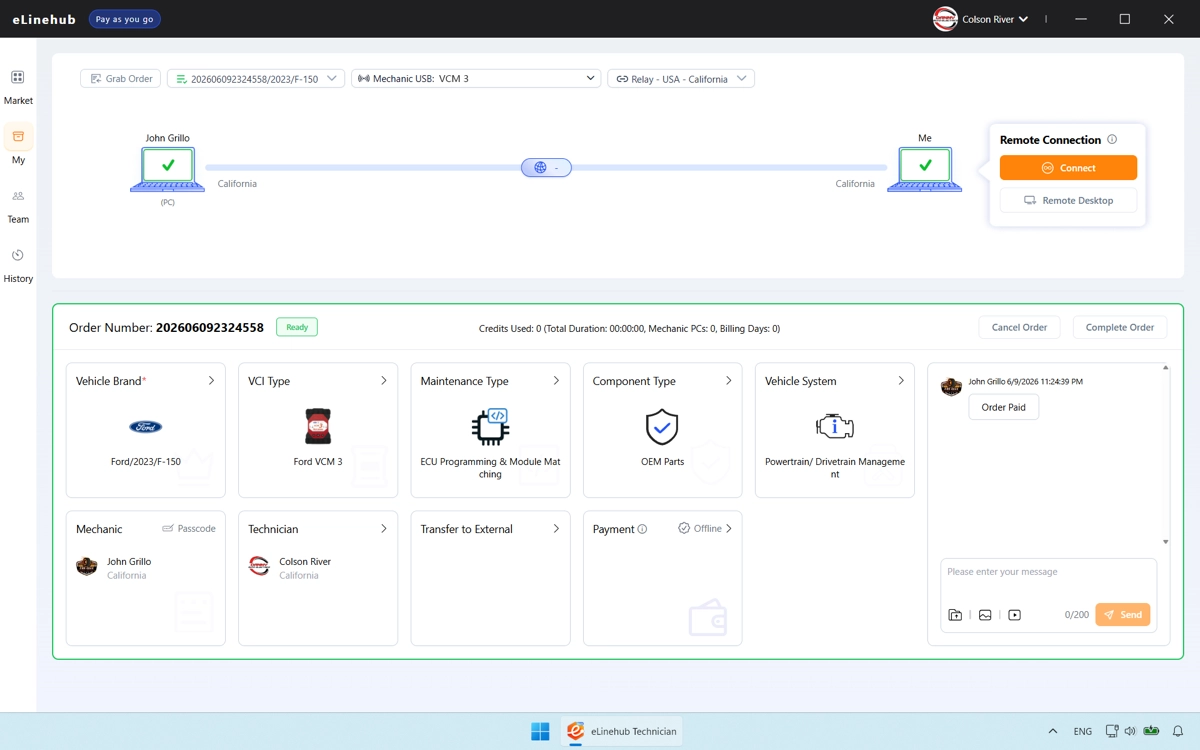
Delegate to External Partners
When a job requires a credential or technical capability your team does not hold, delegate it to an external partner from the same assignment control.
External partners can see the job details and vehicle information needed to complete the session. They cannot see the Mechanic’s name or contact information — the workshop appears to them as your team name and logo only. They have no way to identify or contact the workshop directly.

The session completes through your account. The external partner does the technical work; the client relationship stays with you.
Custom Mechanic Software
Generate a white-label Mechanic client that carries your team logo and name. When workshops install it, every order they create is pre-assigned to your team automatically — no Passcode is required, and the assignment field is locked.
Generate Your Branded App
Go to Profile → Customized Software.

Your team logo and name are pre-filled from your team record. Adjust the app name if needed, then click Save and Generate Customized Mechanic Software.


Distribute to Your Workshops
Download the installer file and share it with your partner workshops — via email, WhatsApp, or any other channel that works for you. The app installs like any standard Windows application.

When eLinehub releases a core update, your custom version updates automatically in the background. Workshops that already have it installed do not need to download a new file or take any action — the update applies silently on next launch.
How Orders Work in Your Custom App
When a workshop creates an order through your custom Mechanic app, your team is pre-assigned as the recipient. That field is locked — the workshop cannot route the job to another Technician on the platform.

No Passcode is required. The workshop submits the job directly, and it arrives in your order queue. As you distribute the app to more workshop partners, each new installation adds a pipeline that routes exclusively to your team. Every new workshop you bring on grows your order volume without adding to your administrative overhead.