Download eLinehub — The Software-Only Remote Diagnostics and ECU Programming Platform

Run ISTA, XENTRY, ODIS, SPS2 and FDRS on your own PC — connected to any workshop’s VCI, anywhere in the world.

Not remote desktopNo hardware relay box
  • No credit card required for trial
  • Mechanic software is free to use
  • Windows 7+ (64-bit) — Windows only
eLinehub Technician
Technician
Remote diagnostic expert
9.12 MB · Windows 7+ (64-bit)
Paid

Connect to any workshop’s VCI over the internet. Your OEM software enumerates it as a locally connected device — same device ID, same protocol timing.

Download ↓

Free welcome Credits · No credit card needed to get started

eLinehub Mechanic
Mechanic
On-site operator
9.14 MB · Windows 7+ (64-bit)
Free

Connect your workshop VCI to the vehicle and share access with your Technician — they handle the remote diagnostics and ECU programming while you stay on-site with the car.

Download ↓

Always free

Setup

First-time Workflow

Follow these steps the first time you set up each side of a session. The Mechanic generates a Passcode; the Technician enters it to claim the order.

TechnicianTechnicianRemote Expert
  1. Install eLinehub Technician Software and sign in.
  2. Accept the incoming order via Passcode provided by the Mechanic.
  3. Select the shared VCI, initiate the connection, then launch your OEM software.
MechanicMechanicOn-site Operator
  1. Connect the VCI to the vehicle OBD port and to the on-site PC.
  2. Install eLinehub Mechanic software and create an order with vehicle details.
  3. Provide the generated Passcode to the Technician.
Software Preview

See eLinehub Before You Download

Key screens from both apps, showing the critical steps from order creation to active session. Click any screenshot to enlarge.

TechnicianTechnician SoftwarePaid

Click any image to enlarge

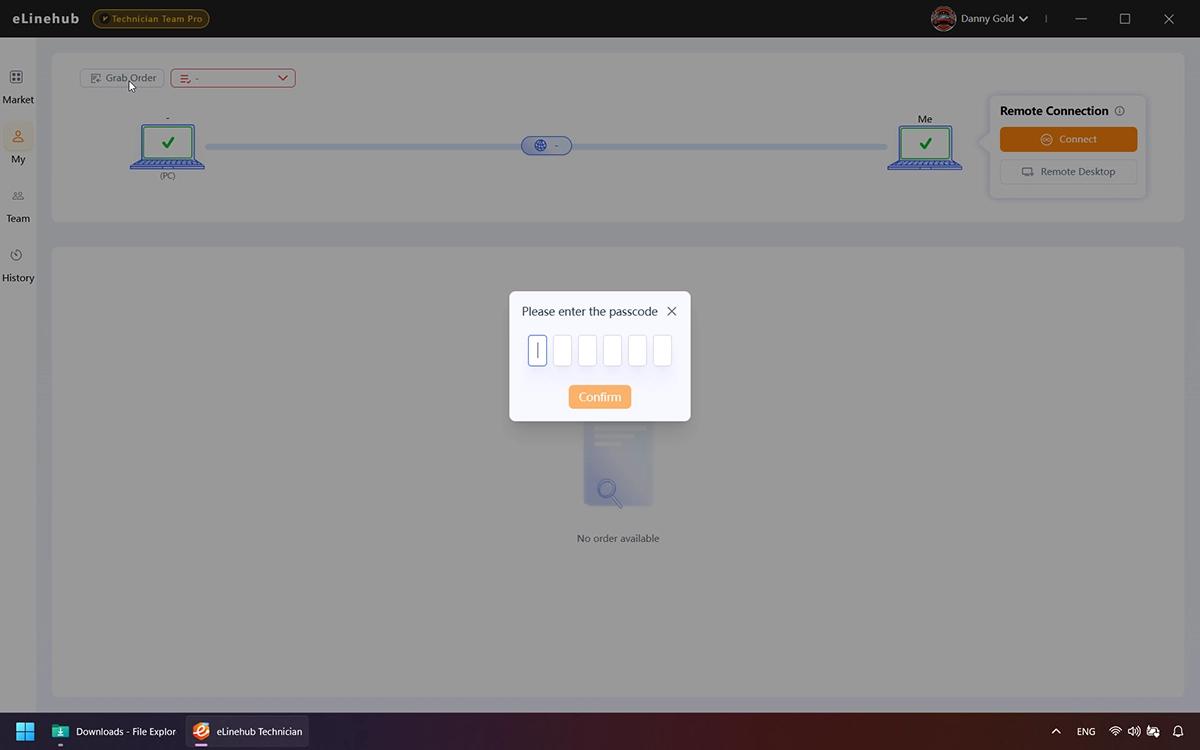
eLinehub Technician — Grab Order screen showing the Passcode entry field for claiming a remote diagnostic session
Grab Order — Enter Passcode
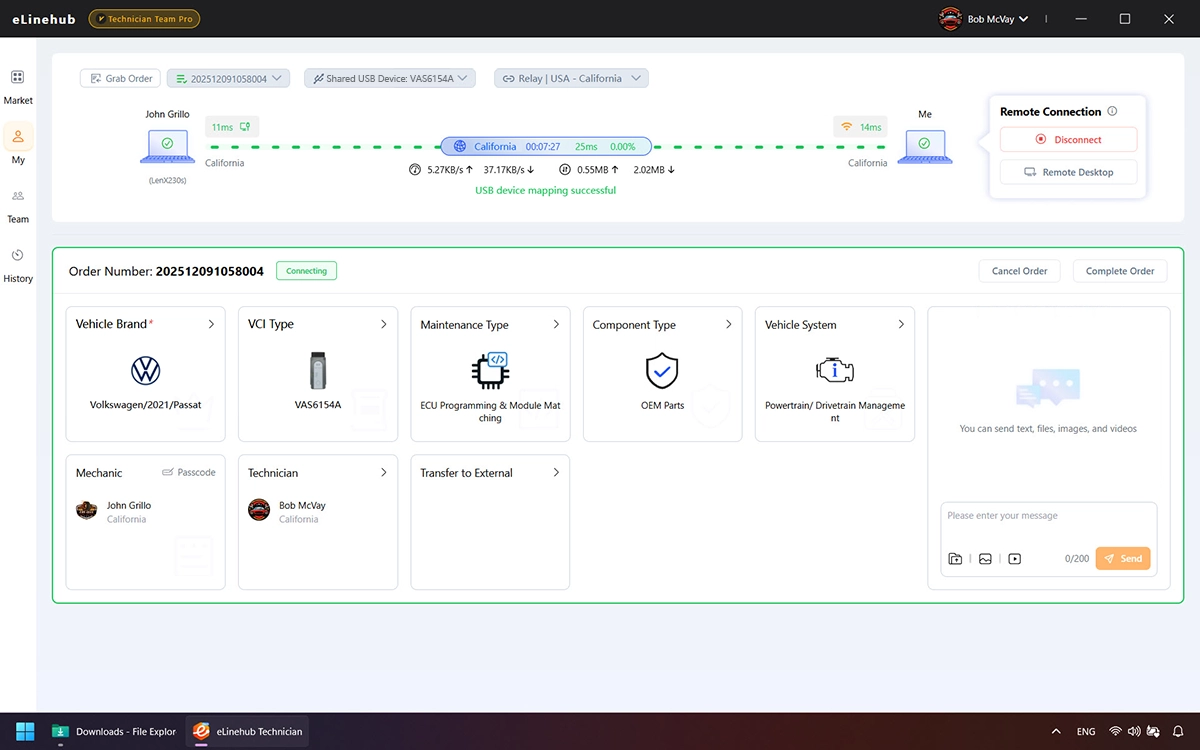
eLinehub Technician — Remote Connection Status panel showing live latency, bandwidth and packet-per-second metrics during an active VCI session
Remote Connection Active
MechanicMechanic SoftwareFree

Click any image to enlarge

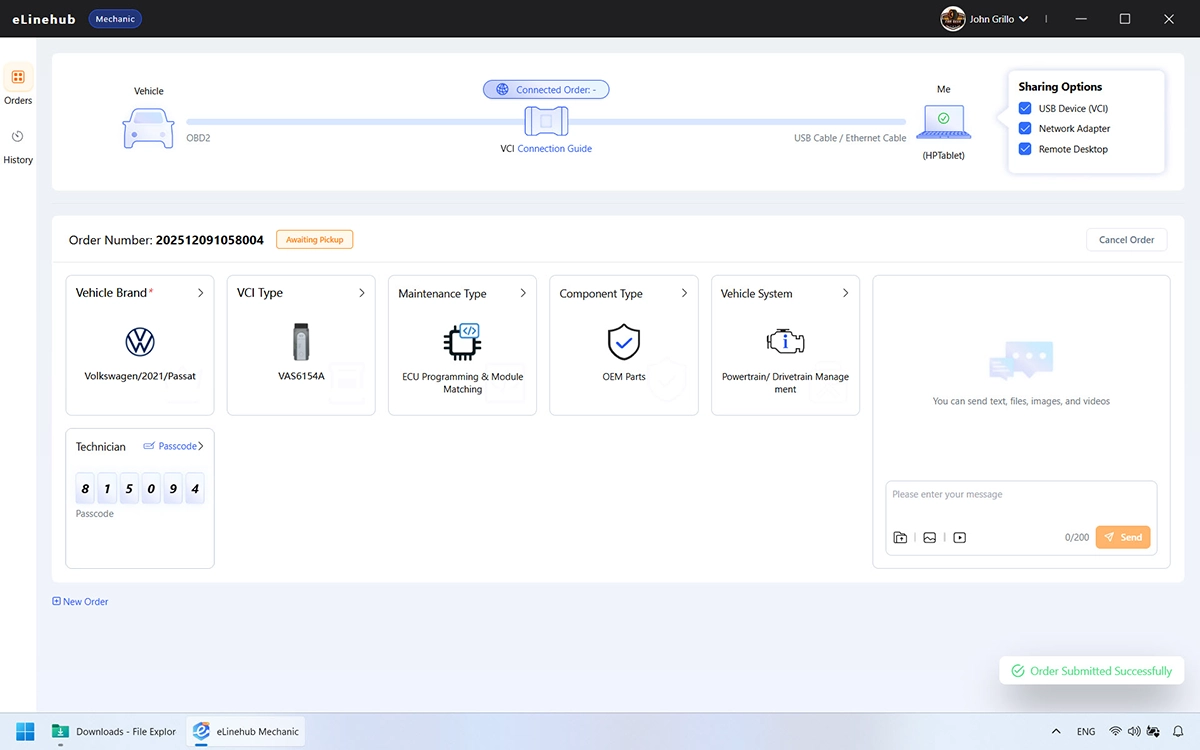
eLinehub Mechanic — Order Created screen showing the Passcode that the Mechanic shares with the remote Technician
Passcode Ready to Share
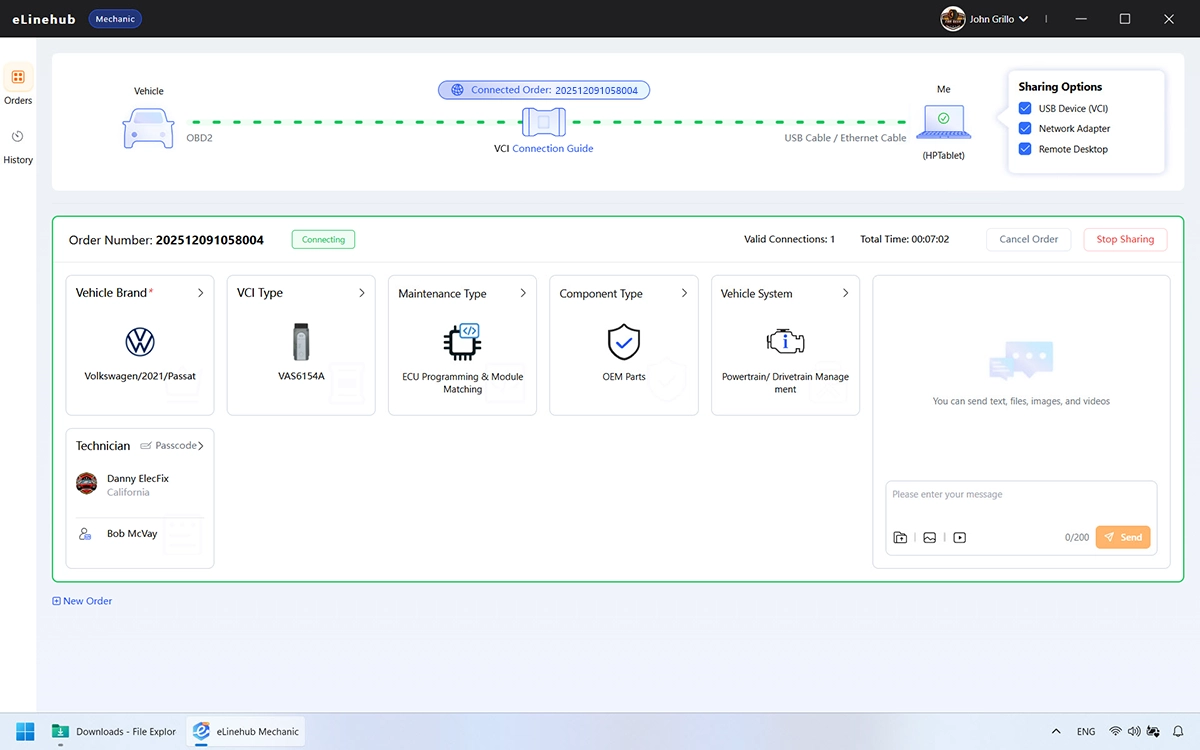
eLinehub Mechanic — Active session view with order card and VCI-to-PC link highlighted in green
Session Active
Compatibility

Supported VCI Adapters

eLinehub supports J2534 PassThru, Ethernet DoIP, and RNDIS USB-Ethernet VCIs. If your VCI connects to a Windows PC and works locally, eLinehub can map it remotely.

VCI / Adapter TypeValidated AdaptersModeDriver on Mechanic PC
USB J2534 PassThruVAS6154A, CarDAQ-Plus 3, VCM3, MDI2 and equivalentsUSBNot required
Ethernet / DoIPBMW ENET, SD Connect C4 / C6, ICOMAdapterNot required
RNDIS USB-EthernetJLR DoIP VCI and adapters presenting as a USB network adapterAdapterUSB if required by diagnostic softwareRequired
Dual-channelBYD, Bosch and compatible multi-mode VCIsUSB + AdapterNot required

Connection Mode Guide

USBMaps a USB device from the Mechanic PC to the Technician PC — the VCI appears as if its USB connector is physically plugged into the Technician’s machine.
AdapterBridges a network adapter from the Mechanic PC to the Technician PC — the VCI interface appears as a virtual network port on the Technician’s machine. The specific port (eLinehub Link, eLinehub vNet, or physical port) depends on the VCI and connection type.
Not sure which type your VCI is? Install the manufacturer driver on the Mechanic PC — it causes no problems if the device does not need it, and prevents the connection from failing if it does.
FAQ

Frequently Asked Questions

Common questions about downloading, installing, and first-time setup.

QIs eLinehub free to download?
A
Yes. Both Technician and Mechanic software are free to download. Mechanic software is free to use with no restrictions. Technician software includes a free trial with Credits for complete ECU programming and coding sessions — no credit card required.
QDoes the workshop PC need XENTRY, ISTA or ODIS installed?
A
No. The workshop only needs eLinehub Mechanic installed and a VCI connected to the vehicle via USB or wired Ethernet. All OEM software, licences and online accounts stay exclusively on the Technician PC.
QWhich VCIs does eLinehub support?
A
All J2534 PassThru devices (VAS6154A, CarDAQ-Plus 3, VCM3, MDI2 and equivalents), Ethernet-based VCIs (BMW ENET, SD Connect C4/C6, JLR DoIP VCI, ICOM), and RNDIS USB-Ethernet adapters. If the VCI has a working driver on Windows and connects locally, eLinehub can map it remotely.
QDo I need to install a VCI driver on the Technician or Mechanic PC?
A
Technician PC: Always install the VCI manufacturer driver — required for all VCI types so OEM software can enumerate the mapped device correctly.

Mechanic PC: Standard USB J2534 devices and ENET cables do not require a driver. RNDIS-based VCIs (such as the JLR DoIP VCI) do require the driver on the Mechanic PC. If unsure, install the driver on the Mechanic PC — it causes no problems if the device does not need it.
QWhat is Build LAN and when should I use it?
A
Build LAN creates a virtual LAN between the Technician and Mechanic sides. For example, if your workshop already uses USB-over-IP sharing software that requires both computers to be on the same local network, Build LAN lets you keep that exact workflow remotely — the Technician’s PC and the Mechanic’s PC appear on the same virtual LAN, so your existing software works exactly as it would if both computers were in the same workshop.
QWhat internet connection does eLinehub require?
A
Technician: 25 Mbps upload and under 80 ms RTT to the workshop. Mechanic: 10 Mbps download. A wired Ethernet connection is strongly recommended on both sides during ECU programming sessions — Wi-Fi typically works for diagnostics but can introduce latency spikes during long coding sessions.
QHow is eLinehub different from remote desktop software like TeamViewer or AnyDesk?
A
Remote desktop software (TeamViewer, AnyDesk, etc.) shares the screen of the Mechanic’s PC over the internet — the Technician controls the Mechanic’s computer remotely. For OEM diagnostic software to run during that session, either the workshop must purchase and install its own OEM licence at additional cost, or the Technician must enter their own OEM credentials on a machine they do not control — exposing their licence and account on a third-party PC. eLinehub works at the device driver level: it maps the VCI hardware interface from the Mechanic PC directly to the Technician PC. The Technician runs their own OEM software on their own machine with their own credentials. The Mechanic’s PC, software and account are never accessed, and no credentials are ever shared.
Release Notes

What’s New

V1.7.4
Latest5 / 14 / 2026
Current release — auto-update will prompt on next launch
  • Significantly faster connections, with up to 5× speed improvement on low-end devices
  • USB plugin installation is now smoother and compatible with existing USB software on your device, with fewer unnecessary restarts
  • Improved USB dongle mapping compatibility, resolving function loss affecting select dongle models
  • New dual-channel VCI support combining USB device mapping and network adapter bridging simultaneously, compatible with BYD, Bosch, and more
  • New Build LAN mode creates a virtual local area network between the Technician and Mechanic, enabling seamless integration with your existing USB sharing software
  • Redesigned subscription experience: plan details are now easier to compare, Custom Mechanic Software is available as a standalone subscription, and flexible monthly and annual billing options are now available
Get Started

Ready to diagnose remotely?

Download your app and run a test session in under five minutes.

↓  Download Technician↓  Download Mechanic