
eLinehub maps VCI hardware from a remote workshop to the Technician's PC. For DoIP and RNDIS-based VCI devices — BMW ENET cables, ICOM Next, Mercedes SD Connect, VAS6154A, JLR DoIP VCI, and similar Ethernet-connected interfaces — the Technician selects Mechanic Network Adapter as the connection device. The software then asks one question: which network adapter on the Technician's PC should the remote adapter be bridged to?
This article explains what each option does, how to choose the right one for your OEM diagnostic software, and how to wire the physical adapter for advanced scenarios. If you are running a VPN — whether to meet an OEM platform requirement or to keep your OEM account's registered region consistent with your current IP — Section 6 explains why eLinehub eliminates the need for VPN in most cases, and what to do when VPN is still necessary.
For step-by-step connection instructions, see the Remote Connection Setup Guide.
Section 1
What Happens When You Select "Mechanic Network Adapter"
When eLinehub is installed, the Technician's PC gains two new virtual network adapters: eLinehub Link and eLinehub vNet. These appear alongside the PC's existing physical network adapters (displayed as Ethernet, Ethernet 2, etc.) in Windows Network Connections.
After the Mechanic shares a network adapter and the Technician accepts the order, the adapter selection menu lists every bridgeable network adapter on the Technician's PC — the two virtual adapters and any physical adapters — all at the same level. You pick one. The remote workshop adapter is then bridged to the adapter you selected.
These adapters fall into three categories:
- eLinehub Link — Recommended. Works with most diagnostic software.
- eLinehub vNet — Advanced. For software that requires binding to a specific local adapter.
- Physical adapters (displayed as Ethernet, Ethernet 2, etc.) — Ultimate. Requires a Ethernet cable. Covers every scenario. If your PC has more than one physical Ethernet port, each appears as a separate entry in the menu.
The menu is not showing you three "modes" — it is listing every bridgeable network adapter on your PC. You pick one.
One rule covers all edge cases: eLinehub Link, eLinehub vNet, and the physical Ethernet adapter form a superset chain — Physical ⊃ vNet ⊃ Link. Every scenario that eLinehub Link handles, eLinehub vNet also handles. Every scenario that eLinehub vNet handles, the physical adapter also handles. Start from the simplest option. If it does not work, move up one level. You will always land on a working configuration.
Section 2
Three Categories of Adapters — What Each Does and When You Need It
eLinehub Link (Recommended)
Created automatically when eLinehub is installed. No additional cables, no second computer, no manual network configuration beyond what your diagnostic software already requires.
eLinehub Link is a Layer 2 virtual Ethernet adapter. It transmits full Ethernet frames between the remote workshop adapter and the Technician's PC. BMW ISTA, Mercedes-Benz XENTRY, VW/Audi ODIS, JLR Pathfinder and TOPIx Cloud, Ford FDRS, and the majority of DoIP diagnostic platforms discover the VCI through eLinehub Link using the same auto-discovery or static IP behavior they use with a locally connected device.
This is the correct starting point for any new setup. Network adapter bridging always uses Relay mode — P2P (Direct) mode is available only for USB device mapping.
eLinehub vNet (Advanced)
Also created automatically during installation. Same as eLinehub Link: no additional cables, no second computer.
eLinehub vNet is a separate Layer 2 virtual Ethernet adapter with driver-level behavior closer to a standard physical network adapter. A small number of diagnostic platforms — including certain Chinese EV brands increasingly serviced in export markets — perform strict adapter identity checks that eLinehub Link does not pass. These platforms require eLinehub vNet.
If your diagnostic software discovers the VCI through eLinehub Link, eLinehub vNet offers no additional benefit. Switch to eLinehub vNet only when eLinehub Link fails to work with your specific software.
Physical Adapter / Ethernet (Ultimate)
The physical network adapter already built into your PC — the port that Windows displays as Ethernet or Ethernet 2 in Network Connections. Using this option requires a Ethernet cable connecting the port to either a second computer or a USB-to-Ethernet adapter on the same machine.
Physical adapter bridging covers every scenario — but it also requires the most setup. Use it when one of these conditions applies:
- Your diagnostic software rejects all virtual adapters and verifies that the network interface is real physical hardware.
- The diagnostic PC cannot install eLinehub — it runs Android, a locked-down proprietary OS, or a sealed OEM diagnostic terminal.
- You need complete network stack isolation from a VPN client running on the diagnostic PC (covered in Section 6).
Why Not Start with Physical?
The physical Ethernet adapter covers everything, but it requires extra hardware: a Ethernet cable and possibly a second computer. eLinehub Link covers the vast majority of diagnostic workflows with zero additional hardware and zero additional configuration beyond what your OEM software already requires. The Recommended → Advanced → Ultimate progression is designed so that most users never leave eLinehub Link.
IP Configuration Is Not Related to Adapter Selection
Whether you need to manually configure an IP address on the bridged adapter depends on your diagnostic software — not on which adapter you choose.
Mercedes-Benz XENTRY requires a static IP (typically 172.29.x.x) on the adapter that communicates with the SD Connect. This is true whether that adapter is eLinehub Link, eLinehub vNet, or a physical Ethernet port. BMW ISTA auto-discovers the ICOM or ENET cable through DoIP broadcast and requires no manual IP configuration — also true regardless of adapter type.
The adapter selection determines which virtual or physical interface receives the bridged traffic. The IP configuration on that interface is a separate step dictated by the OEM software, and it follows the same rules as a local connection.
Section 3
How to Choose: Two Questions and a Brand Lookup
Two questions you can answer immediately narrow the decision. A brand lookup table handles the rest.
Question 1: Will a VPN client be running on the Technician's PC during this session?
This includes any VPN scenario — an OEM platform that requires VPN, a VPN you use to keep your OEM account's IP region consistent with your current location, or an enterprise VPN that your network requires. If a VPN client will be active during the diagnostic session, skip to the "VPN client active" rows in the table below.
Most OEM online programming platforms — BMW AOS, Mercedes Online, JLR TOPIx Cloud, Porsche PPN — connect to their backend over standard HTTPS and do not require a VPN. If no VPN client will be running, move to Question 2.
Question 2: Can the diagnostic PC install eLinehub?
If the diagnostic device runs Android, a proprietary OS, or is a sealed terminal that cannot install Windows software, the only option is a physical adapter with a dual-machine setup. Otherwise, proceed to the brand lookup.
Decision Table
| Your scenario | Bridge to | Cable needed? | Verified brands / software |
|---|---|---|---|
| No VPN + can install eLinehub | eLinehub Link (Recommended) | No | BMW ISTA, Mercedes XENTRY, VW/Audi ODIS, JLR Pathfinder/TOPIx, Ford FDRS |
| Same, but software requires a specific local adapter | eLinehub vNet (Advanced) | No | Diagnostic platforms with strict adapter identity checks (certain Chinese EV brands serviced in export markets) |
| Same, but software requires real physical hardware | Physical Ethernet (USB loopback) | Yes | Diagnostic platforms with hardware verification (certain Chinese EV brands serviced in export markets) |
| No VPN + cannot install eLinehub on diagnostic device | Physical Ethernet (dual-machine + cable) | Yes | Tesla Toolbox (Android), Porsche PiWIS (sealed hardware) |
| VPN client active — OEM requirement, region compliance, or enterprise network | Physical Ethernet (dual-machine + cable, recommended) | Yes | Any workflow where a VPN client runs alongside OEM software |
If your brand or software is not listed: start with eLinehub Link. It is verified on every brand in the table and works with the majority of DoIP diagnostic platforms not listed here. If your software cannot discover the VCI through eLinehub Link, move to eLinehub vNet. If eLinehub vNet also fails, move to physical. Each step up covers more scenarios — you are narrowing toward a known-good configuration, not guessing.
Section 4
Physical Adapter: Two Ways to Wire the Cable
This section applies only if you selected a physical adapter in the decision table. If eLinehub Link or eLinehub vNet works for your setup, skip ahead.
After eLinehub bridges the remote workshop adapter to a physical Ethernet port on the Technician's PC, the data exits through that port. Where the cable connects determines which wiring method you are using.
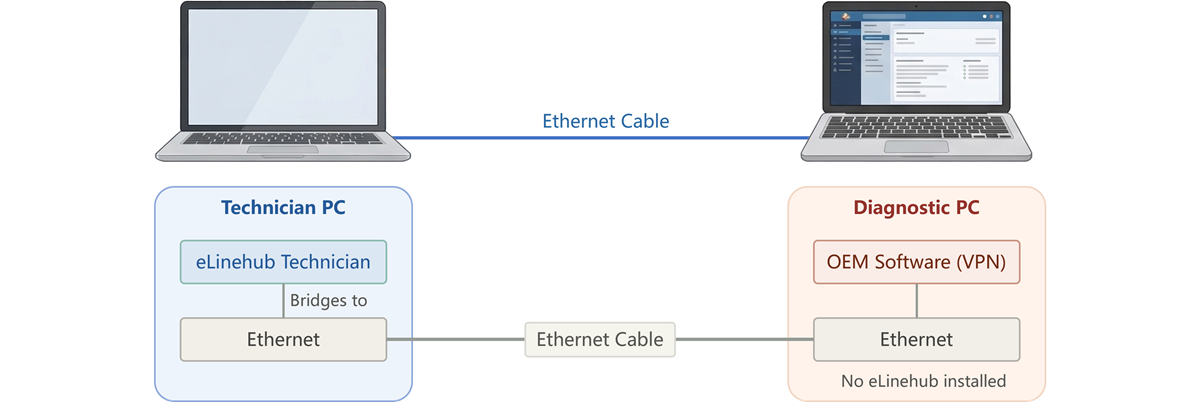
4.1 Dual-Machine + Cable (Recommended)
The relay machine runs eLinehub and bridges to one of its physical Ethernet ports. A Ethernet cable connects that port directly to the diagnostic machine. The diagnostic machine runs OEM software (and VPN if needed) with zero eLinehub components installed — its entire network stack is clean.
This is the most stable configuration and the only recommended path when VPN isolation is required.
Relay machine: eLinehub Technician software installed. Bridges the remote workshop adapter to the relay machine's physical Ethernet port.
Diagnostic machine: OEM diagnostic software, VPN client (if needed). No eLinehub installed. Connects to the relay machine's Ethernet port via a standard Ethernet cable.
4.2 Single-Machine USB-to-Ethernet Loopback
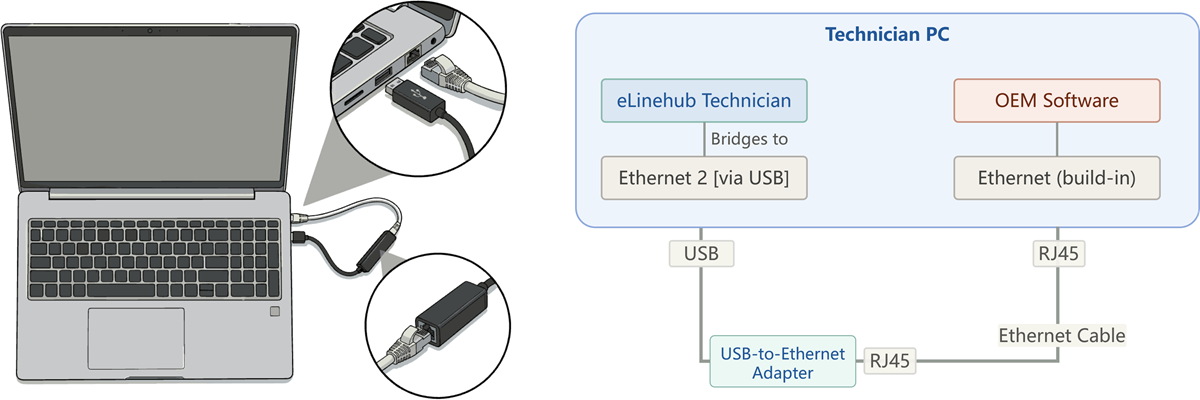
eLinehub bridges to a USB-to-Ethernet adapter — a real physical device that satisfies hardware verification checks. A short Ethernet cable loops from the USB adapter back to the PC's built-in Ethernet port. The diagnostic software binds to the built-in Ethernet port and sees a physical Ethernet connection.
This method works when the diagnostic software requires a real physical adapter but no VPN isolation is needed. It has been verified in production diagnostic workflows. Because both eLinehub and the diagnostic software run on the same machine, there is no network stack isolation — a VPN client on this machine would still conflict with eLinehub's virtual adapters.
Comparison
| Dual-machine + cable | USB loopback | |
|---|---|---|
| Physical cable | Yes | Yes (loopback) |
| VPN isolation | Full stack isolation | No (same machine) |
| Machines | 2 | 1 |
| Best for | VPN scenarios, sealed devices | Hardware verification without VPN |
Section 5
Why Different Software Needs Different Adapters
The decision table tells you which adapter to use. This section explains why.
Think of the diagnostic software as a recipient accepting a delivery, and the network adapter as the person or company delivering the package. Different recipients verify the deliverer to different standards:
"Anyone can deliver." A neighbor drops it off, a kid runs it over from next door, someone from the building lobby hands it to you — the recipient does not check who brought it. As long as the package arrives at the right address, it is accepted. Most diagnostic software works this way: it sends data to an IP address, receives a response, and does not inspect the network adapter that carried the traffic. → eLinehub Link works.
"Only a registered courier with a badge." The recipient checks the deliverer's employee badge. A neighbor or a random person showing up with the package gets turned away — only a recognized courier from a registered delivery company is accepted. Some diagnostic software checks the network adapter's identity: its driver type, its interface characteristics, or its presence in a specific adapter enumeration. → eLinehub vNet is needed — its driver behavior is closer to a standard physical adapter and passes stricter identity checks.
"The courier company must have a local warehouse." The recipient requires the delivery company to have a real physical depot in the area — not just employees, but verifiable physical infrastructure. A company that delivers reliably but operates entirely online, with no local warehouse, gets rejected. A small number of diagnostic platforms verify that the network interface is real physical hardware and reject all virtual adapters. → Physical Ethernet adapter is the only option.
How DoIP Vehicle Discovery Works — and Why Most Software Accepts Any Adapter
DoIP (Diagnostics over Internet Protocol, ISO 13400) is the Ethernet-native diagnostic protocol used by modern vehicles from BMW, Mercedes-Benz, VW/Audi, JLR, Volvo, and an expanding list of manufacturers. Understanding its discovery flow explains why eLinehub Link works for the majority of DoIP platforms.
When the diagnostic software starts a session, it sends a UDP Vehicle Identification Request to port 13400 — either as a broadcast to all devices on the subnet, or as a unicast to a known IP address. The VCI or vehicle gateway responds with a UDP Vehicle Identification Response containing its VIN, logical address, and connection status. The diagnostic software then opens a TCP connection to the VCI's IP address for the actual diagnostic session.
Every step in this sequence operates at the IP and transport layer: UDP datagrams for discovery, TCP streams for diagnostics. The software does not inspect the underlying network adapter — it works through standard socket APIs. As long as the adapter can route UDP and TCP traffic to the VCI's IP address, the session succeeds. This is why eLinehub Link — a Layer 2 virtual Ethernet adapter capable of carrying any IP traffic — covers the vast majority of DoIP diagnostic platforms.
The exceptions are platforms that go below the IP layer: software that binds to a specific adapter by name, queries its driver identity, or verifies hardware backing before opening any socket. These checks happen before the DoIP session starts, and they are the reason eLinehub vNet or a physical adapter is sometimes required.
RNDIS and Proprietary USB-to-Ethernet Drivers
Some VCI devices connect to the PC via USB but appear in Windows Device Manager under Network adapters rather than under USB controllers. This happens through RNDIS (Remote Network Driver Interface Specification — a Microsoft protocol that allows USB hardware to present as a virtual Ethernet adapter) or through a manufacturer's proprietary driver that produces the same result. In either case, the diagnostic software communicates with the VCI through its network adapter interface, not its USB interface. When eLinehub bridges a "Mechanic Network Adapter," the remote adapter may be a physical Ethernet port or one of these USB-generated virtual adapters — the three-category decision table applies to both.
What Makes the Difference at the Driver Level
eLinehub Link and eLinehub vNet are both Layer 2 virtual Ethernet adapters. Both transmit full Ethernet frames — including ARP, UDP broadcast (used by DoIP vehicle discovery on port 13400), and TCP sessions. The protocol-level capability is the same.
The difference is at the driver level. eLinehub Link and eLinehub vNet use different driver implementations. Most diagnostic software interacts with the network adapter through standard Windows networking APIs and does not distinguish between them. But a small number of platforms go deeper: they query the adapter's driver identity, check whether it supports promiscuous mode (the ability to receive Ethernet frames addressed to other MAC addresses), or verify that the adapter is backed by real hardware. These checks are where eLinehub Link and eLinehub vNet diverge — and where physical adapters stand alone.
Promiscuous mode, in one sentence: it allows a network adapter to receive all Ethernet frames on the network segment, not just frames addressed to its own MAC address. Physical adapters and certain virtual adapters (including eLinehub vNet) support it. Other virtual adapters may not — and diagnostic software or OS bridging features that rely on promiscuous mode will not work without it.
As covered in Section 2: IP address configuration is a separate concern. Whether your OEM software requires a static IP, a DHCP-assigned IP, or no configuration at all depends on the software's own network discovery logic — not on which adapter you bridge to.
Section 6
VPN Conflicts, IP Region Mismatch, and OEM Account Blocks — When You Need Physical Isolation
OEM diagnostic backends — Mercedes Online, BMW AOS, JLR TOPIx Cloud, and others — track the IP address of every session. When the IP does not match the account's registered region, the backend may flag the session and block the account. Independent technicians who service workshops across borders, or who previously relied on remote desktop as their remote diagnostic method (which exposes the workshop's IP to the OEM backend instead of the Technician's own IP), encounter this problem regularly. The common workaround is a VPN — but VPN clients create their own virtual network adapters, and those adapters can conflict with the bridging session.
This section covers two distinct problems that can interrupt a remote diagnostic session. They look similar from the outside, but the causes and solutions are different.
Problem A: VCI gateway overrides your internet route. When the connected VCI or vehicle exposes a network gateway, it can replace the Technician's default internet route. The diagnostic connection stays active, but the Technician's browser and other internet-dependent applications stop working. This is solved by the Switch button in the eLinehub system panel — toggle between diagnostic priority and internet access mode. The Remote Connection Setup Guide covers this in detail.
Problem B: A VPN client on the Technician's PC conflicts with eLinehub's virtual adapters. A VPN client creates its own virtual network adapter and modifies the system's routing table. This can interfere with eLinehub Link and eLinehub vNet — packets that should flow through the bridged adapter get routed through the VPN instead, breaking DoIP timing or causing the OEM software to lose the VCI connection. This is what the physical adapter with dual-machine setup (Section 4.1) solves: the diagnostic machine has no eLinehub components, so there is nothing for the VPN to conflict with.
These two problems can occur simultaneously. Physical adapter bridging solves Problem B. The Switch button still applies to Problem A.
Most OEM Online Programming Does Not Require a VPN
BMW AOS, Mercedes Online (SCN coding), JLR TOPIx Cloud, and Porsche PPN all connect to their backend servers over standard HTTPS. They do not install a VPN client and do not create additional virtual network adapters. For these platforms, eLinehub Link is the correct starting point for online programming workflows.
Why Technicians Run VPN — and When eLinehub Removes the Need
Technicians who run a VPN alongside OEM diagnostic software are rarely doing so because the OEM platform requires it. The most common reason is different: OEM backends check the Technician's IP address against the account's registered region. When the IP does not match — because the Technician is operating from a different country, or because a remote desktop session exposed the workshop's IP instead of the Technician's — the backend flags the account for suspicious activity and may block access.
VPN solves this by making the Technician's IP appear to originate from the account's registered country. But VPN clients create their own virtual network adapters, and those adapters conflict with eLinehub's virtual adapters during active bridging sessions.
eLinehub eliminates the most common trigger for this problem. Because OEM diagnostic software runs on the Technician's own PC — not on the workshop's PC via remote desktop — the OEM backend sees the Technician's own IP address. If the Technician's internet connection is in the same country as their account registration, the IP matches. No VPN needed.
This applies to all eLinehub connection types — network adapter bridging and USB device mapping both keep the OEM software on the Technician's own PC and preserve the Technician's own IP source.
When VPN Is Still Necessary
Two scenarios remain where a VPN is needed alongside eLinehub:
The Technician is physically in a different country from their account registration. A Technician with a German OEM account working from the Middle East will still present a non-German IP to the OEM backend, even with eLinehub. VPN to the registered country resolves the IP mismatch.
The OEM platform itself requires a VPN connection. Some OEM diagnostic platforms — particularly certain newer automotive brands — require the diagnostic software to connect to their backend through a VPN client as part of their technical architecture. This is not a workaround but an OEM requirement.
In both cases, the VPN client’s virtual adapters and routing changes can interfere with eLinehub’s bridging session on the same machine. For VPN isolation methods — including dual-machine setups and single-machine coexistence guidance for both USB and network adapter VCI types — see Remote OEM Online Programming.