
Remote OEM Online Programming Without Regional IP Lockout
When OEM diagnostic software connects to its backend — Mercedes Online, BMW AOS, TIS2Web, VW Online, TOPIx — the server logs the session IP. If that IP does not match the account’s registered region, the account gets blocked. This page explains why it happens, which operations trigger it, and how eLinehub prevents it.
- ✓Run XENTRY SCN, SPS2 flash, ODIS GeKo, or BMW AOS from your own desk — the workshop provides the VCI and the vehicle
- ✓Your OEM login stays on your PC. The workshop never sees your credentials or your diagnostic steps.
- ✓Serving workshops in other countries? Section 4 covers VPN setups for cross-border scenarios.
You bring OEM software and accounts. The workshop connects the VCI. eLinehub provides the bridge. · By eLinehub ·
Why OEM Accounts Get Blocked During Remote Programming
OEM backend servers — Mercedes Online, BMW AOS, GM TIS2Web, JLR TOPIx Cloud — log the IP address of every online session. When the session IP does not match the account’s registered region, the server flags the account for suspicious activity. The account gets blocked. Resolution takes weeks to over a month through the OEM helpdesk — and during that time, the tool cannot be used for any online operation.
This is not a rare edge case. On Diagnostic Network alone, multiple shops have reported their XENTRY accounts blocked after the account appeared on an IP outside the registered region — some after paying over $30,000 for the Xentry Kit. One technician described being locked out twice in 18 months, each time waiting over 30 days for reinstatement. Another reported sending over 10 emails with no response while vehicles sat unfinished.
The core variable is not where the Technician is physically located — OEM backends cannot verify that. The variable is where the machine running the OEM software is connected to the internet. That machine’s IP is what the backend logs. Two common remote programming setups both get this wrong.
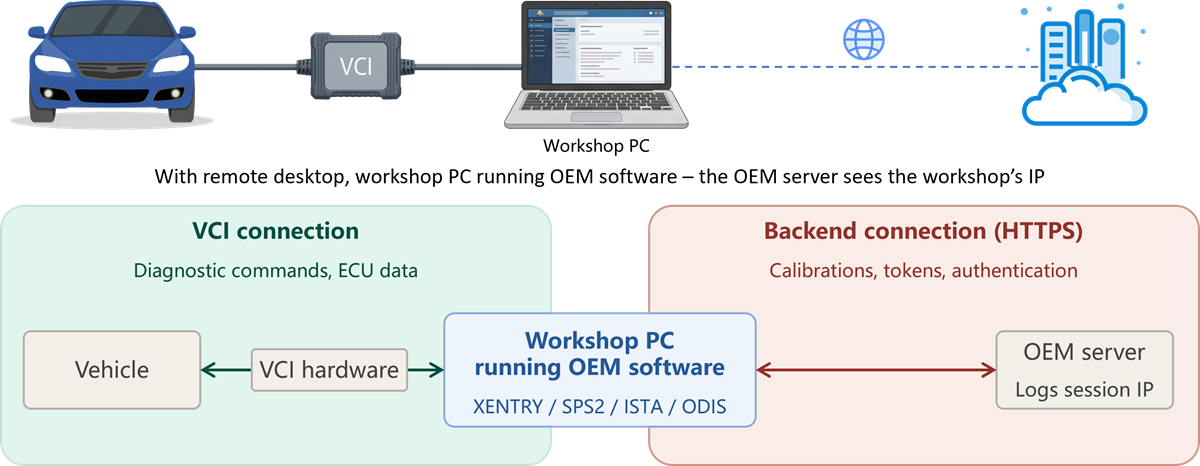
Situation A: Remote desktop without VPN — the workshop’s IP reaches the backend.
A Technician uses TeamViewer or AnyDesk to control a workshop PC in another region. The OEM software runs on the workshop PC, so the backend sees the workshop’s IP. If the workshop is in a different region from the account registration, the backend sees a mismatch and the account is flagged.
One forum member summarized the risk: finding someone to do SCN coding remotely via screen sharing is “next to impossible as it will more than likely result in their Daimler login credentials becoming locked due to detected unauthorized use.”
This setup exposes three things: the workshop’s IP to the OEM backend (triggering the block), the Technician’s OEM credentials on a machine the Technician cannot audit, and every diagnostic step visible on the workshop’s local monitor.
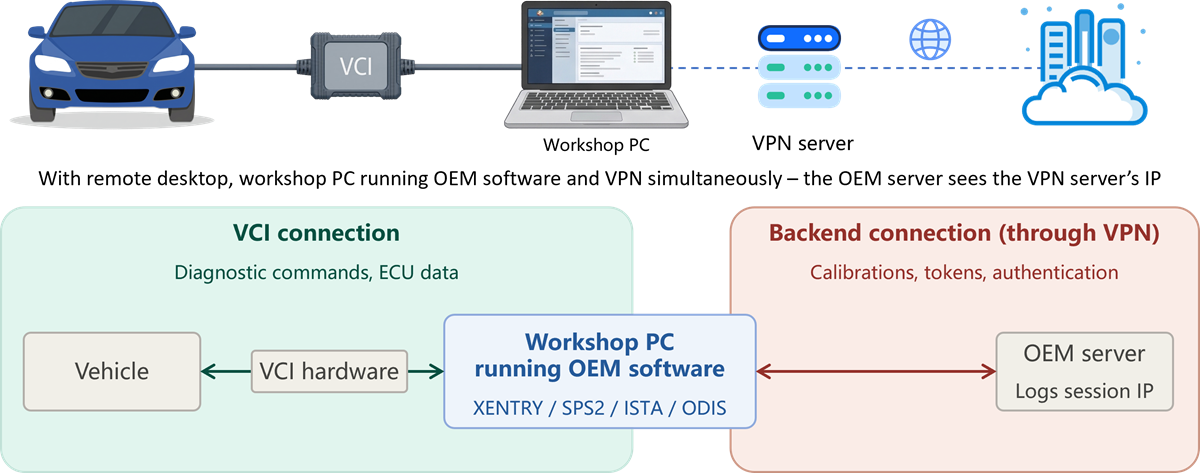
Situation B: Remote desktop with VPN — a disguised IP that can still be detected.
To avoid the IP mismatch in Situation A, some technicians add a VPN on the workshop PC to make its IP appear in the account’s registered region. This addresses the IP symptom but does not fix the underlying problem.
OEM manufacturers continuously refine their detection. Mercedes Online checks the consistency of hardware ID, account ID, IP region, and institution ID — a VPN changes the IP but not the other fingerprints. A session originating from a VPN exit node in Germany, running on a machine with a Turkish hardware ID and no associated workshop institution, is a detectable anomaly. The VPN may work today and fail after the next backend update. Each failure risks another multi-week account block.
What each setup exposes
The fundamental issue is not which IP the backend sees — it is which machine runs the OEM software. As long as the OEM software runs on the workshop’s PC, the IP is either wrong (Situation A) or disguised (Situation B), and credentials and diagnostic steps are always exposed on a machine outside the Technician’s control.
The next question is: which of your daily operations actually trigger this backend connection? Not all of them do.
Which OEM Operations Require Online Connectivity
If you work with any of the platforms below, every online operation in the left column is a session where IP compliance matters.
GM’s TIS2Web deserves a specific note: it applies regional restrictions at the account level. Technicians outside the US and Canada report that SPS2 programming is inaccessible without a US-region IP — the platform does not load or returns an error before the programming session can begin.
During an online programming session, two things happen simultaneously on the machine running the OEM software. The software talks to the VCI connected to the vehicle — sending diagnostic commands and receiving ECU data. At the same time, it talks to the OEM backend server over HTTPS — downloading calibration files, exchanging tokens, authenticating the session. These two connections are independent of each other.
The IP address the OEM backend logs comes from the second connection — the HTTPS link to the OEM server. That connection uses whichever internet connection the machine has. The question is: which machine runs the OEM software?
Some operations fall between online and offline. GM’s GDS2 requires a Techline Connect login to launch, but diagnostic functions then run locally. SPS2 is different — it downloads from TIS2Web throughout the flash, making it fully online. Mercedes XENTRY allows offline fault reading but requires Mercedes Online for any write operation — SCN coding, online programming, and SFD unlock all open the backend connection. Ford FDRS supports limited offline road testing but needs an active server connection for module programming.
How eLinehub Solves This
Will XENTRY discover the SD Connect as if it were plugged into your own bench? Yes. Will SPS2 download calibrations from TIS2Web and write them through the MDI 2 in the same session? Yes. Will ISTA find the ICOM through DoIP broadcast? Yes. Will Mercedes Online, BMW AOS, and TIS2Web see your IP — not the workshop’s? Yes.
Here is why. eLinehub maps the VCI from the remote workshop to your PC over the internet. The workshop connects the VCI to the vehicle and runs eLinehub Mechanic — a lightweight sharing client. You accept the order, and the VCI appears on your PC as a locally connected device: a USB device in Device Manager for USB VCI, or a network adapter in Network Connections for DoIP/ENET VCI. Your OEM software runs on your machine — not on the workshop’s through a screen share — and every discovery mechanism works because the VCI is present on your own PC at the operating system level.
Because your OEM software runs on your machine, the HTTPS connection to Mercedes Online, TIS2Web, BMW AOS, or VW Online also originates from your machine — using your internet connection, presenting your IP address. The OEM backend sees exactly what it would see during a local bench session. eLinehub handles the VCI connection to the remote workshop. It does not touch, proxy, or modify the connection between your OEM software and the OEM server.
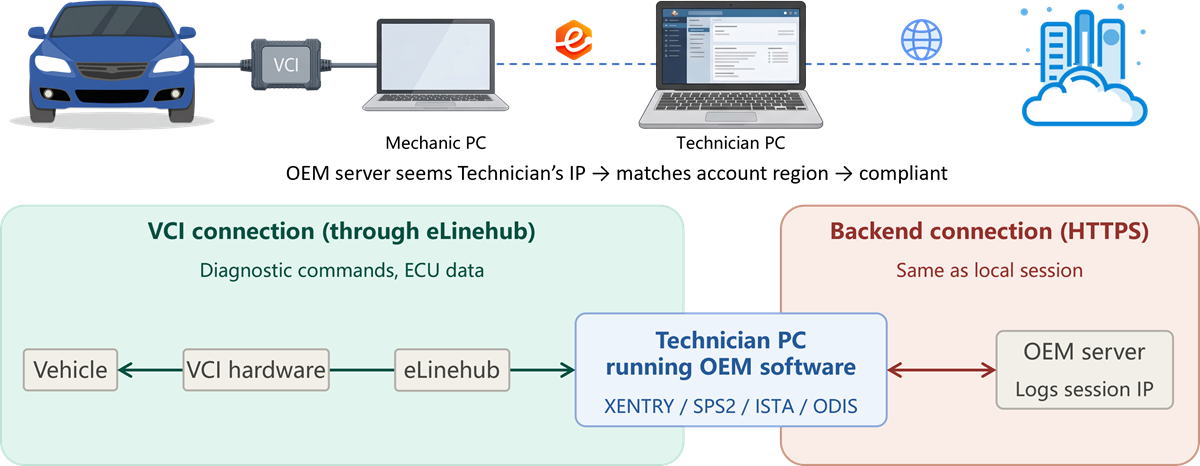
For most technicians — working from the same country where their OEM account is registered — this is the entire solution. Your IP naturally matches the registration region. No VPN. No proxy. No risk of triggering a geographic compliance flag. A Technician in Germany with a German XENTRY account, serving a workshop in Turkey, presents a German IP to Mercedes Online — exactly what the backend expects.
This works for both VCI types: USB mapping (MDI 2, VCM3, VI3, MicroPod II, HAC, VOE adapter) and network adapter bridging (ENET cable, ICOM Next, SD Connect, VAS6154A, JLR DoIP VCI). The choice depends on the VCI hardware, not on whether the operation goes online.
Your credentials stay on your machine too. The workshop runs only eLinehub Mechanic — a VCI sharing client with no OEM login screens, no diagnostic interfaces, and no credential storage. Your XENTRY login, FDOK PIN, TIS2Web password, and NASTF PATS credentials never leave your own hardware. And because the OEM software interface runs on your screen — not on the workshop’s monitor — your diagnostic steps, coding parameters, and calibration values are not visible at the workshop.
A US-registered mobile programming specialist with 20+ years of hands-on shop experience transitioned to offering remote ECU programming services. His workshops are spread across North America, the Caribbean, and other regions. For six months, every remote desktop session exposed the workshop’s IP to OEM backends — GM, Volvo, and BMW all flagged his US-registered accounts for IP mismatches originating from workshop locations outside the US. Repeated account reviews and temporary suspensions interrupted his business.
After switching to eLinehub, the VCI at each workshop maps directly to his PC in the US. His OEM software runs on his own machine, the backends see his US IP on every session, and the accounts have been clean since. No VPN, no special infrastructure, no workarounds — the standard eLinehub architecture resolved what six months of fighting regional blocks could not.
Start your first remote online programming session
Free trial starts automatically — no credit card required.
For step-by-step connection setup, see the Remote Connection Setup Guide.
Cross-Border Scenarios: Adding VPN to eLinehub
Section 3 covers the majority of remote programming scenarios — the Technician and the OEM account are in the same country, workshops are anywhere. Two scenarios still require a VPN alongside eLinehub.
The Technician is physically in a different country from their account registration. A Technician with a US-registered OEM account working from abroad will present a non-US IP to the OEM backend, even with eLinehub. The IP mismatch is real — it comes from the Technician’s own internet connection. A VPN to the registered country resolves it.
The OEM platform itself requires a VPN connection. Some OEM diagnostic platforms require the diagnostic software to connect through a VPN client as part of their technical architecture. This is an OEM requirement, not a workaround.
In both cases, the core problem is the same: a VPN client creates its own virtual network adapters and modifies routing tables. When those run alongside eLinehub’s virtual adapters on the same operating system, packets can be misrouted — breaking the VCI connection, the OEM backend session, or both. The solutions below keep VPN and eLinehub on separate network stacks.
4.1 USB VCI + VPN
For MDI 2, VCM3, VI3, MicroPod II, HAC, VOE adapter, and other USB VCI devices.
USB mapping creates a virtual USB Hub on the Technician’s PC at the driver level. The mapped VCI exists only within that PC’s operating system — it cannot be forwarded through a physical cable or USB connection to a second computer. A physical dual-machine setup is not available for USB VCI devices. Two options remain.
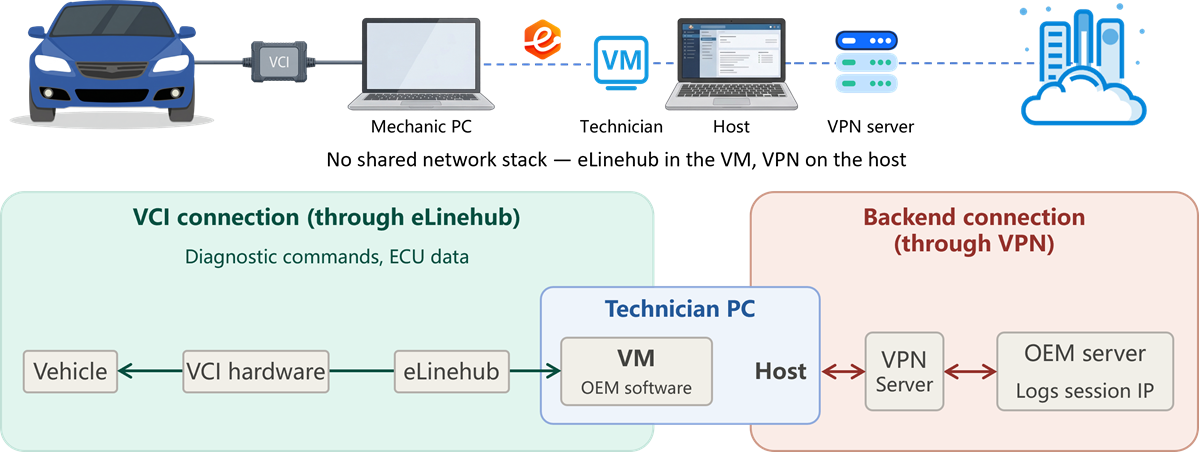
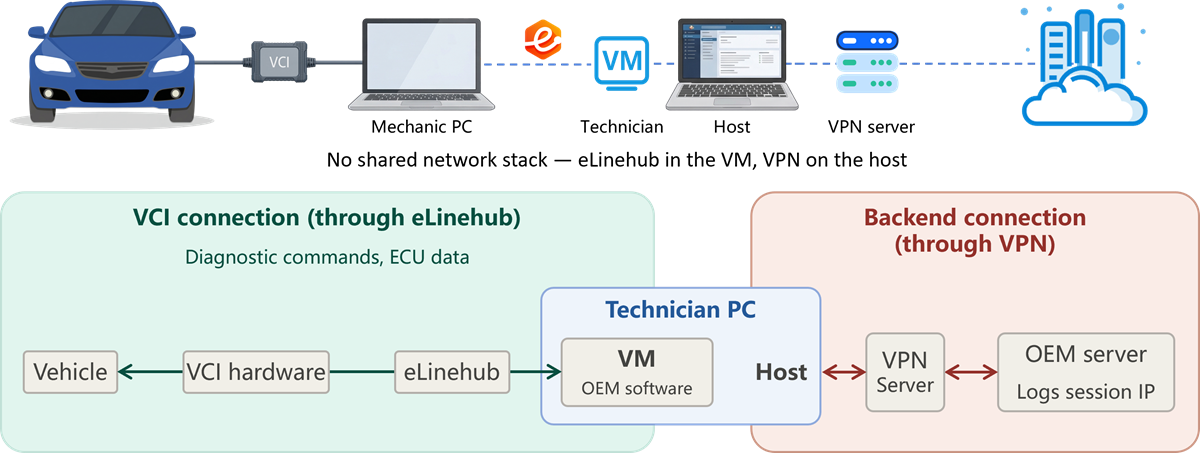
Virtual machine — eLinehub and OEM software in the VM, VPN on the host.
A Windows VM runs both eLinehub Technician software and the OEM diagnostic software. The VM’s network is set to NAT mode through the host OS. The host runs the VPN client — all VM traffic, including the OEM backend connection, exits through the host’s VPN and presents the registered-region IP to the OEM server. Inside the VM, eLinehub creates the virtual USB Hub and the OEM software discovers the VCI as a local USB device. The VPN’s virtual adapters exist only on the host and never interact with eLinehub’s adapters inside the VM.
This approach is functionally sound — the isolation between host and guest network stacks is standard VM behavior. VM performance varies by hypervisor and host hardware — confirm that your OEM software runs correctly in the VM environment before scheduling a production flash session.
Single-machine coexistence — eLinehub, OEM software, and VPN on the same PC.
eLinehub and VPN share the same Windows PC. The VPN handles the OEM backend connection while eLinehub handles the VCI mapping. This has been verified in testing, but different VPN clients and configuration modes may produce different results. If the VPN disrupts the eLinehub connection, Option A provides full isolation.
4.2 Network Adapter VCI + VPN
For ENET cables, ICOM Next, SD Connect, VAS6154A, JLR DoIP VCI, and other network adapter VCI devices.
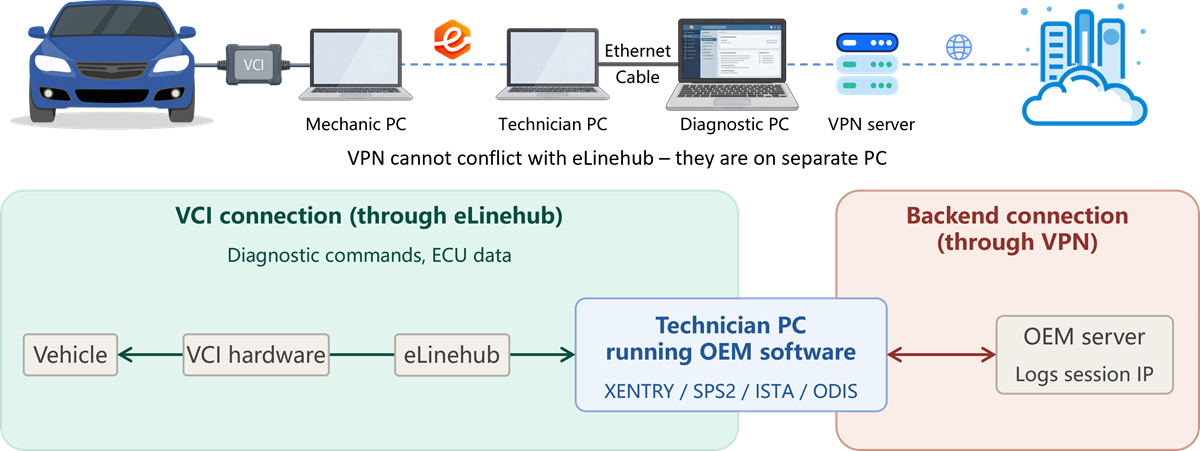
Physical dual-machine — relay PC runs eLinehub, diagnostic PC runs OEM software and VPN.
A relay machine runs eLinehub Technician software and bridges the remote workshop adapter to one of its physical Ethernet ports. An Ethernet cable connects that port to the diagnostic machine. The diagnostic machine runs the OEM software and the VPN client — no eLinehub components installed, clean network stack.
The VPN creates virtual network adapters and modifies routing tables on the diagnostic machine. Because eLinehub is on a separate machine, there is nothing for the VPN to conflict with. VCI traffic flows through the cable. OEM backend traffic flows through the VPN. Two independent paths, zero interference.
Virtual machine — eLinehub and OEM software in the VM, VPN on the host.
The same VM architecture as §4.1 Option A. A Windows VM runs eLinehub and OEM software with NAT networking through the host. The host runs the VPN client. Inside the VM, eLinehub bridges the remote workshop adapter to eLinehub Link or eLinehub vNet — the VPN’s virtual adapters exist only on the host. For network adapter VCI, the dual-machine setup (Option A) remains the most reliable path — it eliminates all potential VM-related variables.
Single-machine coexistence — eLinehub, OEM software, and VPN on the same PC.
eLinehub bridges the remote workshop adapter while VPN handles the OEM backend connection, both sharing the same network stack. This works in some configurations, but users have reported connection failures when VPN routing interferes with the bridged adapter. If single-machine operation is required and the dual-machine setup is not feasible, the VM approach (Option B) provides better isolation than sharing one OS.
For the VM/VPN arrangements and their limits, see Cross-Border VPN Setup on this page. eLinehub and OEM software run in a Windows guest; the VPN runs on the host. VM use with software requiring physical-hardware validation remains untested. The Network Adapter Bridging Guide covers adapter selection and physical dual-machine wiring.
Frequently Asked Questions
Try eLinehub Free Today
Technician Software starts with a free trial — no credit card required. Mechanic Software is always free.
Questions? support@elinehub.com