
eLinehub is a pure-software solution for remote automotive diagnostics and ECU programming — no hardware relay device needed. This guide covers system requirements, network and driver preparation, and the session workflow for both Technician and Mechanic roles.
What Is eLinehub?
eLinehub maps the Mechanic’s physical VCI (Vehicle Communication Interface) to the Technician’s Windows PC over the network. The Technician’s OEM diagnostic software — ISTA, XENTRY, ODIS, GDS2, FDRS, and any J2534-compatible platform — detects it as a locally connected device and operates it the same way it would a directly attached VCI.
The Mechanic is on-site at the vehicle. They connect the VCI to the vehicle and their local PC, then publish a session order through the Mechanic software. The Technician is remote. They accept the order, select the device to map, and run diagnostics or ECU programming from their own computer — using the same OEM software they would use locally.
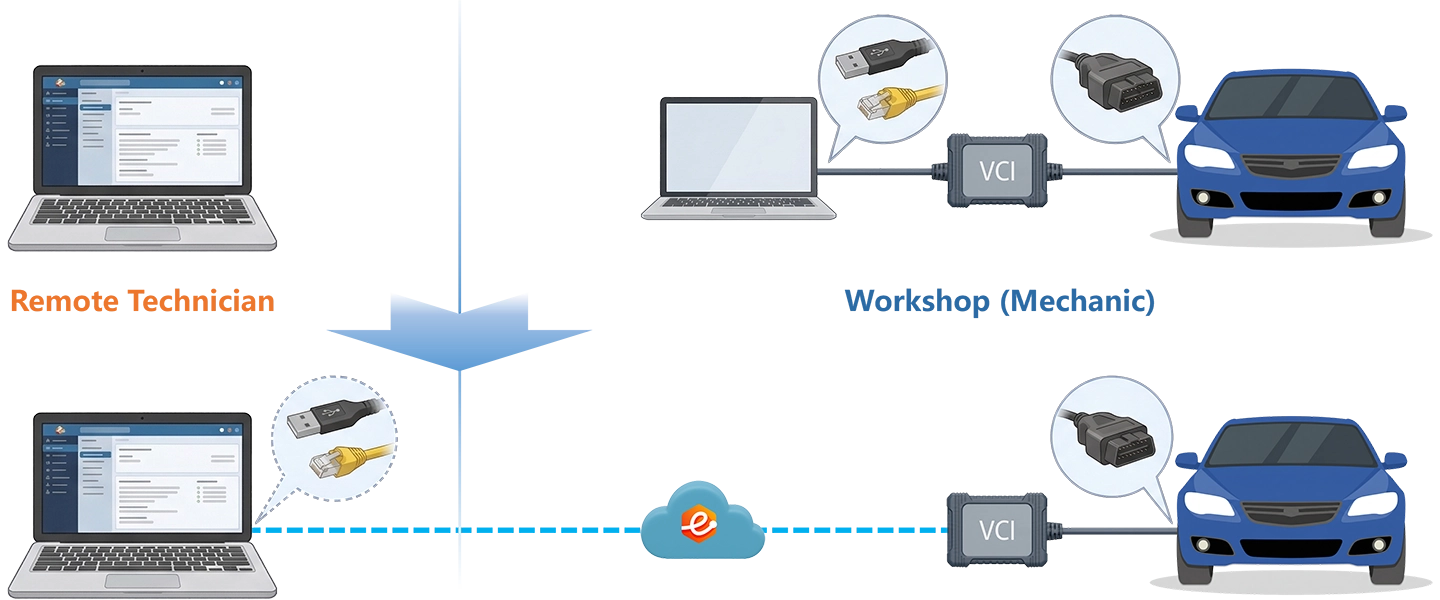
How It Works
Which mapping method eLinehub uses depends on how the VCI communicates with its host PC:
USB Mapping
The Mechanic’s USB VCI is mapped to the Technician’s computer as a local USB device. This covers most USB-based VCI hardware and supports both Relay and Direct (P2P) connection modes.
Network Adapter Bridging
For VCIs that communicate via a network adapter — including DoIP (ISO 13400) devices and RNDIS-class adapters — eLinehub bridges the Mechanic’s network adapter to the Technician’s computer. This is the method used for Ethernet-based diagnostic platforms such as BMW ISTA, Mercedes-Benz XENTRY, and VW ODIS.
The Mechanic does not need diagnostic software installed. The Technician does not need any local VCI hardware.
System Requirements
- Windows 7 or later, 64-bit. Windows 10 / 11 recommended.
- Windows ARM, Mac, Linux, and Android are not supported.
- Mechanic and Technician software can be installed on the same computer, but only one instance can run at a time.
Pre-Connection Preparation
Network Environment
Both sides require a minimum upload speed of 10 Mbps. Wired connection is strongly recommended on both sides, particularly for ECU programming sessions. Network quality requirements vary by operation type:
| Operation Type | Max RTT | Max Packet Loss | Connection |
|---|---|---|---|
| ECU flashing, SCN coding, SFD / GeKo unlock | 50 ms | 0.5% | Wired on both sides |
| Diagnostics, fault reading, live data | 150 ms | 1% | Wired or stable Wi-Fi |
Mechanic Side
- Connect the VCI to the vehicle and to the local PC.
- Standard USB diagnostic devices do not require driver installation.
- RNDIS-based devices (VCIs that present as a network adapter on the host PC) require the corresponding driver. If unsure of the device type, install the driver to be safe.
Technician Side
- Install the OEM or professional diagnostic software.
- Install the driver that matches the VCI model being used on the Mechanic side.
Session Workflow
Two connection modes are available in Step 3:
- Relay (Recommended) — routes data through eLinehub servers, compatible with all device and mapping types.
- Direct (P2P) — lower latency, USB devices only, requires wired connections on both sides and RTT below 80 ms.