
Mercedes-Benz SD Connect Remote Diagnostics:
XENTRY, SCN Coding and DTS Monaco via eLinehub
SD Connect C4 or C6 appears as a local Ethernet VCI on the Technician’s PC — XENTRY, DTS Monaco and Vediamo run on your own machine with your own credentials. No hardware relay box. No remote desktop.
- ✓SD Connect appears on the expected 172.29.x.x subnet — XENTRY discovers it as a locally connected device
- ✓SCN coding, DoIP flash, DTS Monaco parameter work and Vediamo scripts all run exactly as on a local bench
- ✓The workshop only needs eLinehub Mechanic (free) — no XENTRY install, no credentials, no subscription at the workshop
The workshop provides the vehicle and SD Connect. You bring XENTRY, DTS Monaco or Vediamo and your Mercedes Online credentials. eLinehub provides the bridge. · By eLinehub ·
Mercedes-Benz SCN Coding: Why Every Control Unit Replacement Requires XENTRY
Replacing a part on a Mercedes-Benz does not end when the part is bolted in. For every generation from the W204 C-Class onward, most replaced control units require a Software Calibration Number (SCN) coding step before the vehicle will accept the unit. SCN coding — also referred to as mercedes online coding — routes live through the Mercedes-Benz backend over an authenticated XENTRY session. It requires XENTRY Diagnosis running on a Windows PC, with an active Mercedes Online account, connected to an SD Connect VCI over the 172.29.x.x subnet. No aftermarket scanner can substitute for this step.
The control units below represent the most common jobs where SCN coding or online programming is required on vehicles currently in active circulation.
ME Engine Control Unit
W205 C300/C43 · W213 E300/E350/E63 · W222 S550/S63 · W167 GLE350/GLE63
Flash and SCN coding are two separate steps. A successful flash without SCN leaves the ECU functional but uncoded — fault codes remain active, and follow-up SCN sessions on a partial-flash ECU carry additional risk.
722.9 VGS / TCM — Conductor Plate
W212/W213 E-Class · W204/W205 C-Class · W221/W222 S-Class · W166/W167 GLE/GLS/ML/GL
The conductor plate is a technically restricted part (TRP). New and replacement units require VeDoc re-documentation, a software flash and SCN coding. One of the highest-frequency SCN jobs on Mercedes-Benz vehicles.
SAM — Signal Acquisition Module
W204, W205, W212, W213 — particularly rear SAM on E-Class
Replacement SAMs arrive uncoded. Without SCN coding the vehicle will not lock remotely, will not respond to the key correctly, and shows a raft of CAN communication faults.
ABS / ESP Control Unit
All platforms from W204 forward
Mandatory SCN coding for every replacement. No aftermarket scanner can substitute for the Mercedes Online authentication step.
SRS Airbag Control Unit
All platforms
Post-collision shops that fit a replacement ACM and skip SCN cannot sign off the repair — the vehicle will show an active SRS fault and may fail a safety inspection.
COMAND / MBUX Head Unit
NTG5 through NTG7
Units sourced from breakers arrive uncoded. XENTRY must write the SCN number matched to the car’s VIN and option configuration before audio, navigation or telephony functions become active.
W206 C-Class, W223 S-Class, X167 GLE/GLS facelift, W214 E-Class, EQS (V297) and EQE (Z295): in addition to standard SCN requirements, XENTRY requires a Xentry diagnostic certificate (ZenZefi format) for offline guided diagnostics and adaptations on modules behind the vehicle’s secure gateway. The certificate is held by the Technician independently — eLinehub bridges the SD Connect and does not affect how XENTRY authenticates or uses the certificate.
Why Remote Desktop Cannot Work for XENTRY + SD Connect
Most remote diagnostic attempts with SD Connect fail because they rely on remote desktop — TeamViewer, AnyDesk or equivalent screen-sharing tools. Remote desktop transmits screenshots and mouse inputs. XENTRY running on the remote screen never sees a network adapter belonging to the SD Connect, so it cannot discover the device at all. This is a fundamental architectural mismatch, not a configuration issue.
XENTRY Fixed-IP Requirement
XENTRY expects the SD Connect on a 172.29.x.x subnet. A screen-sharing relay cannot replicate this network-level behavior under any configuration.
SCN Coding Session Integrity
SCN coding requires an uninterrupted three-way exchange: XENTRY ↔ SD Connect ↔ Mercedes-Benz backend. Any packet reordering or brief disconnect invalidates the SCN session and may leave the ECU with a blank or partial calibration number.
DoIP Topology Scans on MRA2 / EVA2 / MMA
Newer Mercedes-Benz architectures generate sustained high-packet-per-second DoIP bursts during ECU discovery. Generic VPNs and consumer routers silently reorder or buffer these packets, breaking XENTRY’s protocol timing.
DTS Monaco and Vediamo TCP/IP Dependency
Both tools require a direct TCP/IP connection to the SD Connect Ethernet adapter. Neither will enumerate the VCI through a screen share under any configuration.
Credential and Account Exposure Risk
Remote desktop requires installing XENTRY on the Mechanic’s PC — software the workshop does not own or license. The Technician’s Mercedes Online credentials and FDOK access must then be entered on a third-party machine, creating an ongoing exposure risk that cannot be revoked without changing the account password.
eLinehub bridges the SD Connect’s physical network adapter at Layer 2 across the internet. XENTRY, DTS Monaco and Vediamo on the Technician PC see an Ethernet adapter on the expected 172.29.x.x subnet — no screen share, no protocol translation, and all credentials stay exclusively on the Technician’s machine.
How eLinehub Works with SD Connect — Virtual Bridge
eLinehub uses VCI Mapping with a Virtual Bridge mode designed for Ethernet-connected VCIs such as SD Connect C4 and C6. Unlike USB device mapping used for VAS6154A or BMW ENET cable, SD Connect requires Layer 2 bridging because XENTRY relies on Ethernet broadcast behavior for VCI discovery.
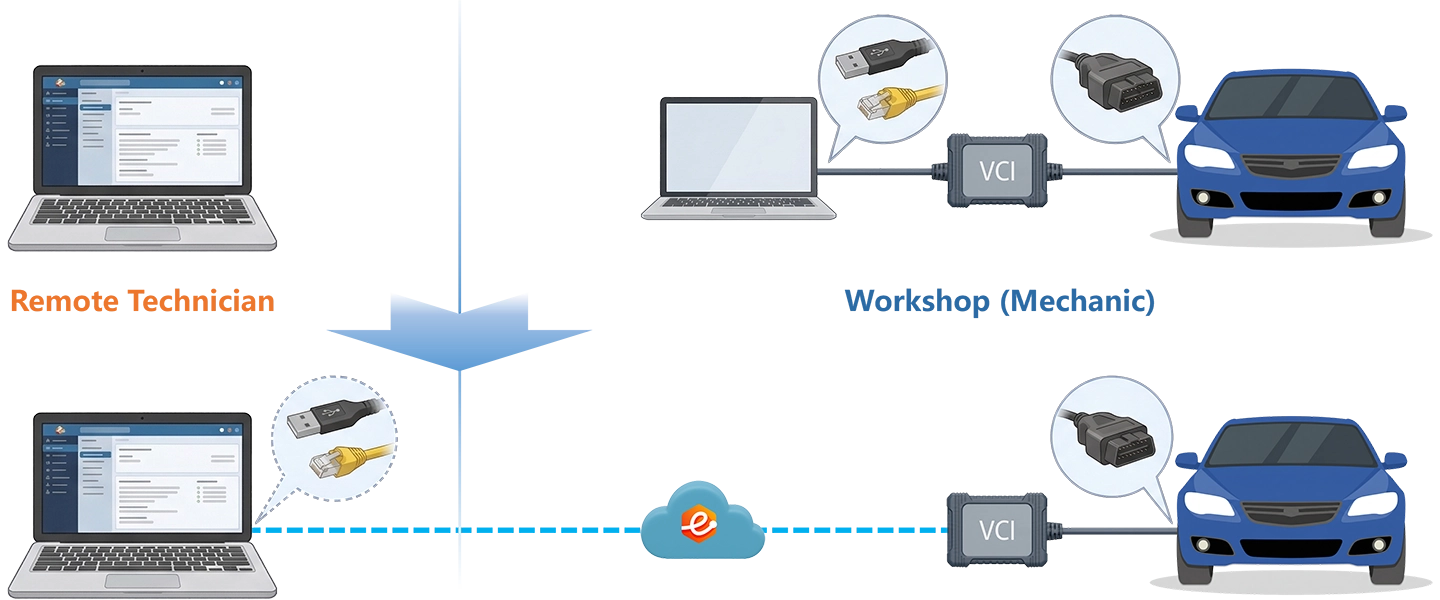
The Mechanic shares the physical NIC connected to SD Connect. The Technician’s eLinehub virtual adapter receives the same Ethernet frames — including MAC addresses, broadcast packets and DoIP discovery replies — that XENTRY expects from a locally attached SD Connect.
The eLinehub virtual adapter on the Technician PC — eLinehub Link or eLinehub vNet (named virtual network adapters created by eLinehub, each using a different virtual network driver) — must be configured with a static IP in the 172.29.x.x range. 172.29.127.119 / 255.255.0.0 / gateway 172.29.0.1 is the standard starting point.
The tunnel avoids aggressive compression, packet reordering and buffering that disturb OEM protocol timing — critical for SCN coding and DoIP programming sessions that run for extended periods with no tolerance for mid-session interruption.
SD Connect C4 vs C6 — Remote Setup and Configuration
SD Connect C4
C4 uses a straightforward Ethernet connection with no persistent local management service. Once connected to the workshop PC via LAN cable and recognized as an active network link, it can be shared immediately.
- Connect SD Connect C4 to the vehicle OBD port.
- Connect SD Connect C4 to the workshop PC via wired Ethernet (LAN cable) — not WiFi.
- Verify Windows shows an active network link on the NIC connected to C4.
- Open eLinehub Mechanic and share the network adapter.
SD Connect C6 (and compatible VXDIAG devices)
C6 runs background VCI management processes and services that bind the device to the local PC. If any remain active when eLinehub tries to bridge the adapter, the remote Technician’s XENTRY cannot enumerate the SD Connect. Stop these before sharing.
VciManager.exeVCIConfig.exeVXManager.exeDaimler VCI ManagerBosch VCI ManagerDevice ManagementVXDIAG SDKDaimlerVCIIndentServiceReal Job Workflows — SCN Coding and ECU Programming via SD Connect
Four complete scenarios covering the most common Mercedes-Benz remote diagnostic and programming jobs.
SAM / ME ECU Replacement with SCN Coding
W205, W212, W213, W222, W167, W223 — nearly any control unit replacement requiring Mercedes Online authentication.
- Mechanic connects SD Connect C4 to the vehicle OBD port and to the workshop PC via wired Ethernet (LAN cable). Opens eLinehub Mechanic, creates the order and shares the Passcode with the Technician.
- Technician enters the Passcode in eLinehub Technician, selects Mechanic Network Adapter and the bridging mode.
- Wait for the virtual adapter to show connected status. Do not launch XENTRY until the adapter is active.
- Open Windows Network Connections on the Technician PC. Locate the eLinehub Link or eLinehub vNet adapter matching the selected bridging mode. Set IPv4: address in the 172.29.x.x range, subnet mask 255.255.0.0, gateway 172.29.0.1. Use 172.29.127.119 unless it conflicts with the Mechanic’s NIC IP or a physical NIC on the Technician PC also in the 172.29.x.x range.
- Launch XENTRY Diagnosis. XENTRY broadcasts DoIP discovery on the eLinehub virtual adapter and finds SD Connect within seconds.
- Quick test identifies the SAM as present but uncoded. Navigate to SAM → control unit variant coding. Authenticate with Mercedes Online credentials directly through XENTRY. SCN request returns the calibration number and writes it to the SAM.
- Quick test confirms the SAM is coded and visible. Residual faults cleared. Job complete.
722.9 VGS / TCM Conductor Plate Flash and SCN Coding
W212/W213 E-Class · W204/W205 C-Class · W221/W222 S-Class · W166/W167 GLE/GLS · W164/W166 ML/GL.
- Gearbox reinstalled, conductor plate connector seated. Mechanic connects SD Connect C4, creates the order and shares the Passcode.
- Technician accepts via Passcode and connects through eLinehub. Configures the eLinehub Link or eLinehub vNet adapter IP as in Scenario A, Step 4.
- Connect a programming power supply delivering 13.5–14.2 V at 100 A+ to the vehicle before proceeding. Voltage drop during the flash is the most common cause of a partial write and a damaged conductor plate.
- XENTRY quick test shows the VGS as unprogrammed or with a mismatched SCN number against the vehicle ECM.
- Navigate to VGS → control unit adaptations → SCN coding update. XENTRY contacts the Daimler SCN server, pulls the correct software flash file for the VIN and writes it to the conductor plate.
- SCN coding assigns the calibration number. VGS is now matched to the VIN.
- Transmission adaptations are reset. Technician guides the workshop through a brief adaptation drive cycle to re-establish shift pressure learning.
DoIP ECU Programming — W907, W206 and EVA2 Platforms
Required for any module work on 2019+ vehicles. Particularly relevant for Sprinter W907 fleet operators.
- Mechanic stops all C6 VCI management processes and services (see Section 4). Connects C6 to the W907 OBD port and workshop PC via LAN cable. Creates the order.
- Technician accepts via Passcode, connects through eLinehub and configures the eLinehub Link or eLinehub vNet adapter IP as in Scenario A, Step 4.
- XENTRY runs a DoIP topology scan — a high-packet-per-second broadcast enumerating every ECU on the vehicle’s Ethernet backbone. The eLinehub tunnel passes this traffic without reordering; the scan completes at normal speed.
- XENTRY identifies the replacement ECM as unconfigured and opens the guided programming sequence.
- If the W907’s DoIP network gateway causes the Technician’s internet to drop while the diagnostic session stays active, use the Switch button in eLinehub to toggle between diagnostic priority mode and normal internet mode. Toggle only between sessions — never during SCN coding or a flash.
- XENTRY downloads the software file and begins the ECM flash. Programming power supply mandatory throughout. A full ECM flash on W907 over DoIP typically runs 8–14 minutes on a stable connection.
- SCN coding completes. Quick test confirms the ECM responds correctly.
Radar and ADAS Initialization After Collision Repair
W205, W213, W167, W206 and any chassis with Active Brake Assist, Blind Spot Assist or Distronic.
- Confirm body repair is complete. Verify all radar sensors and cameras are reinstalled in the original mounting positions before any software work — initialization will not compensate for a physically misaligned sensor.
- SD Connect C4 connected to vehicle OBD port and workshop PC via LAN cable. Mechanic creates order and shares Passcode.
- Technician accepts via Passcode, connects through eLinehub and configures the eLinehub Link or eLinehub vNet adapter IP as in Scenario A, Step 4.
- XENTRY quick test — note and record all active fault codes in BSM, ESP, radar and camera modules before beginning any initialization. Some codes are historical artifacts from the repair; others may indicate sensor damage or misalignment that must be resolved physically before proceeding.
- Navigate to SRR module → adaptations → radar sensor initialization. Rear SRR sensors use a dynamic teach-in requiring no physical calibration target — the initialization runs entirely in software.
- Clear all ADAS fault codes. Verify no permanent faults return.
- Road test above 30 km/h to confirm BSM mirror triangle indicators activate normally and no driver assistance warnings reappear.
DTS Monaco and Vediamo Remotely via SD Connect
DTS Monaco and Vediamo require a direct TCP/IP connection to the SD Connect Ethernet adapter — remote desktop is not viable for either tool under any configuration. With eLinehub Virtual Bridge, both tools connect to the mapped SD Connect adapter exactly as they do on a local bench. No tool configuration changes are needed.
DTS Monaco — Remote Workflows
- Custom .mdiag sequence execution
- Parameter-level ECU modification on AMG, Maybach and high-spec variants
- Seed-key authentication for protected ECU functions
- Raw CAN and DoIP trace capture
- Retrofit and hidden option enablement via engineering-level access
Vediamo — Remote Workflows
- Direct ECU flash via .smr-d container scripts
- Variant coding with full parameter visibility
- SFD-equivalent engineering access on MRA2 platform ECUs
- Session state logging and parameter comparison across multiple vehicles
End-to-End Setup — Mechanic and Technician
Mechanic Side — Workshop
Free to use. No OEM software or subscription required.
- Connect SD Connect C4 or C6 to the vehicle OBD port and to the workshop PC via wired Ethernet (LAN cable) — not WiFi.
- C6 only — release the device before proceeding: stop all VCI management processes and services listed in Section 4. Not all listed items are present on every machine — stop whichever apply and confirm none remain active.
- Verify Windows shows an active network link on the NIC connected to SD Connect.
- Install eLinehub Mechanic on the workshop Windows PC.
- Open eLinehub Mechanic, create a new order and share the Passcode with the Technician. No XENTRY, DTS Monaco, Vediamo or Mercedes Online credentials are required on the Mechanic PC.
Technician Side — Remote Specialist
Requires eLinehub subscription or Credits. Free trial included.
- Install eLinehub Technician on the PC that already has XENTRY, DTS Monaco and/or Vediamo with Mercedes Online credentials configured.
- Sign in and accept the order by entering the Passcode shared by the Mechanic. If the workshop uses a Custom Mechanic build, orders are auto-assigned.
- Select Mechanic Network Adapter and choose the bridging mode: eLinehub Link or eLinehub vNet (virtual network adapters created by eLinehub on the Technician PC). Start with eLinehub Link. If XENTRY fails to discover the SD Connect after IP configuration, switch to eLinehub vNet — the two modes use different virtual network drivers.
- Once the bridge is established, open Windows Network Connections. Locate the eLinehub Link or eLinehub vNet adapter matching the mode selected above. Set IPv4: address in the 172.29.x.x range, subnet mask 255.255.0.0, gateway 172.29.0.1. Use
172.29.127.119unless it conflicts with the Mechanic’s NIC IP or a physical NIC on the Technician PC. - Launch XENTRY Diagnosis (and DTS Monaco or Vediamo if needed). SD Connect appears as a locally connected device on the 172.29.x.x network. Mercedes online coding — SCN coding, FDOK authorization and online programming — all run through your own Mercedes Online account directly from this PC.
Network Requirements
Both sides need a minimum 10 Mbps upload bandwidth. Wired connections are required on both sides for SCN coding and flash sessions. Check live latency in the eLinehub connection panel before starting any SCN coding or programming — do not proceed if latency is above threshold or packet loss is non-zero.
| Session Type | RTT Target |
|---|---|
| Fault reading / quick test | Under 150 ms |
| SCN online coding | Under 80 ms |
| ECU flash / software write | Under 80 ms |
| DoIP topology scan (W907, W206, EVA2) | Under 60 ms |
Before any SCN coding or online flash: connect a professional programming power supply delivering steady 13.5–14.2 V at 100 A+ to the vehicle. Voltage drop during a flash sequence is the most common cause of ECU failure in remote programming.
DoIP internet continuity: when SD Connect is bridged and the vehicle’s DoIP network has an active gateway, the Technician PC’s internet may drop while the diagnostic session stays active. Use the Switch button in eLinehub to toggle between diagnostic priority mode and normal internet mode — only between sessions, never during SCN coding or flash.
Customer Protection and Business Control
Orders are created by the Mechanic and require a Passcode to accept — no other specialist on the platform can pick up a workshop’s jobs without it.
Passcode Order Protection
A workshop shares a Passcode only with their trusted Technician. No other specialist on the platform can see or accept that order — protecting the workshop relationship from the moment the job starts.
Custom Mechanic Build
A Technician building a long-term relationship with a workshop can distribute a Custom Mechanic build — a branded version of the Mechanic app that auto-routes all orders to their account. The workshop opens the software and the job arrives, no Passcode exchange needed each session.
Secure Order Sharing
When a job requires more than one specialist — say, a transmission flash plus a COMAND coding step — a Technician can loop in a trusted colleague for that order only. The colleague sees the VCI data, not the Mechanic’s contact details or any other orders.
Mercedes-Benz Platform and Protocol Compatibility
Mercedes SD Connect Remote Diagnostics FAQ
Nine questions covering XENTRY remote setup, SCN coding, C4/C6 device configuration and the 2021+ Xentry certificate requirement.
Start Your First Remote XENTRY Session
Free trial starts automatically. No credit card required to get started.
Questions or setup support: support@elinehub.com