
Audi ODIS Remote Programming:
VAS6154 Mapped to Your Technician PC
ODIS Service and ODIS Engineering each require a locally recognized VAS6154 to complete SVM coding, SFD unlock, Immo5 matching, or ADAS calibration — procedures that VCDS, OBDeleven, and all other non-ODIS tools cannot replicate. eLinehub maps the VAS6154 at the Mechanic’s workshop to your Technician PC at the driver and OS level. The VAS6154 appears on your Technician PC exactly as it would if physically connected, and your GEKO session runs from your machine using your own credentials.
- ✓VAS6154 mapped at driver level via USB — ODIS Service and ODIS Engineering discover it through the standard VAS6154 driver path, no configuration changes required
- ✓SVM coding, SFD unlock, ADAS calibration, and Immo5 matching run from your PC with your own GEKO subscription and credentials
- ✓The workshop installs only eLinehub Mechanic (free) — no ODIS license, no GEKO account at the workshop
The workshop connects the VAS6154 and the vehicle. You bring ODIS and GEKO credentials. eLinehub provides the bridge. · By eLinehub ·
Why Audi Repairs Require ODIS — Not Just a Scan Tool
On modern Audi platforms, replacing a module is only the first half of the job. The vehicle will not operate normally — the transmission stays in limp mode, the engine will not start, or the ADAS warning lights stay on — until ODIS completes an online validation with VAG’s GEKO servers. No aftermarket tool can replicate these steps.
The five job types below represent the most common cases where an authenticated ODIS GEKO session is the only path to completion on CAN/UDS Audi platforms.
Module Replacement and SVM Coding
B9 Q5 · B9 A4 · 4M Q7 · 8V A3 (DQ500 TCM, BCM, gateway modules)
A replacement TCM, BCM, or SRS control unit on these platforms does not work just by being bolted in. ODIS Service must execute an SVM routine that binds the new module to the vehicle VIN, loads the correct software version and parameter set, and confirms the software matches Audi’s factory build specification. Audi service documentation specifies that SRS module replacement on A4, A5, Q5, A6, A7, and A8 ranges requires both ECU parameterization and ECU coding via SVM code — parameterization alone is insufficient. Without ODIS and an active GEKO session, neither step can be completed.
SFD Gateway Unlocking
SFD v1 (2021+): A3 8Y (MQB2020) · SFD v2 (2024+): B9.5 A4/Q5
Starting with the 2021MY A3 8Y, VAG introduced SFD protection on the MQB2020 platform. Any adaptation channel change, coding modification, or parameter upload requires an SFD authorization token generated by VAG’s GEKO backend. VCDS, OBDeleven, and all other non-ODIS tools return a write error at the hardware level without a valid GEKO token. From 2024MY onward, many models added SFD v2, which requires a unique checksum-protected token for each adaptation channel write or coding change — in addition to the base SFD authorization. ODIS Service handles both token types automatically within the online GEKO session.
ADAS Sensor Calibration — Audi Pre Sense
B9 Q5 · 4M Q7 · B9 A4 Quattro (forward radar, AEB, lane assist, ACC)
Audi Pre Sense — covering the forward AEB radar, Active Lane Assist camera, Adaptive Cruise Control, and Side Assist blind-spot radars — requires calibration after any sensor replacement or structural repair. ElsaPro repair data defines the calibration procedure for all Audi ADAS systems, with ODIS Service as the required execution tool. On Q7 and Q5 models, any repair within 25 cm of a mounted sensor triggers a mandatory static or dynamic recalibration sequence inside ODIS. Without it, the Pre Sense system flags a permanent fault and the warning light stays on at delivery.
Immo5 Immobilizer Matching
A4 B8/B9 · A6 C7 (key loss, instrument cluster replacement, ECU swap)
Key loss, instrument cluster replacement, or ECU swap on Audi Immo5 systems requires an ODIS online GEKO session to complete matching. There is no offline path for Immo5 — the control module generates a challenge that the GEKO server must answer in real time. If matching is not completed, the engine starts briefly and cuts out within seconds. A shop without an active ODIS GEKO account cannot resolve this independently, regardless of the diagnostic tool used.
ODIS Engineering — ECU Flash and ParameterizationODIS-E
B8/B9 A4 · B9 Q5 · 4M Q7 · 8V A3 (outside guided GFF sessions)
ODIS Engineering (ODIS-E) handles ECU flashing and parameterization outside the guided GFF workflow. Like ODIS Service, ODIS-E requires a locally recognized VAS6154 — eLinehub maps the same USB device to the Technician’s PC. Both ODIS Service and ODIS Engineering can run on the same Technician machine using the same mapped VAS6154 connection.
How eLinehub Maps VAS6154 to Your ODIS Session
Unlike remote desktop, which moves the display of a session running at the workshop, eLinehub maps the VAS6154 hardware itself at the driver and OS level on the Technician’s PC. The Mechanic connects VAS6154 via USB; eLinehub carries the complete USB device connection across the internet, and ODIS Service and ODIS Engineering on the Technician’s machine recognize the remote VAS6154 through the standard VAS6154 driver path — the same path they use for a physically connected device.
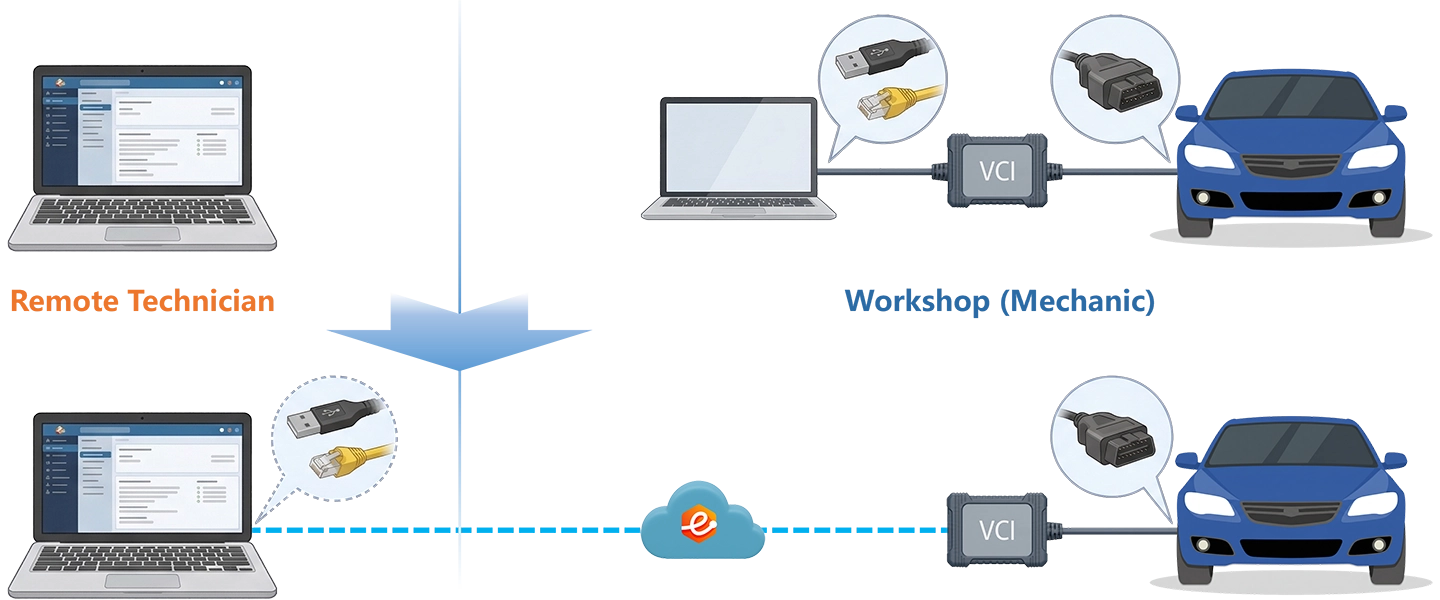
Driver-Level Mapping — No ODIS Configuration
Unlike XENTRY with a Mercedes ENET cable, ODIS Service and ODIS Engineering do not require any IP configuration or VCI settings changes on the Technician side. eLinehub maps the VAS6154 at the driver and OS level so ODIS recognizes it through the standard VAS6154 driver path — the same discovery behavior as a locally connected device.
GEKO Session Stays on Technician PC
The GEKO authorization runs from the Technician’s PC over the Technician’s internet connection — the workshop network is not involved. SFD tokens and SFD v2 tokens for adaptation channel writes on 2024MY vehicles are handled by ODIS on the Technician’s machine using the Technician’s own GEKO credentials.
P2P Available for Low-Latency Sessions
On CAN/UDS platforms, P2P (Direct) mode is available when both sides are on wired connections and RTT is under 80 ms. P2P reduces latency for SVM flash sessions on TCMs and SRS modules. eLinehub Technician displays RTT and packet loss in real time — check both before selecting P2P or proceeding with any SVM operation.
Three Audi Remote Programming Scenarios
Each scenario starts from the point where the mechanical work is done and the VAS6154 is connected via USB to the workshop PC.
Q5 B9: DQ500 TCM Programming After Transmission Replacement
Primary audience: Remote programming specialist; transmission shop or parts supplier bundling ODIS coding with TCM sales.
- Connect VAS6154 to the Q5 OBD-II port via USB and to the workshop PC. The USB device detection plugin installs automatically when no conflicting USB-sharing software is present on either PC. If prompted within eLinehub Mechanic, install it from within the software.
- Confirm VAS6154 appears as a shareable device in the eLinehub Mechanic interface and publish the order. Notify the Technician that the replacement TCM is installed and the vehicle is ready.
- Accept the order. In eLinehub Technician, select Mechanic USB. Check the RTT and packet loss readout — for a B9 Q5 SVM session, confirm RTT is under 80 ms and packet loss is at 0%. Switch to P2P mode if both endpoints are on wired connections and the numbers support it.
- Wait for VAS6154 initialization — confirm the device appears in Windows Device Manager under the VAS6154 driver before launching ODIS.
- Launch ODIS Service. Navigate to Special Functions → Software Version Management → SVM Code Input. Enter the SVM action code for the replacement TCM part number.
- ODIS opens a GEKO session, downloads the correct software version and coding data for this TCM part number, writes them to the module, and confirms completion. Run SVM Specified vs. Actual Comparison to verify no residual faults.
- Clear DTCs and confirm normal shift behavior before ending the session.
One ODIS GEKO subscription covers multiple transmission shops this way — each installs only eLinehub Mechanic; the ODIS license and GEKO credentials stay with the specialist.
A3 8Y: SFD Gateway Unlock and Module Coding
Primary audience: Independent shop or parts supplier; customer-facing Audi coding specialist offering post-sale SFD unlock as a service.
- Connect VAS6154 to the A3 8Y OBD-II port via USB and to the workshop PC. Confirm VAS6154 appears as a shareable device in eLinehub Mechanic.
- Confirm VAS6154 appears as a shareable device in eLinehub Mechanic and publish the order. Remain available during the session — the Technician may ask you to cycle ignition or confirm a status at a specific point in the GEKO sequence.
- Accept the order. Select Mechanic USB. Check the RTT and packet loss display — confirm packet loss is at 0% before proceeding.
- Wait for VAS6154 initialization, then launch ODIS Service. Start Self-Diagnosis on the target control unit. Confirm SFD protection status using Display Measured Values.
- Proceed with the required coding or adaptation. ODIS requests the SFD token from the GEKO backend automatically within the online session — no manual token handling required.
- For 2024MY vehicles with SFD v2: ODIS requests the additional SFD v2 token within the same GEKO session for each adaptation channel write or coding change.
- Run SVM Specified vs. Actual Comparison to confirm software versions are in compliance. Clear all remaining DTCs and verify no faults return before ending the session.
For parts suppliers, this removes the customer’s need to visit a dealer for post-installation coding. The VAS6154 stays at the customer’s workshop; the specialist holds the ODIS license and GEKO account.
Q7 4M: Forward Radar Replacement and Pre Sense Calibration
Primary audience: ADAS calibration specialist; collision repair network centralizing post-repair calibration without stationing an ODIS programmer at each bay.
- Verify the replacement radar module is installed and all connectors are seated. Park the vehicle on a level surface — confirm tire pressures are at spec and calibration target hardware is positioned per ElsaPro specification for the Q7 radar variant.
- Connect VAS6154 to the Q7 OBD-II port via USB. Confirm VAS6154 appears as a shareable device in eLinehub Mechanic and publish the order.
- Accept the order. Select Mechanic USB. Review the RTT and packet loss readout — ADAS calibration involves sequential ODIS-to-module command exchanges rather than a sustained data stream, so RTT tolerance here is higher than for a TCM flash. Confirm packet loss is at 0% before starting.
- Wait for VAS6154 initialization, then launch ODIS Service. Run Self-Diagnosis on the ACC system — confirm the radar module is communicating and note any active DTCs before starting calibration.
- Navigate to Guided Fault Finding → Service → ADAS Calibration → Forward Radar. Confirm calibration prerequisites with the Mechanic before executing: vehicle on a level surface, tire pressures at spec, calibration target at the specified distance and alignment.
- Execute the static calibration sequence. ODIS initiates the calibration routine; the radar module measures its offset against the calibration target, calculates the correction values, and stores the result internally. ODIS confirms completion when the module reports a passing value. If Active Lane Assist is fitted, run the front camera calibration within the same ODIS session.
- Clear all ADAS DTCs. Verify all Pre Sense warning lights are off before ending the session.
A single ADAS calibration specialist with ODIS access can serve multiple collision bays this way — the collision center provides the calibration target hardware and VAS6154; the remote specialist provides the ODIS session.
Ready to try on a live vehicle?
Free trial starts automatically — no credit card required.
Download Technician Software — Free TrialEnd-to-End Setup
System requirements: Windows 10 or Windows 11 (64-bit) recommended; Windows 7 64-bit minimum. Not supported on Mac, Linux, Android, or Windows ARM.
Both sides need a stable wired internet connection for SVM and GEKO sessions. See Section 5 for latency and bandwidth requirements.
- Download and install eLinehub Mechanic on the workshop Windows PC. No ODIS installation, no GEKO account, and no VAS6154 driver setup required on this machine.
- Obtain connection credentials from your Technician before your first session — either a Passcode for the specific order, or a Custom Mechanic software build your Technician has provided.
- Connect VAS6154 to the vehicle OBD-II port via USB cable and to the workshop PC. The USB device detection plugin installs automatically when no conflicting USB-sharing software is present on either PC. If prompted within eLinehub Mechanic, install it from within the software.
- Confirm VAS6154 appears as a shareable device in the eLinehub Mechanic interface and publish the order. Maintain the USB connection until the Technician confirms the session is complete.
- Download and install eLinehub Technician on the PC where ODIS Service and/or ODIS Engineering, and your GEKO account credentials, are already configured. Windows 10 or Windows 11 (64-bit) required.
- Ensure the VAS6154 driver is installed on this PC — eLinehub will prompt you during setup if the driver is not detected. ODIS’s recognition of the mapped device depends on this driver being present.
- Keep your existing ODIS Service and/or ODIS Engineering installation, GEKO subscription, and SFD credentials on this machine. eLinehub adds no layer between ODIS and the VCI.
- Accept an incoming order. Select Mechanic USB in eLinehub Technician. Check RTT and packet loss before launching ODIS. Switch to P2P mode if both endpoints are on wired connections and RTT is under 80 ms.
Network Requirements
Both sides need a minimum 10 Mbps upload bandwidth. Wired connections are required on both sides for SVM coding and GEKO sessions. Check RTT and packet loss in eLinehub Technician before starting any programming session.
Before any SVM flash or GEKO session: A packet loss rate above 0% during a GEKO write can interrupt the procedure mid-execution and require session recovery. Do not attempt programming sessions over a mobile hotspot or congested WiFi connection. For TCM or ECU flash jobs, connect a battery support unit maintaining vehicle voltage at 12.5–14.5 V throughout the entire sequence.
VCI initialization: Wait for VAS6154 to fully initialize on the Technician’s PC before launching ODIS. Opening ODIS before initialization completes returns a “no interface found” error and requires restarting the session.
Audi Platform Compatibility
Audi DoIP platforms (A6 C8, A8 D5, Q8, Q4 e-tron) are covered on a separate Audi ENET and VAS6154A DoIP remote programming page. eLinehub also supports VW Group (VAS6154A), Mercedes-Benz (SD Connect, ENET cable), and BMW (ENET cable, ICOM Next) from the same Technician PC.
Customer Protection
eLinehub is built so that the Technician’s workshop relationships stay with the Technician — not with the platform.
Passcode Order Protection
Every order requires a Passcode to accept. No other specialist on the platform can pick up a workshop’s job without it. The Mechanic shares the Passcode directly with the Technician they already work with — the relationship stays private.
Custom Mechanic Software
Distribute a white-label Mechanic build permanently linked to your Technician account. Orders from that workshop are auto-assigned to you by default, with no Passcode exchange needed for routine sessions. No other specialist can claim the workshop through a white-label install.
Secure Order Sharing
For complex multi-ECU jobs, you can share a specific order with a trusted colleague. The colleague sees the VCI data for that order only — not the Mechanic’s contact details, not any other orders.
Audi ODIS Remote Programming FAQ
Eight questions covering VAS6154 USB driver mapping, ODIS discovery, GEKO and SFD on Technician PC, P2P mode, platform scope, VAS5054A compatibility, and workshop requirements.
Start Your First Remote ODIS Session
Free trial starts automatically. No credit card required to get started.
Questions or setup support: support@elinehub.com