
Volkswagen Remote ODIS Programming:
VAS6154A Mapped to Your Technician PC
ODIS-Service and ODIS-Engineering each require a locally recognized VAS6154A to complete SVM coding, GeKo-based Component Protection release, SFD unlock, and immobilizer adaptation — procedures that VCDS, OBD Eleven, and all other non-ODIS tools cannot replicate. eLinehub maps the VAS6154A at the Mechanic’s workshop to your Technician PC at the USB driver level for CAN/UDS vehicles and at the network adapter level for DoIP vehicles. ODIS discovers VAS6154A as a locally connected device on your machine, and GeKo sessions run from your PC using your own VW Online credentials.
- ✓VAS6154A mapped at driver level in both USB and DoIP modes — ODIS-Service and ODIS-Engineering discover it through the standard VAS6154A driver path, no configuration changes required
- ✓SVM coding, GeKo sessions, SFD unlock, and Component Protection release run from your PC with your own VW Online and GeKo credentials
- ✓The workshop installs only eLinehub Mechanic (free) — no ODIS license, no GeKo account, and no VW Online subscription at the workshop
The workshop connects VAS6154A and the vehicle. You bring ODIS and GeKo credentials. eLinehub provides the bridge. · By eLinehub ·
Why Volkswagen Repairs Cannot Be Finished Without ODIS
On MQB, MQB EVO, and MEB platform vehicles, replacing a control unit does not complete the repair. ODIS-Service must run a Software Version Management (SVM) procedure, a GeKo Component Protection release, an SFD unlock, or an immobilizer adaptation — sometimes all four in a single job. No aftermarket tool replicates these steps.
The five job types below represent the most common cases where an authenticated ODIS session with VW Online is the only path to completion.
Module Replacement and SVM Coding
Jetta 2015–2021 (09G TCM) · Tiguan (ABS/ESP) · Atlas (BCM J519) · Golf (SRS module)
Replacing a control unit on MQB, MQB EVO, and MEB platform vehicles does not complete the repair. Replacement modules arrive without the calibration data, software version, or VIN-specific coding required to function. ODIS-Service must run a Software Version Management (SVM) procedure to load the correct firmware build for that VIN — without SVM, the replacement module stores communication faults and will not accept adaptations or normal operation. The requirement applies across automatic TCMs, ABS/ESP control units, body control modules (J519), SRS modules, and instrument clusters on Tiguan, Atlas, and Passat NMS.
Component Protection and GeKo Release
Instrument clusters · A/C control units · Navigation units · ABS pumps (MQB and MQB EVO)
On modules equipped with Component Protection, ODIS-Service must initiate a GeKo online session to release the protection before the unit will function in a new vehicle. GeKo — Geheimnis- und Komponentenschutz — is VW Group’s server-side authorization system: ODIS, VAS6154A, and the VAG backend must maintain simultaneous, uninterrupted communication throughout the procedure. Breaking the three-way connection mid-session leaves the control unit locked in a partial state. The large majority of remote Volkswagen programming jobs involve a GeKo session for Component Protection, immobilizer steps, or both.
SFD and SFD v2 — Coding and Adaptation Locks
Golf 8, GTI 2022+, Tiguan 2022+ (MQB EVO) · ID.3, ID.4, ID.5, ID.7 (MEB) · 2024+ MY models
Beginning in 2020, VW Group introduced SFD (Schutz Fahrzeug Diagnose) on Golf 8, ID.3, ID.4, and subsequent MQB EVO and MEB models. Every coding change and adaptation requires a VIN-specific SFD token from VW’s GeKo servers before ODIS will proceed. From the 2024 model year, VW added SFD v2 on many vehicles, which requires a separate checksum-protected token for each adaptation channel write and coding change in addition to the base SFD authorization. Third-party tools including VCDS and OBD Eleven cannot obtain these tokens — ODIS-Service with an active VW Online subscription is the only supported path.
Immobilizer Adaptation — Immo 3 / Immo 4
Passat NMS · Golf Mk6/Mk7 · Jetta pre-MQB EVO (all-keys-lost, cluster swap, ECU replacement)
Key loss, instrument cluster replacement, or ECU swap on Immo 3 and Immo 4 systems requires an ODIS online GeKo session for immobilizer adaptation. There is no offline path for any MQB-generation vehicle — the VAG GeKo server answers a challenge generated by the engine control module and instrument cluster together, and ODIS guides the precise key insertion and turn-sequence timing the server requires. An interrupted session leaves the vehicle in a non-start state; a new GeKo token must be obtained before the procedure can resume.
ADAS Calibration — Front Assist / KAFAS3
Atlas, Jetta, Tiguan with Front Assist (KAFAS3 forward camera J979)
After a windshield replacement or front-end repair on an Atlas, Jetta, or Tiguan equipped with Front Assist, the KAFAS3 front camera module (J979) requires ODIS guided-function static calibration before the vehicle can be delivered. Without it, the vehicle stores an active fault code and the Front Assist system is deactivated at delivery. ODIS specifies the required calibration target distance and alignment for each vehicle variant; the Mechanic positions the target per the ODIS setup screen while the Technician executes the calibration routine.
How eLinehub Maps VAS6154A to Your ODIS Session
Unlike remote desktop tools that move an ODIS session running at the workshop, eLinehub maps VAS6154A itself at the driver and OS level on the Technician’s PC. For CAN/UDS vehicles — Jetta, Atlas, Passat NMS, Tiguan pre-2022 — eLinehub carries the complete USB device connection from the Mechanic’s workshop PC. For DoIP vehicles — Golf 8, MQB EVO Tiguan, and all MEB models — eLinehub maps VAS6154A’s network adapter via eLinehub Link to a virtual adapter on the Technician’s PC. In both modes, ODIS-Service and ODIS-Engineering discover VAS6154A through the standard driver path as a locally connected device.
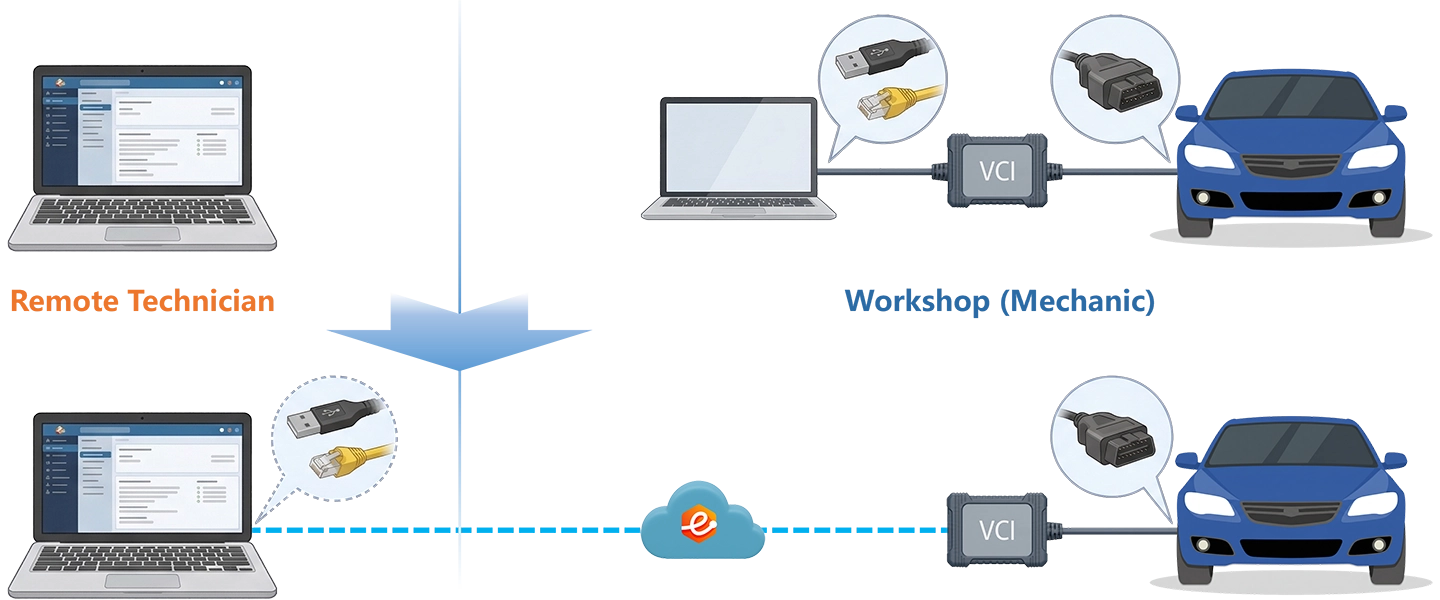
USB and Network Adapter Mapping at Driver Level
Unlike XENTRY with a Mercedes ENET cable, ODIS-Service requires no VCI IP configuration changes on the Technician side. For CAN/UDS vehicles eLinehub carries the complete VAS6154A USB device connection; for DoIP vehicles (Golf 8, MEB) it maps the network adapter via eLinehub Link. In both cases, ODIS discovers VAS6154A through the standard VAS6154A driver path — identical behavior to a locally connected device.
GeKo Session Stays on Technician’s PC
Unlike screen-share tools, which require the workshop to hold the GeKo account, eLinehub runs the GeKo authorization from the Technician’s PC over the Technician’s internet connection — the workshop network plays no role in the GeKo session. SFD tokens and, on 2024 model year vehicles, SFD v2 tokens for adaptation channel writes are requested and applied by ODIS on the Technician’s machine using the Technician’s own VW Online and GeKo credentials.
P2P Available for USB Sessions
Unlike DoIP sessions, which use Relay mode throughout, USB sessions on CAN/UDS platforms — Jetta, Atlas, Passat NMS, Tiguan 2018–2021 — support P2P (Direct) mode when both sides are on wired connections and RTT is under 80 ms. P2P reduces latency for SVM flash sessions on TCMs and SRS modules. eLinehub Technician displays RTT and packet loss in real time — check both before selecting P2P or starting any SVM operation.
Screen Share vs Hardware Relay Box vs eLinehub
Four Volkswagen Remote Programming Scenarios
Scenarios A, C, and D cover CAN/UDS vehicles using Mechanic USB mode. Scenario B covers a DoIP vehicle (Golf 8 MQB EVO) using Mechanic Network Adapter + eLinehub Link. Each scenario starts from the point where the mechanical work is done and VAS6154A is connected.
The Mechanic selects the connection mode in eLinehub Mechanic before publishing the order. The Technician matches the selection in eLinehub Technician. No ODIS settings need to change between USB and DoIP sessions.
Jetta 09G TCM Replacement — SVM Programming and Component Protection Release
Primary audience: Remote programming specialist; transmission shop accepting ODIS coding jobs without an in-house VW Online subscription.
USB (CAN/UDS)- Connect VAS6154A to the Jetta’s OBD-II port and to the workshop PC via USB. The USB device detection plugin installs automatically when no conflicting USB-sharing software is present on either PC. If prompted within eLinehub Mechanic, install it from within the software.
- Confirm VAS6154A appears as a shareable device in the eLinehub Mechanic interface, then publish the order.
- Keep ignition on and remain at the vehicle. SVM and GeKo procedures require continuous ignition throughout — do not cycle it unless the Technician instructs.
- Accept the order. In eLinehub Technician select Mechanic USB. Check RTT and packet loss — for an SVM flash session, confirm RTT is under 80 ms and packet loss is at 0%. Switch to P2P mode if both endpoints are on wired connections and the numbers support it.
- Wait for VAS6154A initialization — confirm the device appears under the VAS6154A driver in Windows Device Manager before launching ODIS.
- Launch ODIS-Service. Navigate to Vehicle → Start Diagnostic Session → Select VCI → VAS 6154A. Allow the full control unit scan to complete.
- Navigate to Control Units → 02 Gearbox (J217) → Functions → Software Version Management (SVM). Log in to VW Online. ODIS contacts the SVM server, confirms the correct software build for this VIN, and flashes the TCM — typically 8–15 minutes on a wired connection.
- After SVM completes, navigate to Control Units → 02 Gearbox (J217) → Functions → Component Protection → Release Component Protection. ODIS initiates a GeKo session. The VAG backend verifies the module-to-VIN association and releases Component Protection — typically 3–6 minutes of uninterrupted three-way communication.
- Clear all DTCs across all control units and verify no residual faults before ending the session.
One ODIS VW Online subscription covers multiple transmission shops this way — each installs only eLinehub Mechanic; the ODIS license and GeKo credentials stay with the specialist.
Golf 8 GTI MQB EVO — SFD Token Unlock Before Airbag Control Unit Coding
Primary audience: Independent coding specialist; parts supplier bundling SFD unlock with SRS module sales on MQB EVO vehicles.
Network Adapter (DoIP)- Connect VAS6154A to the Golf 8 GTI’s OBD-II port. For this MQB EVO vehicle, VAS6154A communicates over DoIP — connect the VAS6154A LAN module to the workshop PC via wired Ethernet cable (not WiFi). Confirm the RNDIS network adapter appears in Device Manager; install the network adapter detection plugin from within eLinehub Mechanic if prompted.
- Open eLinehub Mechanic. Select Mechanic Network Adapter (not Mechanic USB) for this DoIP session. Confirm the adapter appears as a shareable device, then publish the order.
- Keep ignition active and remain at the vehicle. The Technician will confirm when the SFD token exchange is complete and it is safe to cycle ignition.
- Accept the order. In eLinehub Technician select Mechanic Network Adapter, then choose eLinehub Link as the bridging mode. Initiate the connection and wait for VAS6154A initialization.
- Launch ODIS-Service. Select VAS 6154A in the VCI setup screen — eLinehub Link presents the DoIP adapter as a locally connected VAS6154A. Navigate to Vehicle → Start Diagnostic Session and allow the DoIP topology scan to complete (typically 60–90 seconds).
- Navigate to Control Units → 15 Airbag → Security Access → Online Unlock SFD. ODIS requests an SFD token from VW’s GeKo server for this VIN. Once the token is returned, ODIS applies it within the validity window. Do not interrupt or suspend the session during this exchange.
- After SFD unlock, navigate to Control Units → 15 Airbag → Coding → Long Coding and apply the correct configuration for this vehicle. Navigate to Basic Settings → Airbag System Initialization and run the guided initialization sequence.
- Clear all DTCs and confirm no active faults under address 15 before ending the session.
Passat NMS Immo 4 — All-Keys-Lost Immobilizer Adaptation via GeKo
Primary audience: Automotive locksmith or independent specialist; any shop that encounters all-keys-lost cases on MQB-generation Volkswagen sedans.
USB (CAN/UDS)- Connect VAS6154A to the Passat NMS OBD-II port via USB. Ensure the new blank key is already inside the vehicle — ODIS will prompt for key insertion and a turn sequence at a specific point in the GeKo session.
- Open eLinehub Mechanic, select Mechanic USB, and publish the order.
- Follow Technician instructions precisely during the key insertion and turn-sequence steps. The GeKo session has strict timing between the ODIS prompt and the physical key action; delays can invalidate the token.
- Accept the order. Select Mechanic USB and initiate the connection. Confirm RTT is under 80 ms and packet loss is at 0% before proceeding — an interrupted GeKo session requires a full restart with a new token.
- After VAS6154A initialization, launch ODIS-Service. Navigate to Vehicle → Start Diagnostic Session. After the full scan, navigate to Control Units → 25 Immobilizer → Functions → Guided Functions → Key Matching / Immobilizer Adaptation → GeKo Online Key Learning.
- Log in to VW Online with a GeKo-enabled account. ODIS simultaneously connects to VAS6154A at the vehicle and to the VAG GeKo server — VW’s backend checks the VIN against the FAZIT database for theft status before authorizing key learning.
- Follow the ODIS on-screen prompts for key insertion and turn sequence, communicating each step to the Mechanic in real time. The session cannot be paused.
- After key learning completes, verify the new key starts the vehicle and clear any residual immobilizer-related DTCs.
Atlas KAFAS3 Front Camera — Static Calibration After Windshield Replacement
Primary audience: ADAS calibration specialist; collision repair network centralizing post-repair calibration without stationing an ODIS programmer at each bay.
USB (CAN/UDS)- Connect VAS6154A to the Atlas OBD-II port via USB and to the workshop PC. Position the vehicle on a level, flat surface inside the workshop — no overhead obstructions above the KAFAS3 camera’s line of sight. Verify tire pressures are at the vehicle’s specified value.
- Open eLinehub Mechanic, select Mechanic USB, and publish the order.
- Follow Technician instructions for target positioning and repositioning during the calibration routine.
- Accept the order. Select Mechanic USB and initiate the connection. Confirm packet loss is at 0% — ADAS calibration involves sequential ODIS-to-module exchanges rather than a sustained data stream, so RTT tolerance is higher than for a TCM flash.
- After VAS6154A initialization, launch ODIS-Service. Navigate to Vehicle → Start Diagnostic Session. After the full scan, navigate to Control Units → A9 Camera System Front (J979) → Functions → Guided Functions → KAFAS3 → Camera Calibration → Static Calibration.
- ODIS displays the required target specifications for this Atlas variant. Confirm with the Mechanic that the target is correctly positioned per the ODIS setup screen before starting.
- Execute the static calibration routine. ODIS communicates with J979 through VAS6154A to capture the calibration frame, compute correction offsets, and write the values to the camera module — typically 5–10 minutes.
- Navigate back to Control Units → A9 Camera System Front (J979) and clear all DTCs. Confirm Front Assist is active in the instrument cluster before ending the session.
Collision repair networks use this workflow — a single ADAS specialist covers multiple shops across a region. Each shop handles vehicle positioning and calibration target setup; the specialist executes the ODIS-guided calibration remotely.
Ready to try on a live vehicle?
Free trial starts automatically — no credit card required.
Download Technician Software — Free TrialEnd-to-End Setup
System requirements: Windows 10 or Windows 11 (64-bit) recommended; Windows 7 64-bit minimum. Not supported on Mac, Linux, Android, or Windows ARM.
Both sides need a stable wired internet connection for SVM and GeKo sessions. See Section 5 for latency and bandwidth requirements.
- Download and install eLinehub Mechanic on the workshop Windows PC. No ODIS installation, no VW Online account, and no VAS6154A driver setup required on this machine.
- Obtain connection credentials from the Technician before the first session — either a Passcode for the specific order, or a Custom Mechanic software build the Technician has provided.
- CAN/UDS vehicles (Jetta, Atlas, Passat NMS, Tiguan pre-2022): Connect VAS6154A to the vehicle OBD-II port via USB. The USB device detection plugin installs automatically when no conflicting USB-sharing software is present. If prompted within eLinehub Mechanic, install it from within the software. Select Mechanic USB and publish the order.
- DoIP vehicles (Golf 8, Tiguan 2022+, ID.3, ID.4): Connect the VAS6154A LAN module to the workshop PC via wired Ethernet. Confirm the RNDIS network adapter appears in Device Manager; install the network adapter detection plugin from within eLinehub Mechanic if prompted. Select Mechanic Network Adapter and publish the order.
- Download and install eLinehub Technician on the PC where ODIS-Service and/or ODIS-Engineering, and your VW Online credentials and GeKo account, are already configured. Windows 10 or Windows 11 (64-bit) required.
- Ensure the VAS6154A driver (VW D-PDU API 64-bit) is installed on this PC — eLinehub will prompt you during setup if the driver is not detected. For DoIP sessions, confirm the eLinehub Link virtual adapter appears in Device Manager after the first eLinehub Technician launch.
- Keep your existing ODIS-Service and/or ODIS-Engineering installation, VW Online subscription, and GeKo credentials unchanged. eLinehub adds no layer between ODIS and the VCI.
- Accept an incoming order. For CAN/UDS vehicles select Mechanic USB; for DoIP vehicles select Mechanic Network Adapter and choose eLinehub Link. Check RTT and packet loss before launching ODIS.
Network Requirements
Both sides need a minimum 10 Mbps upload bandwidth. Wired connections are required on both sides for SVM, SFD, and GeKo sessions. Check RTT and packet loss in eLinehub Technician before starting any programming session.
Before any SVM flash or GeKo session: A packet loss rate above 0% during a GeKo write can interrupt the procedure mid-execution and require session recovery. Do not attempt programming sessions over a mobile hotspot or congested WiFi connection. For TCM or ECU flash jobs, connect a battery support unit maintaining vehicle voltage at 12.5–14.5 V throughout the entire sequence.
DoIP vehicles (Golf 8, ID.4, Tiguan 2022+): When VAS6154A is connected to a DoIP vehicle, the vehicle gateway may route the Technician’s general internet traffic through itself. eLinehub Technician includes a Switch button that toggles between diagnostic-priority mode and normal internet mode. Do not toggle the Switch during any active ODIS session, SVM operation, or GeKo exchange.
VCI initialization: Wait for VAS6154A to fully initialize on the Technician’s PC before launching ODIS. Opening ODIS before initialization completes returns a “no interface found” error and requires restarting the session.
VW Group Platform Compatibility
eLinehub supports all VW Group vehicles that VAS6154A and ODIS natively support. Connection mode depends on whether the vehicle uses DoIP (MEB, MQB EVO) or CAN/UDS (MQB, PQ35/PQ46).
For Audi DoIP platforms (A6 C8, A8 D5, Q8, Q4 e-tron) and Audi-specific SFD v2 workflows, see the Audi ODIS Remote Programming page. eLinehub also supports Mercedes-Benz (SD Connect, ENET cable) and BMW (ENET cable, ICOM Next) from the same Technician PC.
Customer Protection
eLinehub is built so that the Technician’s workshop relationships stay with the Technician — not with the platform.
Passcode Order Protection
Every order requires a Passcode to accept. No other specialist on the platform can pick up a workshop’s job without it. The Mechanic shares the Passcode directly with the Technician they already work with — the relationship stays private.
Custom Mechanic Software
Distribute a white-label Mechanic build permanently linked to your Technician account. Orders from that workshop are auto-assigned to you by default, with no Passcode exchange needed for routine sessions. No other specialist can claim the workshop through a white-label install.
Secure Order Sharing
For complex multi-ECU or GeKo-intensive jobs, share a specific order with a trusted colleague. The colleague sees the VCI data for that order only — not the Mechanic’s contact details, not any other orders.
Volkswagen ODIS Remote Programming FAQ
Eight questions covering USB vs DoIP mode selection, GeKo three-way session integrity, the DoIP Switch button, SFD v2 on 2024+ VW models, Component Protection RTT requirements, multi-brand Technician PC, workshop credential requirements, and KAFAS3 calibration preparation.
Start Your First Remote ODIS Session
Free trial starts automatically. No credit card required to get started.
Questions or setup support: support@elinehub.com