
BMW Remote ECU Programming:
ISTA, ENET Cable and ICOM Next via eLinehub
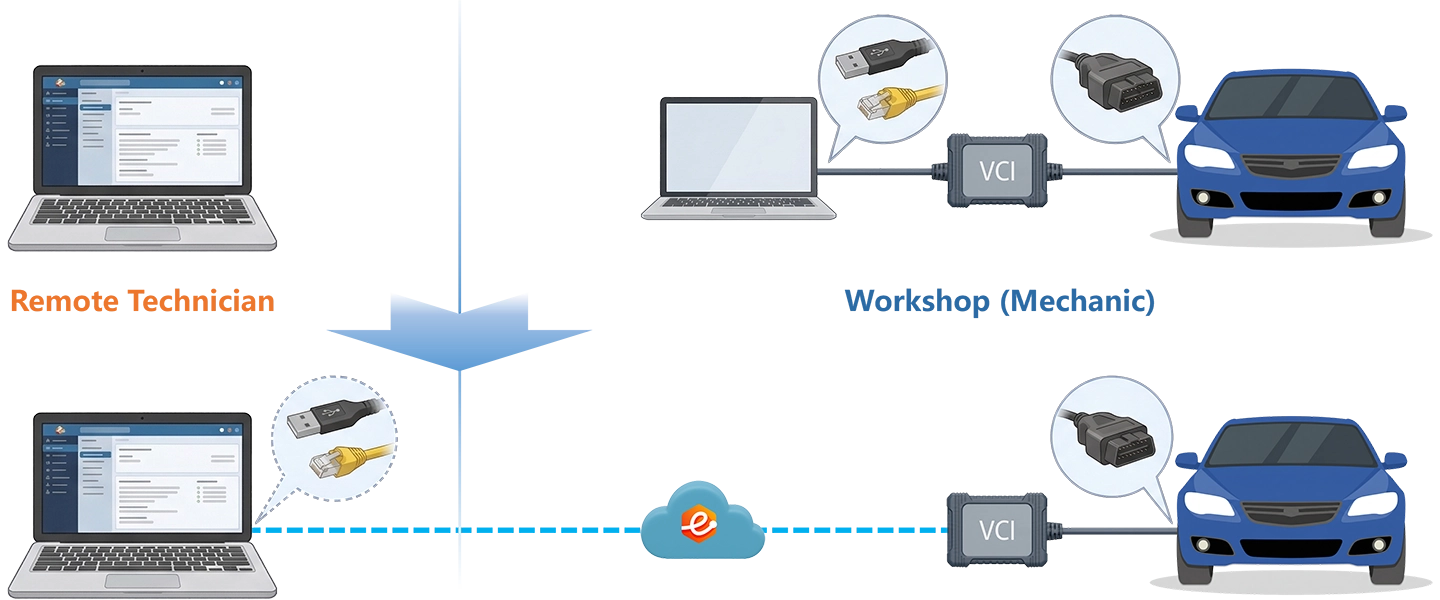
ISTA/D, ISTA, and E-Sys each require a locally recognized VCI to complete BDC replacement, TCM SCN coding, KAFAS3 calibration, or FEM key learning — steps that aftermarket scan tools cannot replicate. eLinehub bridges the BMW ENET cable or ICOM Next at the Mechanic’s workshop to your Technician PC over the internet. The BMW ENET cable and ICOM Next appear as locally connected network adapters on your Technician PC, with ISTA and E-Sys discovering them directly using your BMW TIS credentials.
- ✓ENET cable and ICOM Next appear on your Technician PC as a local network adapter — ISTA/D, ISTA, and E-Sys auto-discover without configuration changes
- ✓SCN coding, ECU flash, KAFAS3 calibration, and key learning run on your PC with your own BMW TIS subscription
- ✓The workshop needs only eLinehub Mechanic (free) and the VCI hardware — no ISTA install, no BMW TIS account at the workshop
The workshop connects the VCI and vehicle. You bring ISTA and BMW TIS. eLinehub provides the bridge. · By eLinehub ·
ENET Cable or ICOM Next? Start Here
Both BMW ENET cable and ICOM Next are covered on this page — no separate page exists for either. Use this comparison to choose the right interface for your job before booking a session.
The job is E-Sys coding, KAFAS3 calibration, or ISTA/D diagnostics on an F/G-series vehicle, and the workshop already has a cable. KAFAS3 calibration and most E-Sys coding jobs run reliably over a remote ENET connection.
The job involves G-series ECU flash or multi-module SCN sequences with gateway resets, key learning, or E-series vehicles requiring K-Line or D-CAN. ICOM Next handles gateway resets at the hardware level where a bare ENET connection can drop.
Both interfaces use eLinehub Link sub-mode for ISTA and E-Sys. If the workshop serves mixed jobs, ICOM Next covers everything on this page. ENET cable handles the majority of non-flash work at a lower hardware cost.
Why BMW Module Replacement Requires ISTA, Not a Scan Tool
On BMW F/G-series vehicles, replacing a module is only half the job. The vehicle will not shift, the keys will not start it, or the ADAS warnings will not clear — regardless of how well the mechanical work was done — until ISTA completes an online validation with BMW’s servers. Aftermarket scan tools cannot replicate these steps.
The six job types below represent the most common cases where an authenticated ISTA session is the only path to completion.
ZF 8HP Transmission Control Unit (TCM)
G05 X5 (8HP70) · G01/G08 X3 (8HP45/50) · G30 5 Series (8HP50)
Replacement TCM ships with no VIN-specific data loaded. ISTA must write SCN coding and initialize the Adaptations table — both require an active BMW TIS online session — before the transmission shifts out of limp mode. No aftermarket tool replicates this sequence.
Body Domain Controller (BDC)
G20 3 Series · G30 5 Series · G05 X5
A new BDC requires VO-matching and key learning via ISTA TIS. A used BDC additionally requires the donor vehicle’s VO to be overwritten before key learning can proceed. Both steps require an active BMW TIS online session — the vehicle will not start until they are complete.
KAFAS3 Stereo Camera
G01 X3 · G05 X5 · G07 X7 · G20 3 Series
Static calibration via ISTA/D is required after any windshield replacement or front-end collision repair that changes camera mounting angle. Third-party ADAS tools cannot access the KAFAS3 calibration routine in ISTA/D; a locally recognized VCI connection is the only path.
Front Electronic Module (FEM)
F10/F11 5 Series · F30/F31 3 Series · F15 X5
A new FEM ships with no ISN data. ISTA must synchronize the FEM ISN with the DME before key learning can proceed. A mismatch between FEM and DME ISN codes triggers BMW’s anti-tampering protection, leaving the vehicle unable to start regardless of key condition.
E-Sys Retrofit Coding
F/G-series — FA / FP / FDL-level ECU parameter access
Feature coding via E-Sys — CarPlay retrofits, KAFAS option activation, region change, FDL expert-mode parameter access — requires a direct TCP/IP connection to the ENET adapter. E-Sys will not enumerate the interface through a screen share or network proxy. ICOM Next supports the same E-Sys workflow via eLinehub Link.
MINI and Rolls-Royce (ISTA + ICOM Next)
MINI F-series · Rolls-Royce Ghost (RR31) · Rolls-Royce Cullinan (RR31)
MINI F-series vehicles follow the same F-series FEM/CAS patterns as BMW — ISN alignment and key learning both require an authenticated ISTA session with BMW TIS. Rolls-Royce Ghost and Cullinan are built on BMW G-platform architecture and follow the G-series DoIP workflow with eLinehub Link.
How eLinehub Maps BMW ENET Cable and ICOM Next to Your ISTA Session
Both the BMW ENET cable and the ICOM Next present to the workshop PC as Ethernet network adapters — not USB devices. eLinehub bridges either adapter across the internet to the Technician’s PC at Layer 2, where it appears as a local virtual network adapter. ISTA/D, ISTA, and E-Sys discover the interface through this bridged adapter using the same auto-discovery behavior they use with a locally connected device.
ISTA Auto-Discovery — No IP Configuration
Unlike XENTRY with a Mercedes ENET cable, BMW ISTA and E-Sys auto-discover the eLinehub Link adapter without any manual IP or port configuration on the Technician side. Select eLinehub Link in eLinehub Technician, wait for initialization, and open ISTA — the VCI is recognized exactly as it would be on a local bench.
Layer 2 Network Adapter Bridge
eLinehub bridges the physical NIC connected to the ENET cable or ICOM Next at driver level — not as a stream or screen relay. ISTA/D receives actual DoIP broadcast frames and ECU topology responses exactly as it would with a locally attached interface.
E-series D-CAN via Mechanic USB Mode
For E-series vehicles using a DCAN USB cable or ICOM A2 in D-CAN mode, eLinehub maps the connection via Mechanic USB mode instead of eLinehub Link. Direct/P2P is available for these USB sessions, which reduces latency for programming. RTT and bandwidth requirements are the same as for network adapter sessions.
Connection mode: Both ENET cable and ICOM Next use network adapter bridging, which runs in Relay mode only. Select eLinehub Link in eLinehub Technician when connecting to either interface. P2P / Direct mode is not available for network adapter sessions.
DoIP internet continuity: When the ICOM Next or ENET cable is bridged and a DoIP-capable vehicle or gateway is connected, your internet access may drop while the diagnostic session stays active. Use the Switch button in eLinehub Technician to toggle between diagnostic mode and normal internet mode. Do not use the Switch button during active SCN coding or ECU programming.
Remote Desktop vs Hardware Relay Box vs eLinehub
Four BMW Remote Programming Scenarios
Each scenario starts from the point where the mechanical work is done and the VCI is connected. ICOM Next is specified where it is the correct or recommended choice; ENET cable is noted where it is sufficient.
G05 X5 / G01 X3: ZF 8HP TCM Programming After Transmission Replacement
Primary audience: Remote programming specialist; Dealer group or multi-site network centralizing ISTA expertise.
- Connect ICOM Next to the vehicle OBD-II port. Use wired Ethernet between the ICOM Next and the workshop PC — not WiFi — for programming sessions. Connect a battery support unit to hold vehicle voltage stable at 12.5–14.5 V throughout the flash.
- Launch eLinehub Mechanic. The ICOM Next will appear under Mechanic Network Adapter — wait for it to show as connected before proceeding.
- Publish the order and notify the Technician by phone or message that the vehicle and battery support unit are ready.
- Accept the order. In eLinehub Technician, select the ICOM Next under Mechanic Network Adapter, then choose eLinehub Link. Wait for the device to complete initialization before opening ISTA.
- Open ISTA/D. Confirm the ICOM Next is auto-discovered. Run a full vehicle scan and log all pre-existing faults before touching the TCM.
- In ISTA, navigate to Vehicle Management → Control Unit Exchange → TCM. ISTA contacts BMW TIS for ECU Validation, writes the VIN-specific SCN code, and initializes the Adaptations table. A standard single-TCM job typically takes 25–35 minutes; allow extra time if BMW TIS server response is slow.
- Return to ISTA/D for a post-programming scan. Confirm no remaining transmission fault codes and that the TCM is reporting the correct software version.
If you are working with a bare BMW ENET cable rather than an ICOM Next, note that TCM SCN coding on G-series platforms involves repeated gateway resets mid-sequence. An ICOM Next manages these at the hardware level and is the recommended interface for this job. KAFAS3 calibration (Scenario C) and E-Sys coding are the right starting points for ENET-cable-only setups.
G20 3 Series / G30 5 Series: BDC Replacement with ISTA VIN-Coding and Key Learning
Primary audience: Remote programming specialist; VCI distributor or ISTA software reseller adding remote programming as a service layer.
- Install the replacement BDC. Connect ICOM Next to the OBD-II port with wired Ethernet to the workshop PC. Connect a battery support unit before the session starts.
- Open eLinehub Mechanic and confirm the ICOM Next is listed as an active network adapter.
- Publish the order with all vehicle keys physically present in the car — key learning cannot proceed if keys are missing at the time ISTA locks the set.
- Accept the order. Select the ICOM Next under Mechanic Network Adapter → eLinehub Link. Confirm initialization completes before opening ISTA.
- Open ISTA/D. Run a full system scan and document which modules report the new BDC as uncoded.
- For a used BDC: run VO-matching first to overwrite the donor vehicle’s order data. Then navigate to Control Unit Exchange → BDC — ISTA contacts BMW TIS, validates the unit, and writes the vehicle-specific coding.
- Run Key Learning with all keys present. This step locks the immobilizer to the coded key set — any key not present at this step will no longer start the vehicle.
- Final ISTA/D scan to confirm the BDC is coded correctly and all lighting, comfort access, and door module functions have been restored.
X3 / X5 / X7 G-series: KAFAS3 Calibration via ENET Cable or ICOM Next
Primary audience: Mobile programming specialist; Collision repair network standardizing post-repair ADAS workflows. A bare ENET cable is all you need — no ICOM Next required for this job.
- Park the vehicle on level ground in a well-lit area. Position the KAFAS3 calibration target per BMW WIS for the vehicle’s specific KAFAS variant and model year. Connect ICOM Next or ENET cable to the OBD-II port.
- Start eLinehub Mechanic. Confirm the interface appears as an active network adapter in the device list.
- Publish the order. Remain at the vehicle — the Technician will need to confirm target positioning before starting the calibration routine.
- Accept the order. Select the interface under Mechanic Network Adapter → eLinehub Link. Confirm initialization.
- Open ISTA/D. Navigate to Service Functions → Driver Assistance → KAFAS3 → Camera Calibration → Static. ISTA/D prompts for confirmation that the target is correctly positioned — verify with the Mechanic before proceeding.
- ISTA/D executes the calibration routine and writes the new calibration data to the KAFAS3 module. The static calibration sequence typically takes 8–12 minutes.
- Post-calibration scan: confirm lane departure, forward collision warning, and traffic sign recognition show no remaining fault codes. If ISTA/D indicates a dynamic calibration pass is also required, advise the Mechanic to complete the highway-speed drive before delivering the vehicle.
Collision repair networks: a single remote Technician with ISTA/D and a BMW TIS subscription can support KAFAS3 calibration jobs at multiple body shops, eliminating the need for each location to maintain a full ISTA setup.
F10 5 Series / F30 3 Series: FEM Replacement and Key Learning
Primary audience: Remote programming specialist handling immobilizer and ISN alignment jobs.
- Install the replacement FEM. Connect ICOM Next to the OBD-II port. F-series vehicles communicate with ISTA via the ENET interface (DoIP/Ethernet) — confirm the ENET connection is active, not D-CAN. Connect a battery support unit.
- Open eLinehub Mechanic. The ICOM Next should appear as an Ethernet network adapter — not as a USB device. If it appears as USB only, the ENET connection is not active.
- Publish the order with all keys for this vehicle physically present.
- Accept the order. Select the ICOM Next under Mechanic Network Adapter → eLinehub Link. Confirm initialization.
- Open ISTA/D. Run a full system scan — the new FEM will show fault codes indicating it has not been coded. Note the DME ISN from the fault log before proceeding.
- In ISTA, navigate to Control Unit Exchange → FEM. ISTA contacts BMW TIS to validate the unit, writes the vehicle VIN to the new FEM, and executes ISN synchronization between FEM and DME.
- With ISN alignment confirmed, run Key Learning with all keys present. Keys not present when learning locks will no longer start the vehicle — this cannot be undone without repeating the full key learning sequence.
- Final ISTA/D scan. Confirm no remaining fault codes in FEM, DME, or CAS. Confirm all programmed keys start the vehicle before closing the order.
Ready to try on a live vehicle?
Free trial starts automatically — no credit card required.
Download Technician Software — Free TrialEnd-to-End Setup
System requirements: Windows 10 or Windows 11 (64-bit) recommended; Windows 7 64-bit minimum. Not supported on Mac, Linux, Android or Windows ARM.
Both sides need a stable wired internet connection for SCN coding and programming sessions. See Section 6 for latency and bandwidth requirements.
- Download and install eLinehub Mechanic on the workshop Windows PC. No ISTA, no BMW Online account, and no VCI driver installation required.
- Obtain connection credentials from your Technician before your first session — either a Passcode for the specific order, or a Custom Mechanic software build your Technician has provided.
- Connect the ICOM Next or BMW ENET cable to the vehicle OBD-II port. For programming and coding sessions, use a wired Ethernet connection to the workshop PC — not WiFi. If the interface connects via RNDIS-type USB-to-Ethernet adapter, install the RNDIS driver on the workshop PC before launching eLinehub.
- Confirm the interface appears in eLinehub Mechanic as a network adapter. If it does not appear, the network adapter detection plugin may need to be installed — available directly within eLinehub Mechanic.
- Publish the order and notify the Technician that the vehicle is ready. For any programming session, keep the battery support unit connected and maintain the Ethernet link until the Technician confirms the session is complete.
- Download and install eLinehub Technician on the PC where ISTA, E-Sys and your BMW TIS subscription are already configured. Windows 10 or Windows 11 (64-bit) required.
- Install ICOM Next drivers on this PC — the same driver package used for a locally connected ICOM Next. ISTA’s auto-discovery of the mapped adapter depends on these drivers being present. For BMW ENET cable sessions, standard Windows network adapter drivers are sufficient — no BMW-specific drivers needed on the Technician side.
- Keep your existing ISTA, E-Sys installation and BMW TIS subscription on this machine. eLinehub adds no layer between ISTA and the VCI. If you plan to service G-series vehicles from 2023 model year onwards, verify your ISTA version is 4.50 or later.
- Accept an incoming order. In eLinehub Technician, select the ICOM Next or ENET cable under Mechanic Network Adapter and choose eLinehub Link. Wait for initialization to complete before launching ISTA.
Network Requirements
Both sides need a minimum 10 Mbps upload bandwidth. Wired connections are required on both sides for SCN coding and programming sessions. Check RTT and packet loss in eLinehub Technician before starting any programming session.
Before any SCN coding or ECU flash: connect a battery support unit maintaining vehicle voltage at 12.5–14.5 V throughout the entire programming sequence. Voltage drop during a module write is one of the most common causes of bricked ECUs, whether the session is local or remote. Do not attempt programming sessions over a mobile hotspot or congested WiFi connection.
E-series DCAN / ICOM A2 sessions: For E-series vehicles using a DCAN USB cable or ICOM A2 in D-CAN mode, eLinehub maps the connection via Mechanic USB mode. Direct/P2P mode is available for these USB sessions and reduces latency for programming. RTT and bandwidth requirements are the same as above.
BMW Platform Compatibility
eLinehub also supports Mercedes-Benz (SD Connect, ENET cable), VW Group (VAS6154A, ODIS), JLR (DoIP VCI, Pathfinder/SDD) and GM (MDI2, GDS2, SPS2) — all from the same Technician PC.
Customer Protection
eLinehub is built so that the Technician’s workshop relationships stay with the Technician — not with the platform.
Passcode Order Protection
Every order requires a Passcode to accept. No other specialist on the platform can pick up a workshop’s job without it. The Mechanic shares the Passcode directly with the Technician they already work with — the relationship stays private.
Custom Mechanic Software
Distribute a white-label Mechanic build permanently linked to your Technician account. Orders from that workshop are auto-assigned to you by default, with no Passcode exchange needed for routine sessions. No other specialist can claim the workshop through a white-label install.
Secure Order Sharing
For complex multi-ECU jobs, you can share a specific order with a trusted colleague. The colleague sees the VCI data for that order only — not the Mechanic’s contact details, not any other orders.
BMW ENET Cable and ICOM Next Remote Programming FAQ
Eight questions covering the ENET vs ICOM Next decision, ISTA auto-discovery, D-CAN E-series sessions, E-Sys remote coding, and network requirements for flash and SCN coding.
Start Your First Remote ISTA Session
Free trial starts automatically. No credit card required to get started.
Questions or setup support: support@elinehub.com