
GMC GDS2 and SPS2 Remote Programming:
MDI 2 Mapped to Your Technician PC
GDS2 and SPS2 within Techline Connect each require a locally recognized MDI 2 to complete module calibration, post-flash relearn, or Vehicle Wide Programming — procedures that aftermarket scan tools and screen-share setups cannot replicate. eLinehub maps the MDI 2 at the Mechanic’s workshop to your Technician PC at the driver and OS level. GDS2, SPS2, and Tech2Win find it through the MDI Manager driver path exactly as they would if the MDI 2 were physically on your desk.
- ✓MDI 2 mapped at the driver level via USB — GDS2, SPS2 within Techline Connect, and Tech2Win see it as a local J2534 device through the standard MDI Manager driver path
- ✓SPS2 dual-path programming, GDS2 post-flash bidirectional relearn, and VWP all run from your Technician PC with your own ACDelco TDS / Techline Connect credentials
- ✓The workshop installs only eLinehub Mechanic (free) — no GDS2 license, no Techline Connect subscription at the workshop
The workshop connects the MDI 2 and the vehicle. You bring GDS2, SPS2, and Techline Connect credentials. eLinehub provides the bridge. · By eLinehub ·
Why GMC Module Programming Requires GDS2 or SPS2 — Not Just a Scan Tool
Replacing a module on a GMC vehicle is only the first half of the job. The vehicle will not operate normally — the transmission stays in limp mode, the engine cranks but does not start, or VTD locks out key recognition — until GDS2 or SPS2 within Techline Connect completes the required sequence. No aftermarket scan tool can replicate these procedures.
The four job types below represent the most common cases where a live SPS2 or GDS2 session is the only path to completion on GMC platforms.
SPS2 Dual-Path Flash Requirement
Sierra 1500 · Sierra HD · Acadia · Yukon / XL (all TCM, BCM, ECM replacement)
SPS2 requires a live physical MDI 2 connection throughout the flash. The calibration file downloads from GM’s servers to the Technician’s PC while SPS2 simultaneously writes it to the module — both paths on the same machine, in the same session. Remote desktop separates these two paths physically: SPS2 finds the workshop screen but never locates a programmable MDI 2 device, so the calibration download has nowhere to write to.
BCM Replacement Sequence Integrity
Acadia (2017–2024) · Yukon / XL (2015–2024) · Sierra 1500 (K2XX / T1XX)
A replacement BCM arrives with no vehicle-specific data. The programming sequence is fixed and interdependent: GDS2 reads the existing vehicle configuration via Request BCM Info for SPS, SPS2 writes the calibration, then GDS2 runs VTD relearn and SDM serial number setup. Any interruption between steps — including a screen relay dropping mid-write — leaves the vehicle unable to recognize authorized keys.
GDS2 Post-Flash Bidirectional Relearn
Sierra 2500 HD / 3500 HD · L5P Duramax · L8T gas (all model years)
After an ECM flash, GDS2 must complete a bidirectional sequence: crankshaft position variation learn, throttle body relearn, Transmission Adaptive Values Learn, TPMS sensor ID relearn, and steering angle calibration. Each step requires GDS2 to send a command and wait for the ECU response before the next. A screen relay introduces timing variance that breaks these real-time J2534 command cycles.
Vehicle Wide Programming (SPS3)
2022.5+ Sierra 1500 (T1XX Global B) · 2024+ Sierra HD
GM TSB 24-NA-113 mandates a wired MDI 2 connection for SPS3 Vehicle Wide Programming. VWP flashes ECM, TCM, BCM, and ADAS controllers in a single session lasting 30–90 minutes. If a wireless adapter is detected, VWP is grayed out in SPS2. A single interrupted write mid-sequence may require recovery at the module level — the MDI 2 must remain wired and the remote session must not be interrupted until the VWP Summary screen is shown.
How eLinehub Maps MDI 2 to Your GDS2 Session
Unlike remote desktop, which moves the display of a session running at the workshop, eLinehub maps the MDI 2 hardware itself at the driver and OS level on the Technician’s PC. The Mechanic connects MDI 2 via USB; eLinehub carries the complete USB device connection across the internet, and GDS2, SPS2, and Tech2Win on the Technician’s machine recognize the remote MDI 2 through the MDI Manager driver path — the same path they use for a physically connected device.
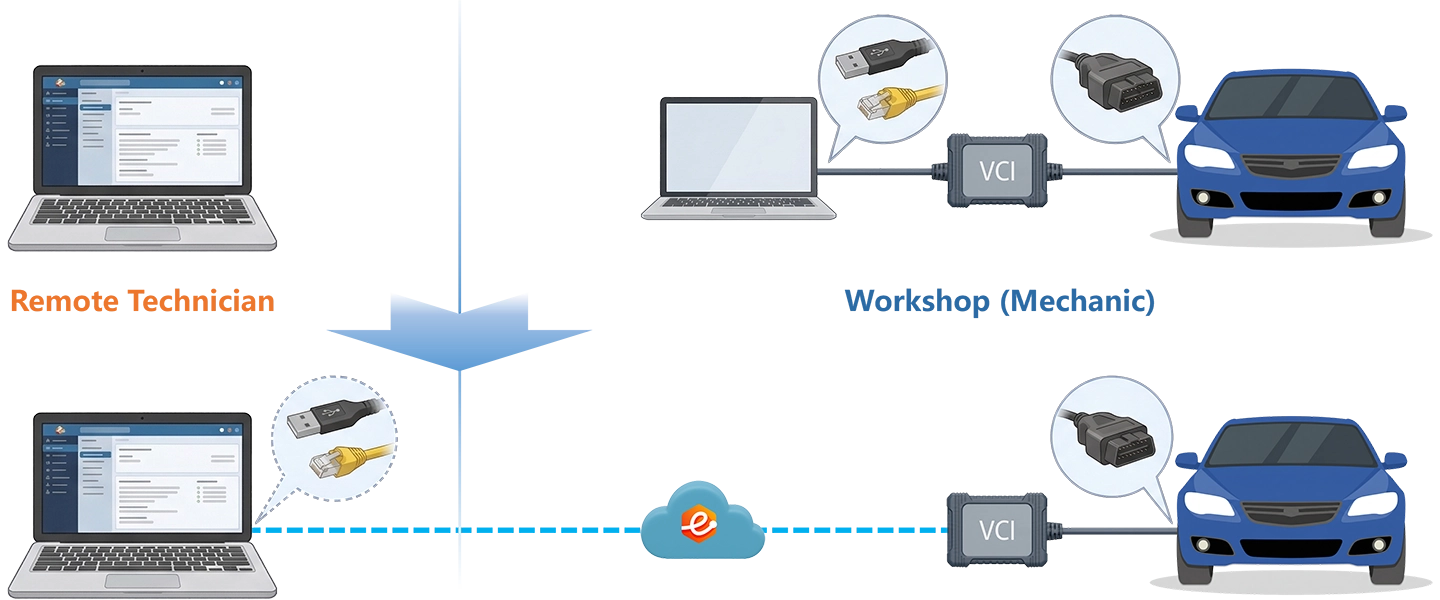
Driver-Level Mapping — No Software Modifications
Unlike remote desktop, which gives the Technician a view of the workshop screen with no USB hardware access, eLinehub captures the MDI 2 at the device level and reconstructs it as a local USB device on the Technician’s PC. GDS2, SPS2, and Tech2Win find the MDI 2 through the MDI Manager driver — the same driver path used for a physically connected device. No GDS2 plug-ins, no J2534 configuration changes, no software modifications required.
ACDelco TDS Credentials Stay on Technician PC
Unlike shipping a VCI to the workshop where a third-party device sits between your Techline Connect session and GM’s calibration servers, eLinehub maps only the MDI 2 hardware. Your ACDelco TDS login, Techline Connect subscription, and GDS2 license remain on your machine. The workshop never receives any OEM credentials, and GM’s server download path runs directly from your PC.
SPS2 Dual-Path Requirement Fully Satisfied
Unlike screen-share tools where the MDI 2 remains physically attached to the workshop PC and invisible to SPS2 on the Technician’s machine, eLinehub maps the MDI 2 as a local USB device on the Technician’s PC. SPS2 sees the MDI 2 in its J2534 interface list and can simultaneously access GM’s calibration server download and write to the module — both on the same machine, as SPS2 requires.
What each side provides:
eLinehub vs. approaches technicians try first:
Three GMC Remote Programming Scenarios
Each scenario starts from the point where the mechanical work is done and the MDI 2 is connected via USB to the workshop PC.
Sierra 1500: TCM Programming After 8L90 or 10L80 Transmission Replacement
Primary audience: Remote programming specialist; transmission shop or parts supplier bundling SPS2 calibration with TCM sales.
- Install the replacement transmission. Connect MDI 2 to the Sierra’s OBD-II port via USB and to the workshop PC.
- Open eLinehub Mechanic and publish the job order. Share the Passcode with the remote Technician.
- Accept the order. In eLinehub Technician, select Mechanic USB. Wait for the MDI 2 to initialize — confirm it appears in Windows Device Manager under the MDI Manager driver before launching Techline Connect.
- Open SPS2 within Techline Connect. Select the MDI 2 from the J2534 device list.
- Enter the VIN. SPS2 reads the replacement TCM’s hardware ID, downloads the VIN-specific calibration from GM’s servers, and writes it to the module in a single connected session.
- After SPS2 confirms a successful write, open GDS2 and run Transmission Adaptive Values Learn. GDS2 commands the TCM through pressure cycles in sequence — do not disconnect during this procedure.
- Clear DTCs. Confirm no communication faults with other modules and release the vehicle.
Note: The same workflow applies to 10L80 replacements on 2018–2021 Sierra 1500, 6L80 on older Sierra and Yukon platforms, and 6T75 TCM replacement on Acadia and Terrain transverse-mounted engines. The SPS2 procedure is identical; only the calibration file differs.
Acadia or Yukon: BCM Replacement and VTD Relearn
Primary audience: Independent shop or mobile programming service; multi-site fleet operator centralizing BCM replacement across Yukon and Acadia vehicles.
- Install the new BCM. Connect MDI 2 to the vehicle’s OBD-II port via USB and to the workshop PC.
- Open eLinehub Mechanic and publish the job order. Share the Passcode with the remote Technician. Remain available — the Technician will ask you to cycle the ignition at specific points in the sequence.
- Accept the order. Select Mechanic USB in eLinehub Technician. Wait for MDI 2 initialization and open GDS2.
- Run BCM special function Request BCM Info for SPS — reads current vehicle configuration and prepares the module for the SPS2 session.
- Switch to SPS2 within Techline Connect. SPS2 writes the VIN, RPO option codes, and base calibration to the new BCM.
- Return to GDS2. Run Setup SDM Serial Number in BCM to register the airbag module’s serial number — required for correct restraint operation.
- Run Request VTD Info for SPS in GDS2, then complete the theft deterrent sequence in SPS2. The vehicle recognizes authorized keys after this step.
- Program key fobs via GDS2 → Keyless Entry → Transmitter Programming. Clear all VTD-related DTCs and cycle ignition off for 10 seconds before releasing the vehicle.
Note: For multi-site networks, one central Technician handles every Acadia or Yukon BCM job at any satellite location through this workflow — no travel required.
2022.5+ Sierra 1500 or 2024+ Sierra HD: Vehicle Wide Programming via SPS3
Primary audience: Technician handling Global B (VIP) field action updates; shop receiving 2022.5+ Sierra vehicles requiring TSB 24-NA-113 compliance.
- Connect MDI 2 to the Sierra’s OBD-II port via USB — wired only. A wireless adapter present on either end causes SPS3 VWP to be grayed out in SPS2.
- Connect a GM-approved battery support unit; voltage fluctuation during VWP can interrupt programming mid-sequence. Open eLinehub Mechanic and share the job order.
- Accept the order. Select Mechanic USB in eLinehub Technician. Confirm the MDI 2 has initialized as a wired device before proceeding.
- Open Techline Connect → SPS2 → SPS3 Vehicle Wide Programming. SPS3 retrieves current module software versions from the vehicle and downloads required update files from GM’s servers.
- SPS3 flashes modules in sequence — do not interact with either PC or the vehicle during the active write window. Allow 30–90 minutes on Global B vehicles with multiple modules.
- After completion, capture the VWP Summary screen listing updated modules and any requiring individual follow-up sessions.
Note: Do not close eLinehub Technician during the VWP flash. Closing the Technician software terminates the MDI 2 device mapping and interrupts the session at the active write point.
Ready to try on a live GMC vehicle?
Free trial starts automatically — no credit card required.
Download Technician Software — Free TrialEnd-to-End Setup
System requirements: Windows 10 or Windows 11 (64-bit) recommended; Windows 7 64-bit minimum on both sides. Not supported on Mac, Linux, Android, or Windows ARM.
Initial setup runs once per machine. After that, accepting a job and connecting to the MDI 2 takes under a minute.
- Download and install eLinehub Mechanic on the workshop Windows PC. Free to use. No GDS2 license, no GM credentials, and no MDI Manager installation required on this machine.
- Connect MDI 2 to the vehicle’s OBD-II port via USB and to the workshop PC. For SPS2 flash sessions and VWP, use the wired USB connection — not the MDI 2’s built-in WiFi mode.
- Open eLinehub Mechanic and publish the job order. Share the Passcode with the remote Technician. Maintain the USB connection until the Technician confirms the session is complete.
- Download and install eLinehub Technician on the PC where GDS2, Techline Connect, and your ACDelco TDS credentials are already configured. Windows 10 or Windows 11 (64-bit) recommended.
- Install the MDI Manager package — the same GM driver set used for a locally connected MDI 2. GDS2, SPS2, and Tech2Win find the mapped MDI 2 through this driver without any software modification.
- Keep your existing GDS2 license, Techline Connect subscription, and ACDelco TDS login on this machine. eLinehub adds no layer between Techline Connect and the MDI 2.
- Accept an incoming order. Select Mechanic USB in eLinehub Technician. Confirm the MDI 2 has initialized in Windows Device Manager before launching GDS2 or SPS2.
Network Requirements for GMC Programming Sessions
Both sides need a minimum 10 Mbps upload bandwidth. Wired connections are required on both sides for SPS2 flash sessions and VWP. Check RTT in eLinehub Technician before starting any module programming session.
Flash safety: SPS2 has no built-in session recovery. A write interrupted mid-flash on a BCM or TCM typically requires bench programming or dealer tools to recover. Connect a battery support unit maintaining 13.5–14.2 V before starting any flash session. Voltage drop is the most common cause of write failure, independent of the remote connection.
MDI Manager and GDS2 conflict: Close MDI Manager before opening SPS2 or GDS2 to avoid device access conflicts. MDI 2 firmware updates must be completed before the session begins — do not update firmware mid-session.
VWP session stability: For SPS3 Vehicle Wide Programming sessions, sustained packet loss above 0.5% increases the risk of write errors on multi-module sequences. Resolve any retransmission warnings seen during the initial scan before starting VWP.
GM Platform Compatibility
Chevrolet, Buick, and Cadillac vehicles using the same GM MDI 2 are covered on the Chevrolet GDS2 SPS2 Remote Programming page. eLinehub also supports Mercedes-Benz (SD Connect, ENET cable), VW Group (VAS6154A, ODIS), Audi (VAS6154, ODIS Service), and BMW (ENET cable, ICOM Next) from the same Technician PC.
Customer Protection
eLinehub is built so that the Technician’s workshop relationships stay with the Technician — not with the platform.
Passcode Order Protection
Every order requires a Passcode to accept. No other specialist on the platform can pick up a workshop’s job without it. The Mechanic shares the Passcode directly with the Technician they already work with — the relationship stays private.
Custom Mechanic Software
Distribute a white-label Mechanic build permanently linked to your Technician account. Orders from that workshop are auto-assigned to you by default, with no Passcode exchange needed for routine sessions. No other specialist can claim the workshop through a white-label install.
Secure Order Sharing
For complex multi-ECU jobs, you can share a specific order with a trusted colleague. The colleague sees the VCI data for that order only — not the Mechanic’s contact details, not any other orders.
GMC MDI 2 Remote Programming FAQ
Seven questions covering MDI 2 USB driver mapping, GDS2 device discovery, SPS2 flash safety, Techline Connect credential handling, Tech2Win, multi-site deployment, and VCI distributor use cases.
Start Your First Remote GDS2 Session
Free trial starts automatically. No credit card required to get started.
Questions about VWP configuration or multi-site deployment: support@elinehub.com