
Chevrolet GDS2 SPS2 Remote Programming:
MDI 2 Mapped to Your Technician PC
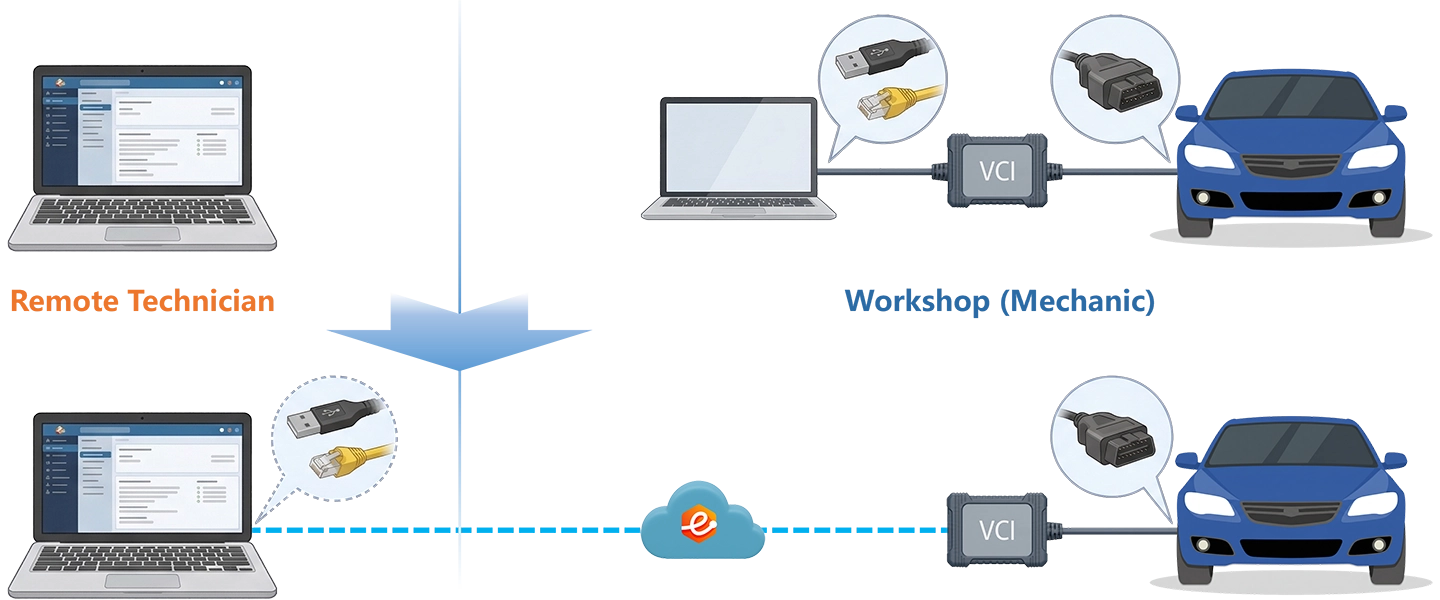
GDS2, SPS2, and Techline Connect each require a locally connected J2534 interface to perform online module programming — SPS2 must download calibrations from GM’s servers while writing to the ECU through the MDI 2, and both paths must run on the same machine. eLinehub maps the MDI 2 from the Mechanic’s workshop to your Technician PC at the driver and OS level. The MDI 2 appears on your machine exactly as a locally connected device, and SPS2, GDS2, and Tech2Win run natively with full access to your Techline Connect credentials and GM’s servers.
- ✓GDS2, SPS2, Tech2Win, and Techline Connect all recognize the mapped MDI 2 as a local J2534 device — same driver, same device identity, no additional configuration required
- ✓SPS2 downloads calibrations from GM’s servers using your internet connection and writes them through the MDI 2 at the workshop — both paths on your machine, exactly as local
- ✓The workshop installs only eLinehub Mechanic (free) — no Techline Connect subscription, no ACDelco TDS account, no MDI 2 on your end
The workshop connects the MDI 2 and the vehicle. You bring GDS2, SPS2, and Techline Connect. eLinehub provides the bridge. · By eLinehub ·
Why Remote Desktop Cannot Handle GM Programming
Screen-sharing tools are the first option most shops reach for. They all encounter the same fundamental constraint: SPS2 and GDS2 on the Technician’s PC never see an MDI 2 over remote desktop — they see a remote screen. That distinction breaks GM programming in four concrete ways.
The four failure modes below represent the most common reasons screen-sharing and remote desktop tools cannot be used for SPS2, GDS2, and Techline Connect programming sessions.
SPS2 Dual-Path Requirement
ECM, TCM, BCM, SDM replacement — all GM vehicles programmed with SPS2 via Techline Connect
SPS2 downloads VIN-specific calibration files from GM’s servers while simultaneously writing them to the ECU through the MDI 2 — both paths must be active on the same machine at the same time. Screen-sharing tools put the MDI 2 on one machine and SPS2 on another. The dual-path requirement is physically impossible to satisfy over remote desktop, regardless of internet speed or tool version.
Mid-Flash Interruption Risk
Any module mid-flash state is unrecoverable without bench programming or dealer re-flash
Once SPS2 begins writing to an ECM, TCM, BCM, or SDM, the sequence cannot be interrupted. A remote desktop timeout, a screen-share packet loss spike, or a brief network stall during the write window leaves the module in a partially programmed state. Recovery typically requires bench programming or dealer intervention — an expensive and avoidable outcome from a connection method that was never designed for sustained J2534 pass-through.
GDS2 Post-Flash Bidirectional Procedures
All platforms — crank variation learn, throttle relearn, TPMS, adaptive pressure learn required after module replacement
After SPS2 flashes a module, GDS2 runs bidirectional learn procedures: crankshaft position variation learn, throttle body relearn, transmission adaptive pressure learn, TPMS sensor ID relearn, steering angle sensor calibration. GDS2 sends a command, waits for the ECU to respond with sensor data or confirmation, and issues the next command. A screen relay carries pixels, not J2534 traffic — it cannot carry real-time bidirectional ECU conversations.
Vehicle-Wide Programming Session Duration
2019+ Silverado / Sierra (T1XX) · Silverado EV, Sierra EV, Hummer EV, Lyriq (Global B)
On Global A and Global B platforms, Techline Connect offers Vehicle-Wide Programming (VWP) — a single operation that scans all modules, identifies outdated software, and programs them in sequence. Sessions can run 30–90 minutes. Any connection dropout mid-sequence interrupts the entire job and may require re-scanning to identify the recovery position. Remote desktop sessions are not designed for sustained 30–90-minute J2534 device sessions.
How eLinehub Maps MDI 2 to Your GDS2 and SPS2 Session
Unlike remote desktop, which moves the display of a session running at the workshop, eLinehub maps the MDI 2 hardware itself at the driver and OS level on the Technician’s PC. The Mechanic connects the MDI 2 via USB or Ethernet; eLinehub carries the raw device stream across the internet, and GDS2, SPS2, and Tech2Win on the Technician’s machine recognize the remote MDI 2 through the standard J2534 driver path — identical behavior to a physically connected device.
Driver-Level Mapping — No Protocol Translation
Unlike screen-sharing tools that move a remote display, eLinehub maps the MDI 2 itself at the driver and OS level. GDS2, SPS2, Tech2Win, and Techline Connect discover the mapped MDI 2 through the standard Windows J2534 driver path — the same discovery behavior they use for a physically connected device. No additional drivers, no ODIS-style IP configuration, no software changes on the Technician’s PC.
SPS2 Dual-Path Requirement Preserved
Unlike remote desktop, which separates the SPS2 session from the MDI 2 on different machines, eLinehub places both on the Technician’s PC. SPS2 downloads VIN-specific calibration data from GM’s servers over the Technician’s own internet connection and writes it to the ECU through the mapped MDI 2 — both paths on a single workstation, exactly as a local bench setup.
P2P Available for USB Device Sessions
Unlike network adapter sessions, which use Relay mode throughout, USB device sessions support P2P (Direct) mode when both endpoints are on wired connections and RTT is under 80 ms. P2P reduces latency for SPS2 flash sessions on TCMs, BCMs, and SRS modules. eLinehub Technician displays RTT and packet loss in real time — check both before selecting P2P or starting any SPS2 operation.
MDI 2 connection modes: USB device mapping is the default and works with all MDI 2 setups. Network adapter mapping (physical Ethernet NIC or MDI Manager RNDIS virtual adapter) is an alternative when the MDI 2 is already on a wired shop network. Select eLinehub Link in eLinehub Technician for network adapter sessions — these run in Relay mode throughout. If an RNDIS virtual adapter does not support bridging, USB device mapping is the correct fallback.
Screen Share vs Hardware Relay Box vs eLinehub
Three GM Remote Programming Scenarios
Each scenario starts from the point where the mechanical work is done and the MDI 2 is connected to the workshop PC.
2021 Silverado 1500 LTZ — PCM Replacement and SPS2 Flash
Primary audience: Remote GM programming specialist; powertrain shops handling PCM replacement programming.
- Connect the GM MDI 2 to the Silverado 1500 OBD-II port via DLC cable. Then connect the MDI 2 to the workshop PC via USB (Type A to Type B) — the recommended connection for all SPS2 programming. Confirm a programming power supply (13.5–14.2 V, 100 A+) is connected to the vehicle.
- Install eLinehub Mechanic on the workshop Windows PC if not already present. No GDS2, Techline Connect, or ACDelco TDS subscription needed on this machine.
- Open eLinehub Mechanic, create an order with the vehicle VIN and details, and share the Passcode with the Technician. Confirm the replacement PCM is installed and the vehicle is ready.
- Accept the order in eLinehub Technician. Select the MDI 2 as a USB device. Check the RTT and packet loss readout — confirm RTT is under 80 ms and packet loss is at 0% before proceeding. Switch to P2P mode if both endpoints are on wired connections and the numbers support it.
- Wait for MDI 2 initialization — confirm the device appears in Windows Device Manager under the MDI 2 driver before launching SPS2. Close MDI Manager if it is running to avoid device access conflicts.
- Launch Techline Connect and open SPS2. The MDI 2 appears in the device selection screen. Enter the VIN, select the PCM as the target module.
- SPS2 connects to GM’s servers using your Techline Connect credentials, downloads the VIN-specific calibration for this PCM part number and RPO configuration, and writes it to the module. Monitor the flash progress panel.
- After SPS2 confirms completion, launch GDS2. Run crankshaft position variation learn, idle relearn, and throttle body relearn. Clear all DTCs and confirm normal PCM operation before ending the session.
One ACDelco TDS subscription covers multiple powertrain shops this way — each shop installs only eLinehub Mechanic; the Techline Connect subscription and SPS2 credentials stay with the specialist.
Sierra 1500 — 8L90 TCM Programming After Transmission Replacement
Primary audience: Transmission shop or parts supplier bundling SPS2 TCM coding with replacement transmission sales.
- Connect the MDI 2 to the Sierra 1500 OBD-II port via DLC cable and to the workshop PC via USB. Confirm the replacement 8L90 transmission and TCM are installed and a programming power supply is connected.
- Confirm MDI 2 appears as a shareable device in eLinehub Mechanic and publish the order. Remain available during the session — the Technician may ask you to confirm gear selector position at a specific point in the adaptive pressure learn sequence.
- Accept the order. Select the MDI 2 as a USB device in eLinehub Technician. Check RTT and packet loss — confirm packet loss is at 0% before starting SPS2.
- Close MDI Manager if running. Launch Techline Connect and open SPS2. Enter the VIN and select the TCM as the target module. SPS2 downloads the correct calibration for this transmission variant and RPO configuration, then programs the TCM.
- After SPS2 confirms TCM programming complete, switch to GDS2. Navigate to Module Diagnostics → Transmission Controls → Configuration/Reset Functions → Transmission Adaptive Values Learn and run the Service Fast Learn procedure.
- Follow the on-screen prompts for the adaptive pressure learn sequence. GDS2 commands the vehicle through each learn phase; confirm gear selector positions with the Mechanic as prompted.
- Run a full vehicle scan in GDS2. Clear all DTCs and verify no transmission faults remain before ending the session.
For parts suppliers, this removes the shop’s need to source a separate programming specialist for transmission replacements. The MDI 2 stays at the shop; the specialist holds the Techline Connect and ACDelco TDS credentials.
2022 Suburban LT (T1XX, Global A) — Vehicle-Wide Programming
Primary audience: Independent GM specialist managing multi-module software updates on Global A platforms; fleet maintenance operators.
- Connect the MDI 2 to the Suburban OBD-II port via DLC cable and to the workshop PC via USB or Ethernet (Ethernet preferred for long VWP sessions). Confirm a programming power supply (13.5–14.2 V, 100 A+) is connected and the vehicle battery is fully charged before starting.
- Confirm MDI 2 appears as a shareable device in eLinehub Mechanic and publish the order. Stay with the vehicle for the duration — VWP on a T1XX Suburban can run 30–90 minutes and requires continuous MDI 2 connection throughout.
- Accept the order. Select the MDI 2 as a USB device (or eLinehub Link if the Mechanic shared a network adapter). Check RTT and packet loss — confirm RTT is under 80 ms and packet loss is at 0% before starting VWP. Do not proceed over WiFi or a congested network for a VWP session.
- Close MDI Manager if running. Launch Techline Connect and open the Vehicle-Wide Programming workflow. Enter the VIN. Techline Connect scans all modules, identifies which require software updates, and presents the programming sequence.
- Confirm the module list and start the VWP sequence. eLinehub maintains the MDI 2 session for the entire duration — monitor the RTT and packet loss display throughout. Do not initiate large downloads or Windows Update on the same network during the session.
- After VWP completion, Techline Connect reports programming results by module. Launch GDS2 and run a full vehicle scan — address any post-VWP DTCs before ending the session.
A single Techline Connect specialist can serve multiple fleet maintenance bays this way — each facility installs eLinehub Mechanic and provides an MDI 2; the Techline Connect account and ACDelco TDS subscription remain on the specialist’s machine.
Ready to try on a live GM vehicle?
Free trial starts automatically — no credit card required.
Download Technician Software — Free TrialEnd-to-End Setup
System requirements: Windows 10 or Windows 11 (64-bit) recommended; Windows 7 64-bit minimum. Not supported on Mac, Linux, Android, or Windows ARM.
Both sides need a stable wired internet connection for SPS2 flash and VWP sessions. See Section 5 for full latency and bandwidth requirements.
- Connect the GM MDI 2 to the vehicle OBD-II port via DLC cable. Then connect the MDI 2 to the workshop Windows PC:
USB (Type A to Type B) — recommended for all setups, simplest configuration.
Ethernet (RJ45) — if the MDI 2 is already on a wired shop network.
For SPS2 programming, a wired connection is mandatory — do not use WiFi for any flash operation. - Download and install eLinehub Mechanic on the workshop Windows PC. No GDS2 installation, no Techline Connect subscription, and no ACDelco TDS account needed on this machine.
- Open eLinehub Mechanic. Create an order with the vehicle VIN and details, and share the Passcode with the Technician. Confirm the MDI 2 appears as a shareable device before publishing the order.
Note: If MDI Manager is installed and an RNDIS virtual adapter appears in Windows Network Adapters, eLinehub Mechanic can share it via network adapter mode. If that adapter does not support bridging, select USB device mode instead.
- Download and install eLinehub Technician on the PC where GDS2, Techline Connect, and your ACDelco TDS subscription are already configured. Windows 10 or Windows 11 (64-bit) recommended.
- Accept the incoming order. Select the connection type matching what the Mechanic shared:
MDI 2 via USB — select it as a USB device. MDI 2 appears as a locally attached J2534 device.
MDI 2 via network adapter (Ethernet or RNDIS) — select it and choose eLinehub Link. MDI 2 becomes accessible through the bridged adapter in Relay mode.
Check the RTT and packet loss readout before proceeding. For SPS2 flash, confirm RTT is under 80 ms and packet loss is at 0%. - Close MDI Manager if it is running — MDI Manager can conflict with SPS2 device access. On some setups MDI Manager releases the device automatically when SPS2 launches, but closing it beforehand avoids conflicts. Update MDI 2 firmware via MDI Manager before the session, not during.
- Launch GDS2 or SPS2 from Techline Connect. The MDI 2 appears in the interface list. The eLinehub connection panel shows live RTT and packet loss throughout the session.
Network Requirements
Both sides need a minimum 10 Mbps upload bandwidth. Wired connections are required on both sides for SPS2 flash and VWP sessions. Check RTT and packet loss in eLinehub Technician before starting any programming session.
Before any SPS2 flash or VWP session: Packet loss above 0% during an active flash can interrupt the module write mid-sequence and require bench programming to recover. Connect a dedicated programming power supply maintaining vehicle voltage at 13.5–14.2 V, 100 A+ rated before starting. Do not attempt SPS2 or VWP sessions over a mobile hotspot or congested WiFi connection.
MDI Manager conflict: Close MDI Manager before launching SPS2 or GDS2 to avoid device access conflicts. Update MDI 2 firmware via MDI Manager before the session, not during. Do not stack a VPN or RDP connection on top of eLinehub during programming sessions.
VWP session stability: For Global A/B VWP sessions running 30–90 minutes, confirm both the vehicle battery and the programming power supply are at full capacity before starting. Avoid initiating large downloads or Windows Update on the same network during the session.
GM Platform Compatibility
eLinehub passes through raw device data without protocol interpretation — any VCI that GDS2 or SPS2 recognizes locally works through the mapping layer. eLinehub also supports Mercedes-Benz (SD Connect, ENET cable), BMW (ENET cable, ICOM Next), Audi (VAS6154), and Volkswagen (VAS6154A) from the same Technician PC.
Customer Protection
eLinehub is built so that the Technician’s workshop relationships stay with the Technician — not with the platform.
Passcode Order Protection
Every order requires a Passcode to accept. No other specialist on the platform can pick up a workshop’s job without it. The Mechanic shares the Passcode directly with the Technician they already work with — the relationship stays private.
Custom Mechanic Software
Distribute a white-label Mechanic build permanently linked to your Technician account. Orders from that workshop are auto-assigned to you by default, with no Passcode exchange needed for routine sessions. No other specialist can claim the workshop through a white-label install.
Secure Order Sharing
For complex multi-module jobs — VWP, Global A/B programming, advanced ADAS setup — share a specific order with a trusted colleague. The colleague sees only the VCI data for that order — not the Mechanic’s contact details, not any other orders.
GM MDI 2 Remote Programming FAQ
Eight questions covering MDI 2 J2534 device mapping, SPS2 dual-path operation, USB vs network adapter mode, connection safety requirements, GDS2 bidirectional procedures, Global A/B platform support, and workshop customer protection.
Start Your First Remote GM Programming Session
Free trial starts automatically. No credit card required to get started.
Questions or setup support: support@elinehub.com