
Volvo VIDA Remote Programming:
VOE Adapter Mapped to Your Technician PC
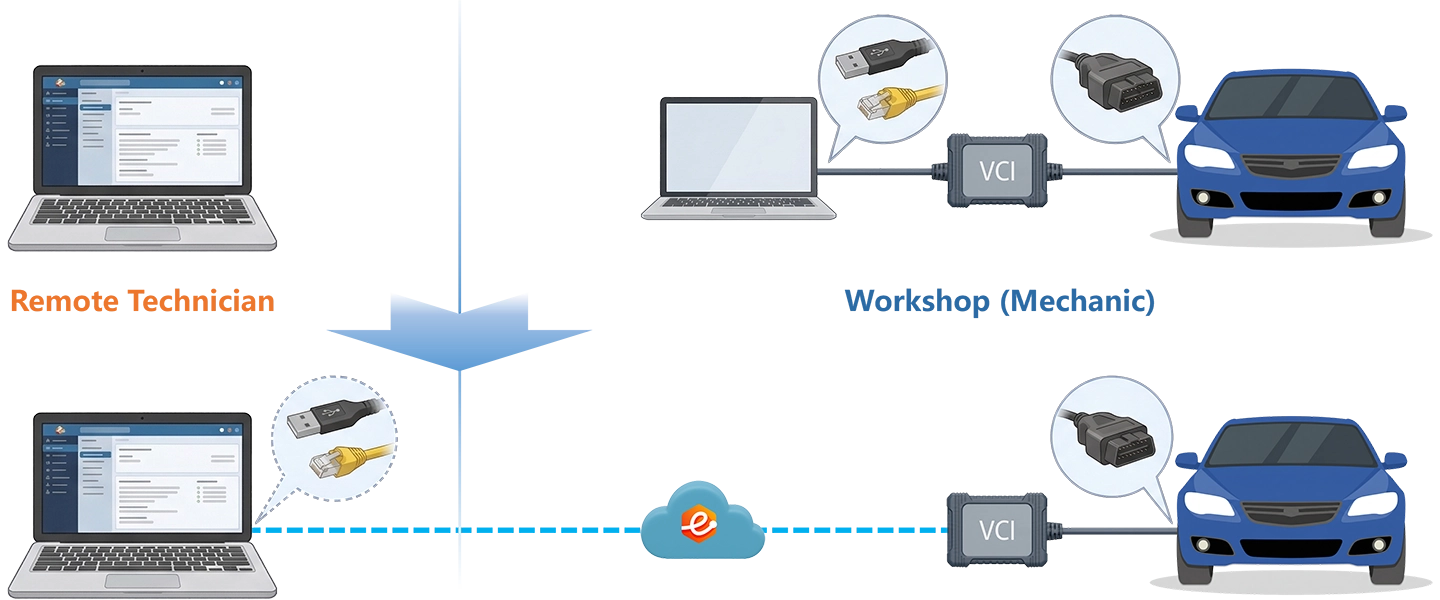
SPA and CMA platform Volvos communicate via DoIP over Ethernet, and VIDA requires the VOE adapter to perform Software Download, Control Module Adaptation, and IntelliSafe calibration. eLinehub bridges the VOE adapter at the workshop to your Technician PC via Network Adapter Bridging. VIDA discovers the vehicle through eLinehub Link as it would through a physically connected Ethernet port — your subscription credentials, software packages, and session logs stay on your machine.
- ✓VIDA detects the remote VOE adapter through eLinehub Link as a local Ethernet interface — auto-discovers the vehicle and auto-configures the DoIP IP address
- ✓Software Download, Control Module Adaptation, and IntelliSafe calibration all run from your PC using your volvotechinfo.com subscription
- ✓The workshop installs only eLinehub Mechanic (free) — no VIDA installation, no volvotechinfo.com subscription at the workshop
- ✓Covers all SPA, SPA2, CMA, and PMA2 platform Volvos via VOE adapter; P3 via DiCE (USB Mapping)
The workshop connects the VOE adapter and the vehicle. You bring VIDA and your volvotechinfo.com credentials. eLinehub provides the bridge. · By eLinehub ·
Why Volvo Repairs Require VIDA — and the VOE Adapter
Starting with the 2016 XC90, Volvo’s SPA and CMA platforms communicate via DoIP over Ethernet. VIDA connects to these vehicles exclusively through the VOE adapter (OEM P/N 9513321) — an RJ45-to-OBD2 cable that creates a direct Ethernet link to the vehicle’s diagnostic network. On these platforms, completing a module replacement, ADAS calibration, or transmission adaptation without VIDA is not possible.
The five job types below represent the most common cases where only an active VIDA session with the VOE adapter can complete the repair on SPA and CMA platform Volvos.
VIN-Matched Module Software Download
XC90 2016+ · XC60 2018+ · S60/V60 2019+ · S90/V90 2017+ (ECM, TCM, gateway modules)
Every SPA and CMA module is VIN-matched at the factory. A replacement ECM, TCM, or gateway control unit carries software written for a different VIN and cannot serve as a drop-in. VIDA’s Software Download function — available only with an active volvotechinfo.com subscription — pulls the correct software package from Volvo’s servers and writes it to the replacement module. New OEM modules ship without VIN-specific software; sourcing a new part does not bypass this requirement.
Central Electronic Module (CEM) Replacement
All SPA platform Volvos with CEM replacement (XC90, S90, V90, XC60, S60, V60)
The CEM holds the vehicle’s immobilizer PIN, mileage records, and full configuration data — all tied to the VIN. Replacing the CEM with a new or used unit requires a VIDA online session to transfer or rewrite this data before the vehicle will start. Aftermarket scan tools cannot complete this step; the vehicle does not recognize the replacement module until VIDA finishes the binding and configuration sequence.
Geartronic TCM Adaptation Reset
B5/B6/T6/T8 AWD Geartronic 8-speed: XC60 2018+ · S60 2019+ · XC90 2016+
Replacing the TCM in a Geartronic-equipped SPA model requires a VIDA Software Download followed by the Control Module Adaptation procedure before the gearbox relearns shift calibration for that drivetrain. Starting the engine with a mismatched TCM logs faults that complicate the programming process. Without the adaptation step, the gearbox operates in a degraded mode with incorrect shift points at delivery.
IntelliSafe Camera Recalibration
SPA models with City Safety / Pilot Assist / Lane Keeping Aid: XC60 2018+ · XC90 2016+ · S60/V60 2019+
The forward-facing camera module supporting City Safety, Pilot Assist, and Lane Keeping Aid is mounted to the windshield. After windshield replacement on any SPA model, static calibration through VIDA is mandatory before the vehicle can be returned to the customer. VIDA communicates with the camera module, guides through the static alignment procedure, and stores the calibration result in the module. Without it, IntelliSafe systems flag a permanent fault.
BLIS Radar and Rear ADAS Initialization
SPA models with Blind Spot Information System and Rear Cross Traffic Alert
Replacing rear bumper components involving BLIS radar modules requires a VIDA initialization sequence before the system operates correctly. Side Assist, Blind Spot Warning, and Rear Cross Traffic Alert all depend on correctly initialized radar modules. Aftermarket scanners cannot execute the VIDA initialization sequence; the BLIS system shows active faults until the procedure is completed through a VIDA session.
How eLinehub Maps the VOE Adapter to Your VIDA Session
Unlike remote desktop, which runs VIDA at the workshop and sends only a screen image to the remote operator, eLinehub bridges the VOE adapter’s Ethernet connection at the OS level to a virtual adapter on the Technician’s PC. VIDA running on the Technician’s machine discovers the SPA-platform vehicle through eLinehub Link exactly as it would through a physically attached Ethernet port — auto-configures the DoIP IP address and detects the vehicle automatically, with no configuration changes required.
Network Adapter Bridging — No VIDA Configuration
Unlike remote desktop, VIDA on the Technician’s PC communicates directly with the vehicle through eLinehub Link. The virtual adapter receives the bridged VOE connection, auto-discovers the SPA-platform vehicle, and auto-configures the DoIP IP address — the same behavior as a physically connected Ethernet port. No VIDA settings changes, no manual IP assignment, and no VCI configuration required.
VIDA Subscription Stays on Technician PC
Unlike hardware relay boxes that require a VIDA seat at each workshop, eLinehub requires only the Mechanic client at the workshop location. The VIDA installation, volvotechinfo.com subscription credentials, VTI User ID, and any pre-purchased software packages remain on the Technician’s PC unchanged. Per-module software orders go through the Technician’s own VTI account.
P3 / DiCE Sessions via Mechanic USB Mode
Unlike the Network Adapter Bridging mode used for SPA/CMA vehicles, P3-platform Volvos (S80 2007–2016, XC60 2010–2018, V70, XC70) use a DiCE unit connected via USB. eLinehub maps the DiCE via Mechanic USB mode — P2P (Direct) mode is available for DiCE USB sessions when both endpoints are on wired connections and RTT is under 80 ms. Note: DiCE does not work with SPA or CMA platform vehicles.
Screen Share vs. Hardware Relay vs. eLinehub
Three Volvo Remote Programming Scenarios
Each scenario starts from the point where the mechanical work is done and the VOE adapter is connected to the vehicle OBD-II port and the workshop PC Ethernet port.
XC90 SPA (2016–2023): ECM Replacement with VIN-Matched Software Download
Primary audience: Remote programming specialist; Volvo dealer network; parts supplier bundling VIDA programming with ECM sales.
- Connect the VOE adapter (OEM P/N 9513321) to the vehicle’s OBD-II port and to the workshop PC’s Ethernet port. Confirm ignition is on (position II, engine off). The Ethernet port is now occupied by the VOE adapter — the PC must reach the internet through a separate path, typically WiFi or a USB-to-Ethernet adapter on a second port.
- Open eLinehub Mechanic. Select Mechanic Network Adapter from the device list and publish the order. Notify the Technician that the replacement ECM is installed and the vehicle is ready.
- Accept the incoming order in eLinehub Technician. Under device selection, choose Mechanic Network Adapter → eLinehub Link. Wait for the eLinehub Link adapter to receive the bridged connection — allow the initialization period to complete before launching VIDA.
- Open VIDA. Navigate to the Software tab and open the Purchase Software stage. VIDA auto-discovers the XC90 through eLinehub Link and populates the VIN.
- Locate the Engine Control Module in the software product list. VIDA displays the applicable software package and its part number. Confirm the part number matches the replacement ECM, then place the order.
- Proceed to the Download Software stage. VIDA runs Verification, Prepare, Download, and Confirm. Do not interrupt the session or touch the VOE adapter, ignition, or eLinehub connection during the flash.
- After the Confirm step completes, use VIDA Diagnostics to read DTCs across all modules and confirm no post-flash faults. Clear any configuration-related codes that appeared during the module swap.
Note: One VIDA subscription covers multiple workshops this way — each installs only eLinehub Mechanic and provides a VOE adapter. The VIDA license and volvotechinfo.com credentials stay on the Technician’s PC.
XC60 SPA (2018–2023): Front Camera Recalibration After Windshield Replacement
Primary audience: ADAS calibration specialist; body shop network; dealer group centralizing IntelliSafe calibration across sites.
- Position the vehicle on a level surface. Place the calibration target at the correct distance ahead of the vehicle per Volvo’s windshield replacement procedure for this XC60 variant. Confirm tire pressures are at spec.
- Connect the VOE adapter to the OBD-II port and workshop PC Ethernet port. Open eLinehub Mechanic, select Mechanic Network Adapter, and publish the order. Remain at the vehicle during the session to confirm target placement if VIDA reports alignment errors.
- Accept the order. Select Mechanic Network Adapter → eLinehub Link in eLinehub Technician. Launch VIDA after the initialization period completes.
- In VIDA Diagnostics, open the calibration function for the forward-facing camera module (City Safety / Pilot Assist). VIDA displays the required target dimensions and standoff distance for this VIN — confirm with the Mechanic that the physical setup matches before starting.
- Begin the calibration sequence. VIDA communicates with the camera module through eLinehub Link and guides through the static alignment procedure step by step.
- After calibration completes, run a full DTC read across Driver Assistance Systems modules in VIDA Diagnostics. Confirm all City Safety and Pilot Assist codes are clear.
- Verify that BLIS and Lane Keeping Aid status indicators in the instrument cluster show no warning lamps. Release the vehicle only after a clean DTC scan.
Note: A central ADAS calibration specialist serves multiple body shops from one seat. Each shop provides the calibration target hardware, VOE adapter, and vehicle — no VIDA subscription required at the shop.
XC60 / S60 SPA (2019–2023): TCM Replacement and Geartronic Adaptation
Primary audience: Transmission specialist; drivetrain parts supplier bundling VIDA programming with TCM sales.
- Install the replacement TCM. Do not start the engine before the VIDA session — starting with a mismatched TCM logs faults that complicate the process. Note the replacement TCM part number to share with the Technician for software package confirmation.
- Connect the VOE adapter to the OBD-II port and workshop PC Ethernet port. Open eLinehub Mechanic, select Mechanic Network Adapter, and publish the order.
- Accept the order. Select Mechanic Network Adapter → eLinehub Link. Launch VIDA after the initialization period.
- In VIDA’s Software tab, open Purchase Software. Locate the Transmission Control Module for this VIN. Confirm the software package matches the replacement TCM part number and the vehicle’s powertrain variant, then place the order.
- Proceed to Download Software. VIDA runs Verification, Prepare, Download, and Confirm. Do not interrupt the session; the Download Queue tab shows the estimated time for this specific TCM package.
- After the Confirm step, use VIDA’s Control Module Adaptation function in Diagnostics to put the TCM in adaptation mode. This procedure resets the TCM’s learned shift tables after hardware replacement, allowing the unit to relearn shift calibration for this drivetrain.
- Perform a warm-up drive cycle per VIDA’s on-screen instructions. Confirm smooth shift events and correct TCC lockup using VIDA live data. Run a final full-vehicle DTC scan before returning the vehicle.
Note: Do not start the engine before the VIDA session is complete. Starting with a mismatched TCM produces additional fault codes that complicate the Software Download process.
Ready to try on a live Volvo?
Free trial starts automatically — no credit card required.
Download Technician Software — Free TrialEnd-to-End Setup
System requirements: Windows 10 or Windows 11 (64-bit) recommended; Windows 7 64-bit minimum. Not supported on Mac, Linux, Android, or Windows ARM.
Both sides need a stable wired internet connection for Software Download and flash sessions. Because the workshop PC’s Ethernet port is occupied by the VOE adapter during SPA/CMA sessions, the Mechanic PC must reach the internet through WiFi or a USB-to-Ethernet adapter on a second port. See Section 5 for latency and bandwidth requirements.
- Download and install eLinehub Mechanic on the workshop Windows PC. No VIDA, no volvotechinfo.com subscription, and no VCI driver setup required on this machine.
- Obtain connection credentials from your Technician before your first session — either a Passcode for the specific order, or a Custom Mechanic software build your Technician has provided.
- Connect the VOE adapter (OEM P/N 9513321) to the vehicle OBD-II port and to the workshop PC Ethernet port. Confirm ignition is on (position II, engine off). The Ethernet port is now used by the VOE adapter — connect the PC to the internet via WiFi or a USB-to-Ethernet adapter.
- Open eLinehub Mechanic, select Mechanic Network Adapter, and publish the order. If the VOE adapter’s DoIP connection disrupts the workshop PC’s internet access, use the Switch button to toggle to diagnostic-priority mode — but only when no VIDA Software Download or flash session is in progress.
- Download and install eLinehub Technician on the PC where VIDA and your volvotechinfo.com credentials are already configured. Windows 10 or Windows 11 (64-bit) recommended.
- Install the network adapter detection plugin through the eLinehub Technician interface. This creates the eLinehub Link virtual adapter that VIDA uses to discover the SPA-platform vehicle.
- Keep your existing VIDA installation, volvotechinfo.com subscription, VTI User ID, and pre-purchased software packages unchanged. eLinehub adds no layer between VIDA and the VCI.
- Accept an incoming order. Select Mechanic Network Adapter → eLinehub Link in eLinehub Technician. Wait for the initialization period to complete, then launch VIDA. For P3 DiCE jobs, install the USB device detection plugin and select Mechanic USB instead.
Network Requirements
Both sides need a minimum 10 Mbps upload bandwidth. Wired connections are strongly recommended on both sides for Software Download and flash sessions. Network Adapter Bridging for the VOE adapter operates in Relay mode only — P2P (Direct) mode is not available for VOE/Ethernet sessions. P2P is available only for DiCE USB sessions on P3 Volvos.
Ethernet port conflict during SPA/CMA sessions: The Mechanic PC’s Ethernet port is occupied by the VOE adapter. The Mechanic PC must maintain its internet connection through a separate path — WiFi or a USB-to-Ethernet adapter on a second port. If the vehicle’s DoIP network gateway disrupts the PC’s internet access, use the Switch button in eLinehub Mechanic to toggle to diagnostic-priority mode. Do not activate the Switch during an active VIDA Software Download or flash sequence.
VCI initialization: Wait for eLinehub Link to fully initialize on the Technician’s PC before launching VIDA. Opening VIDA before initialization completes causes VIDA to report no VCI found and requires restarting the session.
Volvo Platform Compatibility
eLinehub supports all Volvo platforms that VIDA and the VOE adapter natively support. Connection mode depends on the platform: Network Adapter Bridging for SPA/SPA2/CMA/PMA2 (DoIP), Mechanic USB mode for P3 (DiCE).
eLinehub also supports Mercedes-Benz (SD Connect, ENET cable), BMW (ENET cable, ICOM Next), Audi (VAS6154), VW Group (VAS6154A), and JLR (DoIP VCI) from the same Technician PC.
Customer Protection
eLinehub is built so that the Technician’s workshop relationships stay with the Technician — not with the platform.
Passcode Order Protection
Every order requires a Passcode to accept. No other specialist on the platform can pick up a workshop’s job without it. The Mechanic shares the Passcode directly with the Technician they already work with — the relationship stays private.
Custom Mechanic Software
Distribute a white-label Mechanic build permanently linked to your Technician account. Orders from that workshop are auto-assigned to you by default, with no Passcode exchange needed for routine sessions. No other specialist can claim the workshop through a white-label install.
Secure Order Sharing
For complex multi-module jobs, you can share a specific order with a trusted colleague. The colleague sees the VCI data for that order only — not the Mechanic’s contact details, not any other orders.
Volvo VIDA Remote Programming FAQ
Eight questions covering VOE adapter compatibility, eLinehub Link discovery, VIDA subscription handling, DiCE on P3 Volvos, multi-workshop setups, connection stability, and Ethernet port conflicts.
Start Your First Remote VIDA Session
Free trial starts automatically. No credit card required to get started.
Questions or setup support: support@elinehub.com