
Remote ECU Programming Service —
Run Your OEM Tools on Any Shop’s VCI
Every workshop that calls you in for an OEM programming job is a trip you have to make — or a job you have to turn away. The tools, the accounts, the expertise are on your PC. The vehicle is somewhere else. eLinehub maps the workshop VCI directly to your diagnostic PC. The diagnostic session, the flash sequence, the SCN coding, the SFD unlock, the SPS2 campaign — all of it runs in your own environment, under your own accounts, exactly as it would on a local bench.
- ✓Your OEM software, license keys and online accounts run exclusively on your own PC, in your own environment
- ✓The workshop VCI maps to your diagnostic PC at device level — ISTA, XENTRY, ODIS and SPS2 each enumerate it as locally connected hardware
- ✓Each new workshop you take on expands your billable capacity, with your client relationships secured to your account by default
You bring OEM software and accounts. The workshop connects the VCI. eLinehub provides the bridge. · By eLinehub ·
Why Remote Desktop Fails for ECU Programming — and What Works Instead
The standard attempt at remote ECU programming looks like this: the workshop PC runs the OEM tools, you connect via TeamViewer or AnyDesk, and you operate their XENTRY or SPS2 through a screen share. This approach fails for reasons specific to automotive diagnostics — not general IT.
Your accounts end up on someone else’s PC
SCN coding, SFD unlock, GeKo sessions, FDOK authentication, BMW Online, GM SPS2, Ford PTS, JLR TOPIx — all require your personal OEM credentials. Running them inside a remote desktop session on a third-party PC means your accounts, tokens and license keys are used outside your controlled environment. One screenshot or log file at the workshop end, and your credentials are exposed.
OEM software does not see a VCI through a screen share
XENTRY, ISTA, ODIS, GDS2 and FDRS communicate directly with the VCI hardware over USB or Ethernet. A remote desktop session cannot bridge this: the software on your end of the screen share has no connection to the physical VCI in the workshop. You are operating a remote screen, not a remote VCI.
Flash and coding timing is broken by the relay
J2534 flash sequences, DoIP programming bursts, SFD token windows, SPS2 calibration procedures — all have timing requirements defined by the OEM. Remote desktop adds a translation layer that introduces exactly the kind of jitter and latency that invalidates SFD tokens, aborts flash sequences and leaves ECUs in recovery states.
Your OEM accounts are registered to a region — remote desktop puts them outside it
ISTA, XENTRY, ODIS and most OEM online portals tie account access to the country or region where the subscription was registered. BMW Online accounts are set up through the BMW AOS portal per country. XENTRY subscriptions carry different capabilities depending on the registered region. VW Online access requires country-specific business registration.
When you operate a workshop’s PC through remote desktop, every connection to the OEM backend — SCN coding, BMW Online authentication, SPS2 calibration requests, GeKo sessions — originates from the workshop’s IP address, not yours. The OEM backend sees a request from a country that does not match your account’s registered region. This is the pattern that triggers account compliance reviews and, in documented cases, account suspensions.
eLinehub maps the VCI itself, not the screen
eLinehub installs a lightweight Mechanic client at the workshop. The Mechanic connects the VCI to their PC and shares it through eLinehub. On your side, eLinehub presents that VCI as a locally attached device — same USB device ID, same Ethernet adapter behavior, same DoIP port, same J2534 PassThru interface. Your OEM software enumerates it exactly as it would if the VCI were plugged into your own workstation.
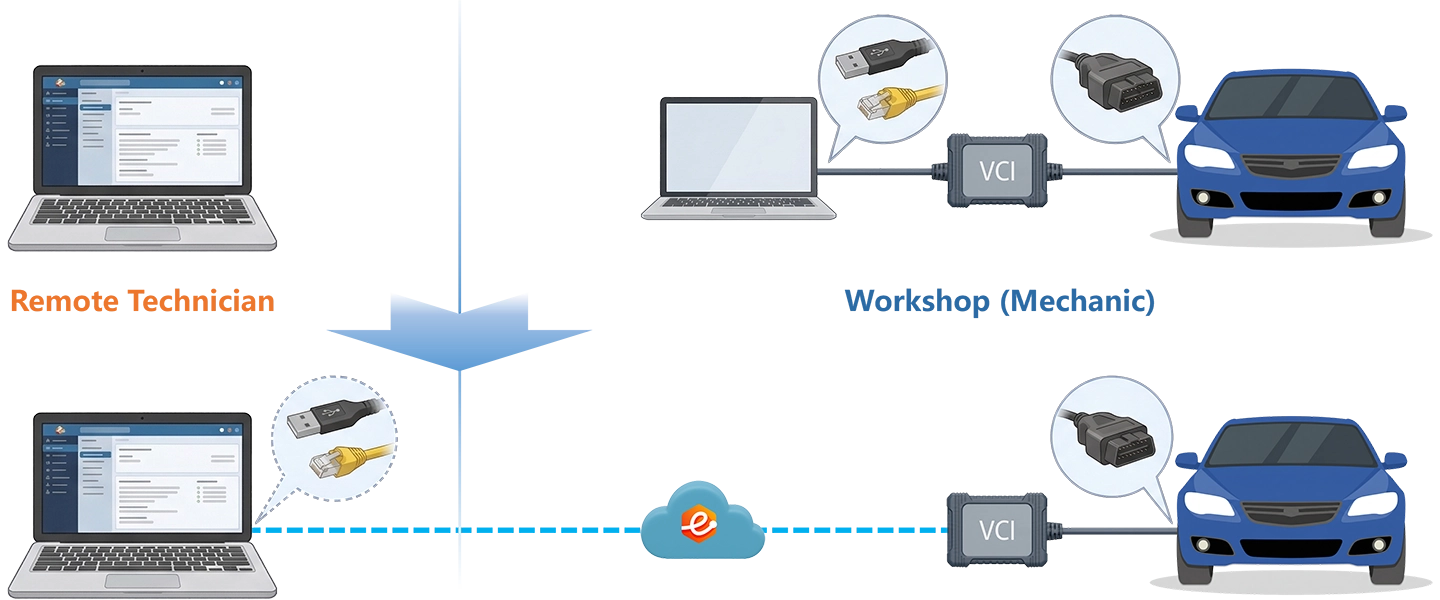
Screen Share vs eLinehub
Run Your OEM Tools Remotely — Without Changing Your Setup
One of the consistent frustrations with remote programming platforms is that they require you to change how you work — install different tools, use a cloud desktop, share your accounts, reconfigure your software. eLinehub does none of this.
Your OEM installations stay on your PC
ISTA, XENTRY Diagnosis, ODIS-Service, ODIS-Engineering, DTS Monaco, Vediamo, E-Sys, GDS2, SPS2, IDS, FDRS, Techstream — all of it runs on your own Windows workstation, configured exactly as you have it, with your own license keys and local settings intact.
Your online accounts never leave your machine
BMW Online, VW Online (SFD, GeKo), Mercedes Online (FDOK, SCN), GM SPS2 subscription, Ford PTS, JLR TOPIx, Toyota TIS — every OEM portal, every dealer account, every token stays on your PC. The workshop has no access to any of it.
No extra latency from unnecessary hops
eLinehub routes through the nearest relay server by default and establishes a direct P2P connection for USB device sessions when network conditions allow. You can monitor live latency, packet loss and PPS from the connection status panel before committing to a flash or online coding session.
Direct (P2P) mode is available for USB VCI devices when both sides are on wired connections and RTT is under 80 ms. Sessions using network adapter bridging — BMW ENET, SD Connect, VAS6154A and other DoIP-based VCIs — run in Relay mode exclusively.
Supported OEM Tools and VCIs
If your OEM software communicates with its VCI over USB or Ethernet on a Windows PC, eLinehub can map that VCI to your PC.
European Brands
North American Brands
J2534 PassThru (multi-brand): All standard J2534 PassThru devices are supported — CarDAQ-Plus 3, CarDAQ-M, Actia XS Passthru, Drew Tech MongoosePro and compatible equivalents. If the device has a valid J2534 driver and works locally with your OEM software, it maps through eLinehub.
eLinehub maps the VCI — it does not supply the credentials or licenses needed to use it.
- OEM accounts and dealer subscriptions — BMW Online, VW Online (SFD / GeKo), Mercedes Online (FDOK / SCN coding), GM SPS2 / TIS2Web, Ford PTS, JLR TOPIx and equivalent portals must be held and maintained by the Technician
- OEM diagnostic software licenses — ISTA, XENTRY, ODIS-Engineering, GDS2, FDRS and all other OEM tools must be licensed and installed on the Technician PC
- Brand credentials or security tokens — SFD tokens, GeKo authorizations, FDOK certificates and equivalent brand-issued credentials are not provided by eLinehub and cannot be obtained through the platform
Your accounts. Your clients. Your tools.
Free trial starts automatically — no credit card required.
Download Technician Software — Free TrialTypical Remote Programming Scenarios
Each scenario below runs from your own tool installation, under your own accounts — the workshop connects the VCI. The same workflow applies regardless of where you or the workshop are located.
Post-Replacement Module Programming — Mercedes-Benz W213
Independent Mercedes-Benz specialist serving workshops without XENTRY access
A workshop replaces a transmission control unit on a W213 E-Class. The new TCU needs SCN coding and adaptation. You connect via eLinehub, launch XENTRY Diagnosis, select the SD Connect — which appears as a local device on the 172.29.x.x subnet — and perform the SCN coding with your own Mercedes Online credentials.
Confirm RTT is below 50 ms and packet loss is at 0% in the connection status panel before starting the SCN coding sequence. The workshop has no XENTRY license and no FDOK account — your credentials are never transmitted to their machine.
ECU Flash and Software Update — BMW G30 5 Series
BMW programming specialist handling software campaigns for partner workshops
A BMW G30 5 Series has a software campaign bulletin. The workshop connects an ENET cable to the vehicle and their PC. You accept the order, select the shared ENET adapter, choose eLinehub Link — the virtual network adapter on your PC that ISTA uses to discover the ENET cable as a local device — then launch ISTA-P and run the programming sequence exactly as on your own bench.
eLinehub Link is eLinehub’s virtual network adapter for DoIP-based VCIs. It bridges the Mechanic’s physical network adapter to your PC so OEM software discovers the VCI through standard local network enumeration. For most BMW, Mercedes-Benz and VW/Audi sessions, eLinehub Link is the correct selection.
Use eLinehub vNet when your diagnostic software requires binding to a specific named local adapter rather than discovering devices automatically. The workshop requires no ISTA installation.
SFD Coding and GeKo Operations — Audi Q5 MQB EVO
VW/Audi specialist with ODIS-Engineering and active VW Online subscription
An Audi Q5 MQB EVO needs Component Protection release and SFD coding after a steering column module swap. You connect via eLinehub, map the VAS6154A, launch ODIS-Engineering with your VW Online account, and run the GeKo session and SFD procedure.
SFD token windows and GeKo sessions have strict timing requirements — use wired Ethernet on both sides and confirm RTT is below 80 ms before initiating. The workshop has no VW Online subscription and no ODIS installation.
ODIS Specialist — Multi-Workshop VW / Audi / Škoda Network
Specialist running ODIS-Service and ODIS-Engineering across multiple workshop partners
eLinehub maps the VAS6154A or VAS5054A at network adapter level — your ODIS installation discovers it as a locally connected interface with no change to your existing VW Online configuration. SFD unlock, GeKo online sessions, SVM coding and Component Protection procedures all run from your own accounts across the entire workshop network.
A single Technician account covers routine ODIS-Service coding and complex ODIS-Engineering SFD or Component Protection procedures across the same workshop network without any change to how either tool is configured. No ODIS license, no VW Online subscription and no GeKo access is required on the workshop side.
GM SPS2 Campaign Programming — Chevrolet Silverado HD
GM specialist serving transmission and independent repair shops across multiple states
SPS2 requires a locally connected J2534 or MDI2 interface for the vehicle communication side. A Chevrolet Silverado HD has an open TCM calibration campaign. The workshop connects their MDI2 to the vehicle and runs eLinehub Mechanic. You log into TIS2Web with your own SPS2 subscription, select the shared MDI2 — it appears as a local J2534 interface on your PC — and run the calibration update.
For SPS2 flash sessions, wired USB on the workshop side and wired Ethernet on your side are mandatory. Do not start the write sequence if packet loss shows retransmission warnings. The workshop needs no GM subscription and no SPS2 access.
Ford FDRS Module Replacement — F-150 PCM
Multi-brand specialist handling Ford PCM replacements after engine and drivetrain work
FDRS replaced IDS as the primary Ford programming tool from 2020 onward and requires a VCM3 or compatible J2534 device connected locally to the programming PC. A Ford F-150 needs a new PCM after an engine replacement. You accept the order, map the VCM3 to your PC at USB device level, launch FDRS with your Ford PTS credentials, and perform the PCM initialization and PATS configuration.
FDRS requires the VCM3 to be enumerated as a local USB device — eLinehub maps it at USB device level, so FDRS finds it through the standard driver stack. The workshop has no FDRS account and no Ford PTS subscription.
Stellantis wiTECH 2.0 — Jeep Grand Cherokee BCM
Chrysler / Dodge / Ram / Jeep specialist serving workshops without wiTECH access
A Jeep Grand Cherokee comes in after a body control module replacement. The workshop has a MicroPod 2. wiTECH 2.0 requires the MicroPod 2 to be physically connected to the programming PC via USB — eLinehub maps it from the workshop PC to your PC at USB device level, so wiTECH 2.0 finds the device exactly as it would locally. You complete the FCA flash sequence and security gateway authentication under your own wiTECH subscription.
FCA flash programming, security gateway authentication and module replacement coding all run under your wiTECH credentials. The workshop requires no wiTECH account and no FCA portal access.
Multi-Brand Specialist — Cross-Region Workflow
One Technician PC, multiple OEM tool installations, workshops across different countries
A specialist running BMW, VW, GM and Ford for workshops across multiple countries handles each session from the same Technician PC: ISTA-P flash on a G30 via ENET, ODIS-Engineering SFD coding on an MQB EVO via VAS6154A, SPS2 TCM calibration on a Silverado via MDI2, FDRS PCM initialization on an F-150 via VCM3. One account, one tool setup, one subscription — geography is no longer the constraint.
Customer Protection and Business Control
Every workshop relationship you build is a revenue stream. The risk of joining any remote platform is that the platform itself becomes the relationship, not you — shops start comparing prices across available specialists, orders get redirected, and the client base you built disappears into a marketplace you do not control.
eLinehub’s Customer Protection is built to prevent that at the account level, not through a terms-of-service promise. Three mechanisms are active on every order by default.
Passcode Order Protection
Every order created in eLinehub Mechanic generates a unique Passcode set by you. Only a Technician with the correct Passcode can accept that order — no other specialist on the platform can see it, claim it or be redirected to it. A workshop that has sent you jobs for two years has no path to a different technician through eLinehub unless they actively set up a separate arrangement outside the platform.
The commercial implication: each workshop contact you hold is exclusive to your account. No bidding, no price comparison against other specialists, no accidental re-routing.
Custom Mechanic Software — Permanent Binding
For workshops you work with regularly, the Passcode step can be eliminated entirely. eLinehub provides a Custom Mechanic build — a version of the Mechanic installer preconfigured for your account, optionally branded with your name or logo. When a workshop installs your Custom Mechanic client:
- All orders they create are automatically assigned to you by default — no Passcode required
- The workshop sees your name or brand in the interface, not eLinehub
- The binding persists across sessions, vehicle changes and staff changes at the workshop
This is the model used by technicians who service 10, 20 or more workshops simultaneously. Each workshop has your Custom Mechanic installed. Orders flow in automatically. Customer relationships stay stable regardless of how many workshops you add.
Team and External Collaboration
Some jobs require a second set of hands — a multi-ECU post-crash sequence on a W223 S-Class, a PATS + ADAS recalibration combination on a late F-Series, or a complex SFD coding job on an MQB EVO platform that takes two ODIS-Engineering specialists. For these, you can invite a trusted colleague into an active order.
Running a Specialist Team
Some technicians build beyond a solo operation — a two- or three-person team where each specialist covers a brand group or procedure type. One handles BMW and VW. Another covers GM and Ford. Complex jobs that cross brand lines get shared between them on a single active order.
As the primary account holder, you control which team members can accept incoming orders. You set per-user access, assign orders to the right specialist by brand or system type, and receive email notifications when a new order arrives from any workshop in your network. Your workshop clients remain attached to the team account — not to any individual member — so staff changes do not affect customer relationships.
Getting Started
System requirements: Windows 10 or Windows 11 (64-bit) recommended; Windows 7 64-bit minimum. Not supported on Mac, Linux, Android, or Windows ARM.
Both sides need a stable wired internet connection for flash and online coding sessions. See Network Requirements below for latency and bandwidth thresholds.
- Download and install eLinehub Mechanic on the workshop Windows PC. No OEM diagnostic software, no accounts and no credentials required.
- Obtain connection credentials from you before the first session — either a Passcode for the specific order, or your Custom Mechanic software build.
- Connect the VCI to the vehicle OBD-II port and to the workshop PC via USB or wired Ethernet. If the VCI is RNDIS-based (appears as a network adapter), install the corresponding VCI driver on the workshop PC first.
- Confirm the VCI appears as a shareable device in eLinehub Mechanic and publish the order. Maintain the connection until you confirm the session is complete.
- Download and install eLinehub Technician on the PC where your OEM diagnostic software, online accounts and VCI drivers are already configured.
- Keep your existing OEM tool installations, subscriptions and credentials on this machine. eLinehub adds no layer between your OEM software and the VCI.
- Accept the incoming order in eLinehub Technician. Select the shared VCI type (Mechanic USB for J2534/USB devices; Mechanic Network Adapter for DoIP/ENET devices).
- Check the connection status panel — confirm latency and packet loss are within range before starting any flash or online coding session. Launch your OEM software and work as normal.
Network Requirements by Session Type
Frequently Asked Questions
Start Offering Remote ECU Programming Today
Free trial starts automatically. Your OEM tools, your accounts, your clients — the workshop just connects the VCI.
Questions or setup support: support@elinehub.com