
JLR DoIP VCI
Remote Diagnostics & Programming
JLR Pathfinder requires the DoIP VCI as the sole active diagnostic interface on your PC — a strict exclusivity constraint that blocks screen sharing and VPN-based approaches before the first session begins. eLinehub maps the physical JLR DoIP VCI at the workshop to your Technician PC at the OS and driver level, so Pathfinder, TOPIx Cloud, and SDD each discover it as a locally connected device. Your Pathfinder account, LSID license, and TOPIx Cloud credentials stay on your machine throughout every remote session.
- ✓JLR DoIP VCI mapped at driver level — Pathfinder sole-VCI exclusivity satisfied at OS level, no configuration changes required
- ✓CCF writes and VBF flash run natively over a lossless DoIP session — Pathfinder sees a locally connected DoIP device with full throughput throughout the session
- ✓Compatible with JLR DoIP VCI, VXDIAG VCX SE JLR, Launch SmartLink C, DA-DoIP VCI, and JLR VCI Mongoose (CAN/SDD)
The workshop connects the JLR DoIP VCI and the vehicle. You bring Pathfinder and your LSID credentials. eLinehub provides the bridge. · By eLinehub ·
You hold a Pathfinder account, SDRM/LSID license, and TOPIx Cloud credentials, and want to perform remote CCF writes, VBF programming, KVM replacement, and ADAS calibration for JLR workshops that have a DoIP VCI but no Pathfinder subscription.
You supply JLR DoIP VCIs, replacement KVMs, ECUs, or gateway modules and want to bundle remote Pathfinder programming as a post-sale service without requiring a full JLR software setup at every customer workshop.
You operate multiple JLR service bays, collision centers, or fleet workshops and need centralized remote ECU programming and ADAS calibration without a dedicated Pathfinder specialist at each site.
Three Hardware Generations — Three Levels of Complexity
JLR’s diagnostic ecosystem spans three distinct hardware generations, each requiring different VCI connection modes, software stacks, and uninterrupted session handling. Remote JLR work spans three separate technical environments — each with distinct hardware requirements, protocol layers, and failure modes.
SDD with J2534-based CAN communication — stable for most diagnostic operations, but requiring a lossless connection to complete offline module programming without session timeouts.
Pathfinder with the JLR DoIP VCI introduces strict handshake timing and session-state requirements. The VCI must be the only active diagnostic interface on the PC.
Sole-VCI exclusivity enforced at OS level. High-burst DoIP traffic during ECU enumeration. CCF writes and VBF flash each require a continuous, lossless Ethernet session. TOPIx Cloud (2020MY+) requires the VCI to appear locally on the Technician’s PC.
These constraints rule out screen sharing and VPN approaches. Screen sharing runs Pathfinder on the workshop PC under a workshop account. A raw VPN cannot present the VCI as a local DoIP network adapter. A lossless, driver-level connection is the only path that satisfies sole-VCI exclusivity, maintains CCF write integrity, and keeps OEM credentials on the Technician’s machine.
How eLinehub Maps the JLR DoIP VCI
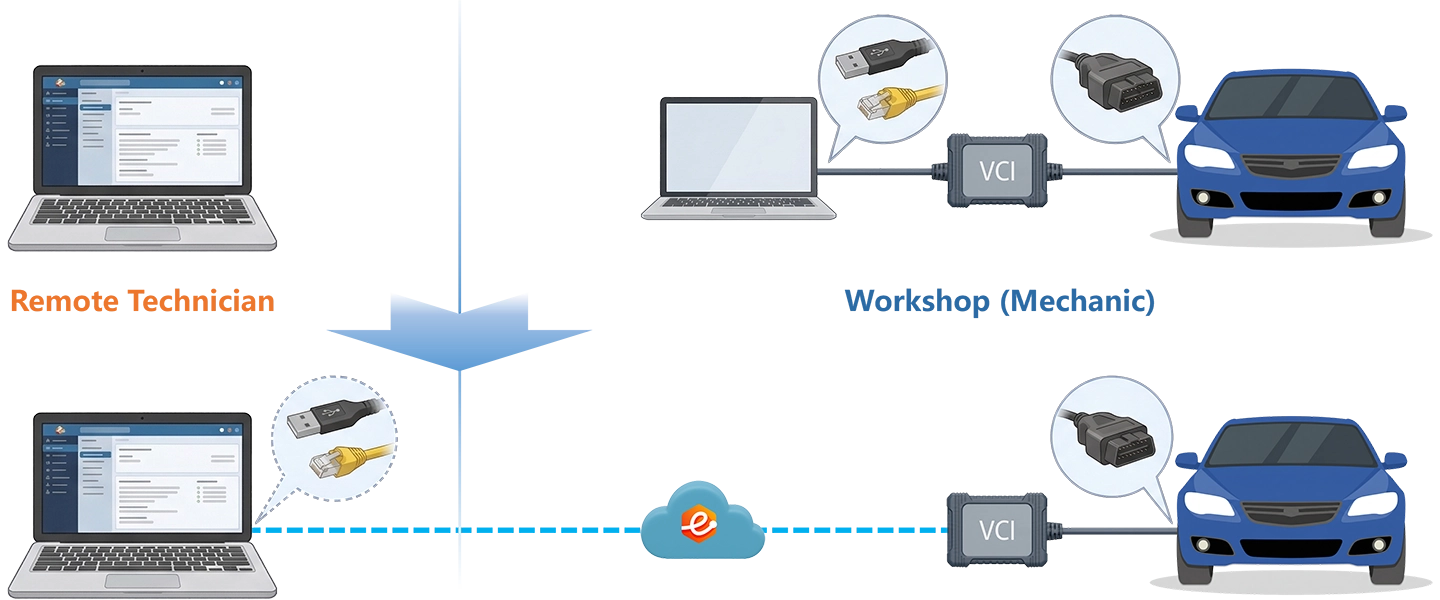
Driver-Level Mapping — Your Credentials, Your Control
Unlike screen sharing, where Pathfinder runs on the workshop PC under a workshop-held JLR account, eLinehub maps the DoIP VCI at the OS and driver level to your own machine. Pathfinder sees a locally connected, exclusive VCI — sole-VCI exclusivity is satisfied before the software launches. Your Pathfinder subscription, LSID license, and TOPIx Cloud credentials never leave your PC.
Software-Only — No Hardware to Install, No Update Cycle
Unlike hardware relay boxes, eLinehub requires no per-workshop hardware purchase — no matching relay device at £300–800 per location, no firmware update cycle that risks breaking compatibility with new JLR VCI driver releases. eLinehub is software-only and works with the JLR DoIP VCI the workshop already owns. VXDIAG VCX SE JLR, Launch SmartLink C, and DA-DoIP VCI are also supported using the same workflow.
Sole-VCI Exclusivity Satisfied — No VPN Workaround
Unlike raw VPN tunnels, which cannot present the VCI as a local DoIP network adapter on the Technician’s PC, eLinehub injects the RNDIS adapter at the driver level. Pathfinder’s VCI discovery finds it on the expected local interface — no modifications to Pathfinder settings, no workarounds. All DoIP sessions use Relay Mode; no port forwarding or VPN configuration is required on either side.
Screen Sharing vs Hardware Relay Box vs eLinehub
Three JLR Remote Programming Scenarios
Each scenario starts from the point where the mechanical work is done and the JLR DoIP VCI is connected to the workshop PC.
BCM Replacement After Battery Failure · Range Rover L405 (2017–2021MY)
Primary audience: Independent Pathfinder specialist; workshop without an in-house Pathfinder subscription.
- Connect the JLR DoIP VCI to the workshop PC via USB cable, then connect the DoIP/Ethernet cable from the VCI to the vehicle OBD-II port.
- In eLinehub Mechanic, select Mechanic Network Adapter. Enter vehicle details, publish the order, and use a wired internet connection throughout the session.
- Accept the order. Wait for the JLR DoIP VCI to initialize and confirm it appears as a network adapter on your PC before launching Pathfinder.
- Verify no other VCI drivers or diagnostic interfaces are active on your machine — competing adapters cause Pathfinder VCI discovery to fail.
- Open the vehicle session in Pathfinder. Navigate to Module Programming → Replace ECU for the BCM. Pathfinder retrieves the VIN-correct VBF package from JLR’s servers via your TOPIx account and executes the flash.
- Pathfinder runs VIN write and immobilizer alignment automatically on completion. Run a full network scan to clear residual DTCs and confirm no faults remain.
The Mechanic does not need to take any additional steps beyond keeping the vehicle powered and the VCI connected. No JLR credentials or software are required at the workshop.
KVM Replacement — All Keys Lost · Range Rover Sport L494 (2019MY)
Primary audience: Immobilizer specialist; workshop without access to JLR’s IVS server through a local Pathfinder subscription.
- Install the replacement KVM module. Connect the JLR DoIP VCI to OBD-II and to the workshop PC.
- In eLinehub Mechanic, select Mechanic Network Adapter and publish the order. Use a wired internet connection — the TOPIx session during key matching must remain authenticated throughout.
- Accept the order. Launch Pathfinder after VCI initialization is confirmed.
- Select the Range Rover Sport L494. Navigate to Module Programming → Keyless Vehicle Module (KVM #1731). Pathfinder connects to JLR’s IVS server, downloads the correct software for this VIN, and executes the KVM flash.
- Run VIN Learning to register the module on the vehicle network after the flash.
- Execute Key Matching: present each key fob per Pathfinder’s prompts. Test remote entry and engine start before closing the session.
No aftermarket tool reaches the IVS server Pathfinder uses to rebuild this module. Remote access to a Pathfinder subscription delivers this dealer-exclusive capability to an independent workshop.
BSM Radar Initialization After Collision Repair · Range Rover Velar L560 (2019MY)
Primary audience: Central ADAS calibration specialist; collision center group without a Pathfinder-qualified technician at each location.
- Install the replacement BSM modules. Connect the JLR DoIP VCI to OBD-II and to the workshop PC. Park the vehicle on a level surface with tire pressures at spec before calibration begins.
- In eLinehub Mechanic, select Mechanic Network Adapter and publish the order.
- Accept the order. Launch Pathfinder after VCI initialization.
- Select the Range Rover Velar L560. Open ADAS Calibration → Blind Spot Monitoring System. Pathfinder runs a VIN write step for the new modules before calibration.
- Execute BSM Radar Initialization for each module. Pathfinder confirms sensor health and clears ADAS DTCs.
- If the ACC forward radar was disturbed, run the forward radar static calibration routine separately with the vehicle stationary per Pathfinder’s specification. Confirm all ADAS fault codes are cleared before releasing the vehicle.
A single Technician account covers all group locations sequentially — no travel required. Each collision center provides the JLR DoIP VCI and vehicle; the Pathfinder subscription stays with the central specialist.
Ready to try on a live Jaguar or Land Rover?
Free trial starts automatically — no credit card required.
Download Technician Software — Free TrialEnd-to-End Setup: Mechanic & Technician
System requirements: Windows 10 or Windows 11 (64-bit) recommended; Windows 7 64-bit minimum. Not supported on Mac, Linux, Android, or Windows ARM.
Both sides need a stable wired internet connection for programming sessions. See Section 5 for RTT and bandwidth requirements by session type.
- Connect the JLR DoIP VCI to the workshop PC via USB cable, then connect the DoIP/Ethernet cable from the VCI to the vehicle OBD-II port.
- Download and install eLinehub Mechanic on the workshop PC. No JLR software, no Pathfinder account, and no TOPIx Cloud subscription required at the workshop.
- Obtain connection credentials from your Technician before the first session — either a Passcode for the specific order, or a Custom Mechanic software build your Technician has provided.
- Open eLinehub Mechanic, select the appropriate mapping mode, enter vehicle details, and publish the order. Maintain the connection until the Technician confirms the session is complete.
- Download and install eLinehub Technician on the PC where JLR Pathfinder, SDD, and/or TOPIx Cloud are already installed. Windows 10 or Windows 11 (64-bit) required.
- Ensure the JLR DoIP VCI driver (or third-party VCI driver) is installed on this PC. For Pathfinder sessions, confirm no other VCI drivers or diagnostic interfaces are active before accepting an order.
- Keep your existing Pathfinder installation, TOPIx Cloud account, LSID license, and SDD setup on this machine. eLinehub adds no layer between your diagnostic software and the mapped VCI.
- Accept an incoming order. Two connection options are available:
Option A — Mechanic USB (simpler, no IP config): Select the JLR DoIP VCI as a USB device. Pathfinder discovers it via the J2534 driver. No network adapter configuration required.
Option B — Mechanic Network Adapter → eLinehub Link: Select eLinehub Link as the bridging mode. Then set the eLinehub Link adapter to a static IP of 169.254.0.1, subnet mask 255.255.0.0 (no gateway). Pathfinder discovers the VCI via DoIP broadcast on this link-local network.
All DoIP sessions use Relay Mode — no port forwarding or VPN required. Wait for VCI initialization before launching Pathfinder.
Network Requirements for JLR Remote Sessions
Both sides need a minimum 10 Mbps upload bandwidth. Wired connections are required on both sides for all programming and flash sessions. Check the RTT and packet loss display in eLinehub Technician before starting any programming session.
Before any VBF flash, CCF write, or KVM session: A mid-flash packet loss event carries the same consequences as losing local Ethernet — Pathfinder may abort the sequence and leave a module in a recovery state. Connect a battery support unit maintaining vehicle voltage at 12.5–14.5 V throughout any programming sequence. Do not attempt flash operations over a mobile hotspot or congested WiFi connection.
Connection mode: All JLR DoIP sessions — including VBF flash, CCF writes, and KVM programming via Pathfinder — use Relay Mode through the nearest eLinehub relay node. No port forwarding, no VPN configuration, and no P2P setup are required on either side.
eLinehub Link adapter IP (Network Adapter mode only): If using Mechanic Network Adapter → eLinehub Link, set the Technician’s eLinehub Link adapter to a static IP of 169.254.0.1 / 255.255.0.0 (no gateway). This is a one-time setup. Mechanic USB mode does not require any IP configuration.
VCI initialization: Wait for the JLR DoIP VCI to fully initialize on the Technician’s PC before launching Pathfinder. Opening Pathfinder before initialization completes returns a VCI discovery error and requires restarting the session.
JLR Vehicle & Software Compatibility
Software × VCI × Architecture
Compatible VCIs
eLinehub also supports Mercedes-Benz (SD Connect C4/C6, ENET cable), BMW (ENET cable, ICOM Next), VW Group (VAS6154A, ODIS), and GM (MDI2, GDS2, SPS2) — all from the same Technician PC.
Customer Protection
eLinehub is built so that the Technician’s JLR workshop relationships stay with the Technician — not with the platform.
Passcode Order Protection
Every order requires a Passcode to accept. No other specialist on the platform can pick up a workshop’s job without it. The Mechanic shares the Passcode directly with the Technician they already work with — the relationship stays private.
Custom Mechanic Software
Distribute a white-label Mechanic build permanently linked to your Technician account. Orders from that workshop are auto-assigned to you by default, with no Passcode exchange needed for routine sessions. No other specialist can claim the workshop through a white-label install.
Secure Order Sharing
For complex multi-ECU jobs — gateway programming, ADAS calibration requiring a second specialist — share a specific order with a trusted colleague. The colleague accesses only the VCI session for that order; they cannot see the Mechanic’s identity, contact details, or any other orders.
Frequently Asked Questions — JLR Remote Diagnostics
Nine questions covering Pathfinder sole-VCI exclusivity, RNDIS vs USB mode selection, CCF and VBF session safety, TOPIx Cloud, LSID licensing, multi-location billing, network requirements, and connection drop handling.
Start Your First Remote JLR Session
Your Pathfinder account, LSID license, and OEM software stay exactly where they are. Free trial starts automatically.
Questions or setup support: support@elinehub.com